What is Random Access Memory and How Does It Work
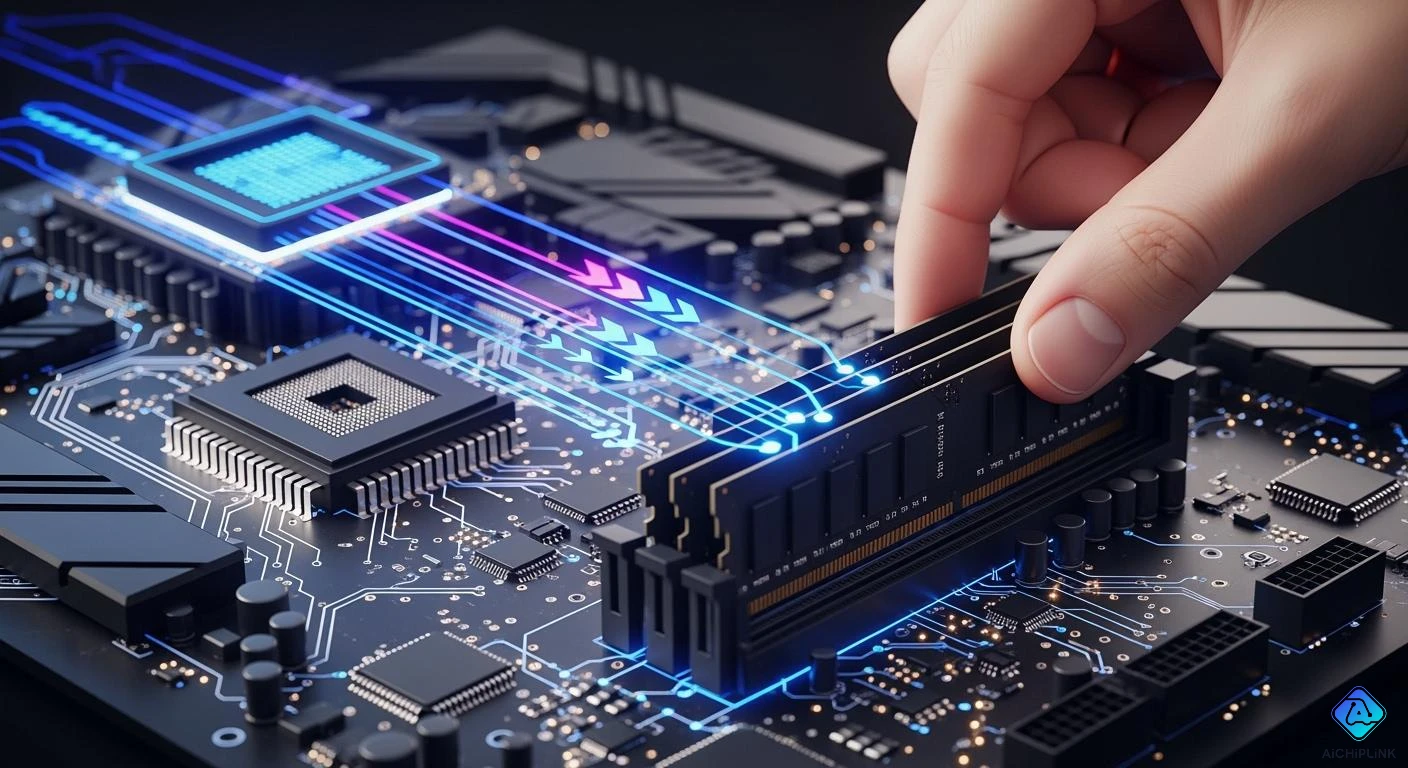
Random access memory lets you store and access information quickly while you use your computer. You depend on ram every time you open programs or switch between tasks. Think of ram as the top of your desk: you place papers and tools there to grab them fast, but when you finish, you clear the desk. Understanding ram helps you see why your computer works smoothly and why performance can drop when ram runs out.
Picture ram as your workspace. The more space you have, the more tasks you can handle at once.
Key Takeaways
-
RAM is your computer's short-term memory. It lets your computer get data fast while programs are running.
-
Having more RAM helps your computer do many things at once. It makes your computer faster and stops it from slowing down when you use many apps.
-
You should always save your work. RAM loses all its data when you turn off your computer.
-
Adding more RAM can make your computer work much better. This is very helpful for gaming and big tasks.
-
Knowing about RAM helps you choose upgrades and fix problems.
What is Random Access Memory
Definition and Volatility
You use random access memory when you open a file or run a program. This memory works like your computer’s short-term storage. It keeps the information your computer needs right now. The processor can get this data very fast. When you play a game, browse the web, or write a document, RAM holds the files and instructions. This helps your computer work quickly and without problems.
Random access memory is called volatile memory. It only keeps data while your computer is on. If you turn off your computer, RAM forgets everything it was holding. You need to save your work to a hard drive or other storage before shutting down. If you do not save, you will lose your work. This makes RAM different from ROM or flash storage. Those types keep data even when the power is off.
Tip: Save your work often. RAM cannot keep your files after you turn off your computer.
Here is a table to show how RAM is different from other memory types:
| Memory Type | Volatility | Characteristics |
|---|---|---|
| RAM | Volatile | Loses data when power is off, writable, stores data temporarily |
| ROM | Non-volatile | Retains data without power, stores permanent instructions |
| Flash Storage | Non-volatile | Retains data without power, slower than RAM, less expensive |
RAM vs. Computer Memory
People sometimes say "RAM" and "computer memory" like they mean the same thing. Most of the time, "computer memory" means RAM. RAM is the main memory in your computer. It holds the operating system, programs, and other data you are using right now. RAM is the main workspace for your computer’s processor.
Random access memory is special because it lets your computer get any data right away. Older memory types could not do this. With RAM, you can reach any memory cell in any order. This means your computer does not have to look through data one by one. You get fast and steady performance every time you use your device.
RAM is different from other memory types in speed and use:
-
RAM is much faster than hard drives or solid-state drives.
-
RAM gives the processor short-term data access.
-
Flash memory and RAM both use solid-state chips, but flash memory keeps data for a long time, while RAM only keeps it for a short time.
-
RAM helps your computer do many things at once and switch between programs quickly.
Here is a table to show how RAM helps your computer work better:
| Feature | Description |
|---|---|
| Temporary Storage | RAM holds active files and programs for fast access. |
| Volatile | Data is lost when the power is turned off, so you must save important files. |
| High Speed | RAM is much faster than other storage types, helping the CPU process data efficiently. |
You use random access memory every time you use your computer. RAM gives your device the speed and flexibility to do many things at once. When you know how RAM works, you can make better choices about upgrades or fixing problems.
How RAM Works
RAM Operation in Computers
You use ram every time you use your computer. Ram is the main memory for your device. It gives your processor a place to keep and get information fast. When you open a program or file, ram holds the data and instructions your computer needs right away. This storage is only for a short time. The CPU can grab information in nanoseconds. This is much faster than using a hard drive or solid-state drive.
Ram connects straight to the CPU. This helps your computer run programs quickly and process information fast. You see this when you switch between tasks or open many apps. Ram acts like a buffer. It keeps your computer from slowing down when you do many things at once.
-
Ram is a temporary space for storing data.
-
It lets the CPU get data and instructions quickly.
-
Ram works in nanoseconds, which is much faster than storage that works in milliseconds.
Note: Ram helps your computer run well by keeping important data close to the processor.
Memory Access and Speed
Random access memory lets your computer reach any memory cell right away. You do not have to wait for the system to look through each piece of data. This makes ram great for jobs that need fast reading and writing. When you play games, edit pictures, or surf the web, ram keeps everything ready for the CPU.
The speed of ram is very important for how your computer works. If you have enough ram, your computer can do many things at once and open apps quickly. If you do not have enough ram, your computer can slow down. It wastes time trying to manage not enough memory. Ram speed changes how well your CPU works and how fast your computer feels.
Here is a table showing how ram helps your computer work better:
| Feature | Benefit |
|---|---|
| Fast Read/Write | Quick access to data and instructions |
| Buffer for CPU | Helps processor work efficiently |
| Smooth Multitasking | Allows you to run many programs at once |
| High Speed | Makes your computer more responsive |
Tip: If your computer gets slow when you open many programs, you might need more ram.
Ram is volatile memory. This means it only keeps data while your computer is on. When you turn off your computer, ram loses all the information it was holding. If you forget to save your work, you lose anything not saved. Always save your files before you turn off or restart your computer.
-
Data in ram is volatile and goes away when power is off.
-
Unsaved work is lost if your computer shuts down by accident.
-
When the computer is off, ram does not keep any data.
Think of ram like your desk at school. You put books and papers on your desk to use them fast. When you finish, you clear your desk. If someone takes your desk away, you lose everything on it. Ram works the same way. It gives you space to work quickly, but you must save important things somewhere safe.
You need random access memory for speed, multitasking, and smooth use. Knowing how ram works helps you make smart choices about upgrades and fixing problems. If you want your computer to be faster and do more things, you need enough ram and good ram speed.
Types of RAM and DRAM
DRAM vs. SRAM
You will find two main types of ram in computers: dram and sram. Each type works in a different way and serves a special purpose. Dram stands for dynamic random access memory. Sram stands for static random access memory.
The main difference comes from how each stores data. Dram uses tiny capacitors to hold bits of information. These capacitors need constant refreshing to keep the data. Sram uses latches, which do not need refreshing. This makes sram faster than dram. You will see sram used in cache memory and cpu registers. Dram is the main memory in most computers because it costs less and stores more data.
Here is a table to help you compare dram and sram:
| Feature | SRAM | DRAM |
|---|---|---|
| Speed | Faster | Slower |
| Refresh | Does not require refreshing | Requires periodic refreshing |
| Architecture | Stores bits in bistable latches | Stores bits as charge in capacitors |
| Use Cases | Cache memory, CPU registers, embedded memory | Main memory due to higher density and lower cost per bit |
You use dram as your main system memory. Sram helps your cpu work faster by storing important data close to the processor. Static random access memory is best for speed. Dynamic random access memory is best for large storage.
Tip: If you want your computer to run smoothly, make sure you have enough dram.
You may also see ecc ram in servers and workstations. Ecc stands for error-correcting code. Ecc ram checks for errors and fixes them, which helps keep your data safe. Ecc ram is important for systems that need high reliability.
DDR Generations
Most modern computers use dram in the form of ddr ram. Ddr stands for double data rate. Each new generation of ddr ram brings faster speeds and better energy use. You will see ddr3, ddr4, and ddr5 in today’s computers. Ddr4 vs ddr5 ram is a common question when you upgrade your system.
Here is a table showing how ddr generations compare:
| DDR Generation | Data Rate (MT/s) | Transfer Rate (GB/s) | Voltage (V) |
|---|---|---|---|
| DDR | 100 - 166 | 0.8 - 1.3 | 3.3 |
| DDR2 | 266 - 400 | 2.1 - 3.2 | 2.5 - 2.6 |
| DDR3 | 533 - 800 | 4.2 - 6.4 | 1.8 |
| DDR4 | 1066 - 1600 | 8.5 - 14.9 | 1.35 - 1.5 |
| DDR5 | 3200 - 6400 | 38.4 - 51.2 | 1.1 |
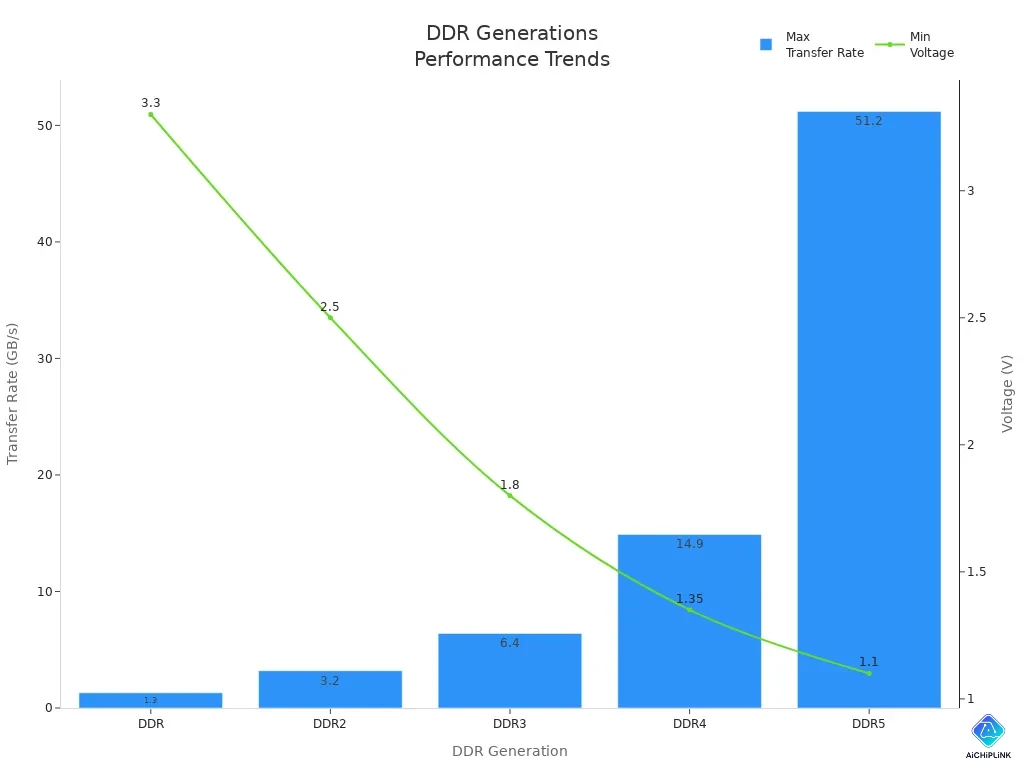
Each new ddr generation gives you higher speed and lower power use. Ddr5 ram is the fastest and most efficient. It works well for gaming, video editing, and other heavy tasks. You will find ecc ram options in ddr4 and ddr5 for extra data safety. When you choose memory chips, check if you need ecc ram for your work.
Note: More advanced ddr ram means better multitasking and faster performance for your computer.
RAM Performance and Capacity
Impact on Computer Speed
You need ram to help your computer stay fast. When you open many programs, ram gives the processor quick data. This helps you do more than one thing at a time. If you do not have enough ram, your computer gets slow. You might see lag when you switch apps or open files. Ram speed changes how fast your computer gets and uses data. Ram is much faster than regular storage. This lets your computer finish jobs quickly.
-
Ram helps your computer get data fast and do many things.
-
Not enough ram makes your computer slow with many apps.
-
More ram lets you use lots of programs without slowing down.
-
Ram speed changes how fast your computer works.
Note: Your computer works better when you have enough ram for what you do each day.
How Much Memory Do You Need
The right amount of ram depends on how you use your computer. If you just browse the web or use office apps, you need less ram. People who edit videos or play games need more ram. More ram helps web browsers and office programs work better. You get faster and smoother use when you do many things at once.
| User Type | Recommended RAM Capacity | Description |
|---|---|---|
| Casual Users | 16GB | Good for doing many things, playing games, and light video editing. |
| Gamers | 16GB | Enough for most games and gives a good experience. |
| Professionals | 32GB | Needed for hard jobs like video editing and 3D modeling. |
| Specialized Users | 64GB+ | Needed for big jobs like data science and 8K video editing. |
Check what your operating system needs for ram. The minimum is just enough to run, but more ram makes your computer work better. If you are not sure, start with 16GB for most things. Add more ram if you do heavy work.
Tip: Using dual channel memory can make your ram work faster than single channel.
Common RAM Misconceptions
Some people think empty ram is good, but that is not true. Ram works best when it holds data for quick use. Clearing ram can slow your computer because it must reload things. Some think you do not need more ram if it is never full. But programs often need a part of your total ram, not just a set amount. If you do not have enough ram for busy times, your computer can slow down.
-
Empty ram does not make your computer faster.
-
Programs need enough ram to work well.
-
Clearing ram can make programs load slower.
Alert: Knowing how ram works helps you avoid mistakes and keeps your computer running well.
You need random access memory for your computer to work its best. When you know about ram, you can make smart choices about upgrades and settings.
Upgrading and Troubleshooting RAM
How to Upgrade RAM
You can boost your computer’s performance by adding extra ram. Upgrading ram in a desktop is simple if you follow these steps:
-
Turn off your computer and unplug it from the wall.
-
Open the case and find the ram slots near the CPU.
-
Check your motherboard for the correct slot order, such as A1, B1, A2, B2.
-
Match the notch on the new ram stick with the slot’s notch. Make sure you use the right type, like DDR4 or DDR5.
-
Push the ram stick into the slot until you hear a click. The clips should snap into place.
-
Close the case, plug in your computer, and turn it on.
For laptops, you need to check a few things before adding extra ram. Use this table to help you:
| Compatibility Factor | Description |
|---|---|
| Motherboard Compatibility | Make sure the ram type matches your laptop’s motherboard. You cannot mix DDR4 and DDR5. |
| Processor Compatibility | Check if your processor supports the ram generation you want to use. |
| Speed Limitations | Look at the highest speed your motherboard allows, like DDR4: 1600-3200 MHz or DDR5: 4800-6400 MHz. |
Tip: Always check your laptop’s manual before you upgrade. This helps you avoid mistakes.
Troubleshooting Memory Issues
You may notice problems if your ram is not working right. Here are some common signs you should upgrade your ram or check for issues:
| RAM Problems | Symptoms |
|---|---|
| Slow system response | Insufficient ram capacity |
| App crashes | Incompatible modules |
| Freezing screens | Faulty ram sticks |
| Programs take long to open | Insufficient ram capacity |
| System freezes during multitasking | Insufficient ram capacity |
| Browser tabs reload frequently | Insufficient ram capacity |
| Fan noise increases under light use | Insufficient ram capacity |
If you see these problems, try these steps:
-
Reseat your ram sticks. Remove them and put them back in.
-
Run a memory test using built-in tools like Windows Memory Diagnostic.
-
Replace faulty ram sticks if errors appear.
-
Make sure all ram modules match in type and speed.
Alert: Upgrading ram can fix slowdowns, crashes, and freezing. If problems continue, check for hardware faults.
Adding extra ram is one of the best ways to improve your computer’s speed and multitasking. You can solve many issues by checking your memory and making sure you have enough for your needs.
You rely on random access memory every time you use your computer. RAM lets you open apps quickly and switch between tasks without delay. Many users report that RAM boosts performance by acting as a buffer and preventing slowdowns.
-
You get smooth multitasking and fast data access.
-
Your system avoids lag when enough RAM is available.
Remember these key points:
-
RAM stores data temporarily for quick use.
-
It helps your computer load programs faster.
-
More RAM means a better experience.
Check your RAM needs and upgrade if you want your computer to run its best.

Written by Jack Elliott from AIChipLink.
AIChipLink, one of the fastest-growing global independent electronic components distributors in the world, offers millions of products from thousands of manufacturers, and many of our in-stock parts is available to ship same day.
We mainly source and distribute integrated circuit (IC) products of brands such as Broadcom, Microchip, Texas Instruments, Infineon, NXP, Analog Devices, Qualcomm, Intel, etc., which are widely used in communication & network, telecom, industrial control, new energy and automotive electronics.
Empowered by AI, Linked to the Future. Get started on AIChipLink and submit your RFQ online today!
Frequently Asked Questions
What happens if you run out of RAM?
Your computer slows down when you run out of ram. Programs may freeze or close. You might see error messages. Adding more memory or closing unused apps can help your computer work better.
Can you mix different RAM sizes or speeds?
You can mix different sizes or speeds, but your computer will use the slowest speed. For best results, use matching sticks. This helps your system stay stable and fast.
How do you check how much RAM you have?
Open your computer’s settings. Look for “System” or “About.” You will see the total memory listed. You can also use tools like Task Manager on Windows or Activity Monitor on Mac.
Does more RAM make games run faster?
More memory helps games load faster and run smoother, especially if you play modern games. If you already have enough, adding more will not always boost speed.
Can you upgrade RAM in a laptop?
Many laptops let you upgrade memory. Check your laptop’s manual first. Some models have memory soldered to the board, so you cannot upgrade those.