Solid-State Drives vs Hard Drives What's the Difference
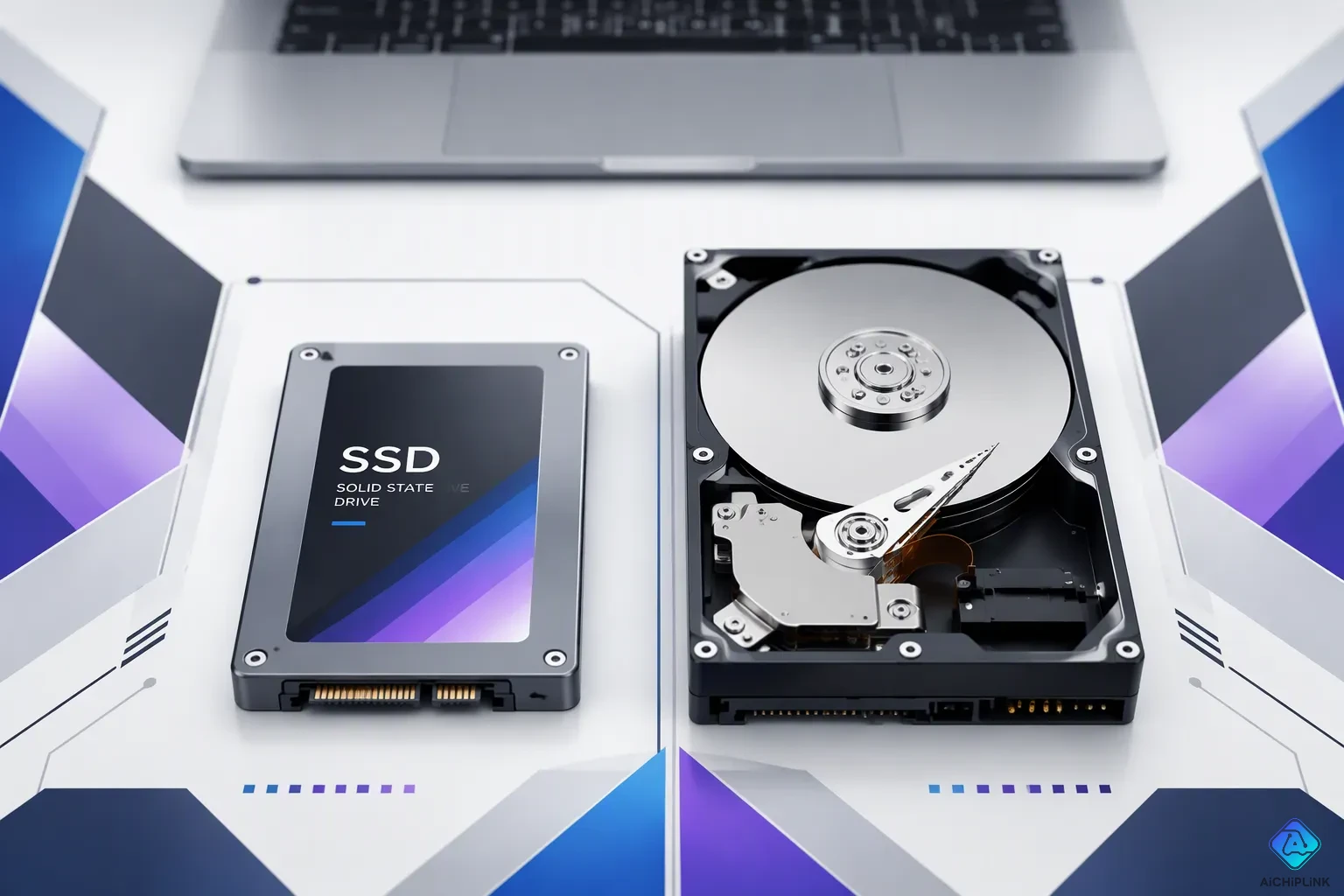
You hit the power button. Then you wait. And wait. That pause often comes down to one part: your computer storage device. A solid-state drive uses NAND flash memory and integrated circuits, while a hard disk drive spins magnetic platters under mechanical read/write heads. That is the heart of ssd vs. hdd.
The trade-offs are simple. Solid state drives run faster, quieter, and tougher, but they usually cost more. Hard drives give you more room for less money. In fact, notebook SSD attach rates hit 100% in 2024, so most new laptops now ship with flash storage.
Channel SSD shipments for 2024 reached 101 million units, despite a 14% year over year decrease.
Key Takeaways
-
SSDs use flash memory to work very fast and have no moving parts.
-
Hard drives give you a lot of space for a low price, but they are slower and can break easily.
-
SSDs start up in seconds, but HDDs take over a minute.
-
SSDs are tough, quiet, and use less power in laptops.
-
Use both drives together to get fast speed and cheap storage for large amounts of data.
How a Solid-State Drive (SSD) Works
Picture a row of labeled filing cabinets. You walk up, pull the drawer you need, and grab the folder inside. No searching, no shuffling. That is how a solid-state drive feels. A solid-state drive is a semiconductor-based storage device, which means it keeps your files on chips instead of spinning parts.
NAND Flash and Non-Volatile Storage
Inside every SSD sits NAND flash memory, a grid of tiny cells etched into silicon. Each cell traps electric charge inside a floating gate transistor. That trapped charge represents your data. Cut the power, and the charge stays put. This is why engineers call flash a non-volatile storage device. Your photos and documents survive a shutdown.
The charge is not permanent, though. Over months to years, it can slowly leak away. Lose enough charge, and the data fades. This is why flash memory works best when you power up your machine regularly.
Not all NAND flash memory technology is equal. Cells store different numbers of bits, and that changes endurance and speed.
| NAND Type | Bits per Cell | Endurance (P/E Cycles) | Speed |
|---|---|---|---|
| SLC | 1 | 50,000–100,000 | Fastest write operations |
| MLC | 2 | 3,000–10,000 | Slower than SLC |
| TLC | 3 | 1,000–3,000 | Slower write speed due to precise voltage levels |
| QLC | 4 | 100–1,000 | Very low write performance due to 16 voltage states |
No Moving Parts, No Waiting
Here is the part that changes everything. A solid state drive has no moving parts. Nothing spins. Nothing clicks. A nand flash memory chip simply responds to electrical signals, and data appears almost instantly.
Compare that to older technology. A SATA SSD already feels quick. An NVMe SSD plugs straight into your motherboard and moves data far faster. Flash-based SSDs and NVMe drives now power most modern laptops.
So when you open an app, the drive does not hunt for it. The nand flash memory cells just deliver it. That is the quiet magic of SSD storage.
How a Hard Drive (HDD) Works
Think of a record player. A disc spins at high speed, and a delicate arm glides across the surface to read the grooves. A hard disk drive works in a similar way, except it reads and writes your data instead of music.
Magnetic Platters and Read/Write Heads
Inside the sealed case, you find one or more shiny platters stacked on a central spindle. Each platter carries a thin magnetic coating. A tiny read/write head floats just above the surface on a cushion of air. The drive writes data by magnetizing tiny spots on the platter. Each spot points in a direction, and that direction represents a one or a zero.
The head never touches the platter during normal operation. The gap is smaller than a speck of dust, so a single particle can cause real damage. This is why manufacturers seal the whole assembly inside a rigid enclosure.
The Mechanical Bottleneck
Here is where the design slows down. The drive must physically move the head to the right spot before it can read anything. The arm swings across the platter, and the spindle waits for the correct sector to rotate underneath. Engineers call this latency, and it adds up fast.
You notice this delay when you open a large program. The drive clicks and whirs while the arm hunts for scattered pieces of the file. Fragmented data makes the search longer, because the head travels farther between reads. An SSD skips this whole process, since it has no arm and no spinning disc.
That mechanical dance also makes a hard drive fragile. A sudden bump can send the head crashing into the platter. Your storage survives the shock only if the drive parks the head in time.
SSD vs. HDD Performance
You feel the difference the moment you press the power button. A machine with a solid-state drive wakes up in seconds. A hard drive makes you wait through a long, grinding boot process. That gap shows up in everything you do.
Boot Times and File Transfers
Start with startup. An NVMe SSD boots Windows in 8 to 15 seconds. A 7200 RPM HDD takes 45 to 90 seconds. That is a massive gap. Real-world tests on older laptops show the same pattern. A 2012 Dell Latitude E6430 booted in 48 seconds on its HDD but just 14 seconds on a SATA SSD. A 2017 HP EliteBook went from 31 seconds on HDD to 11 seconds on SATA SSD and 9 seconds on NVMe.
For a modern 7200 RPM drive, sequential read/write speed ranges from about 80–160 MB/s today.
File transfers tell a similar story. Copying a large video file or a folder of photos feels painful on a hard drive. The same task on an SSD finishes in a fraction of the time. Here is how the speeds compare:
| Drive Type | Sequential Read Speed | Sequential Write Speed |
|---|---|---|
| 7200 RPM HDD | 80 MB/s | 160 MB/s |
| SATA SSD | 200 MB/s | 550 MB/s |
| NVMe m.2 SSD | 5000–7300 MB/s | 5000–6350 MB/s |
A standard sata ssd moves data roughly five times faster than a 7200 RPM HDD. An NVMe drive leaves both far behind.
Why SSDs Feel Faster
Raw speed is only part of the story. The real magic comes from how ssds handle small tasks. Your computer constantly reads and writes tiny chunks of data in the background. A hard drive struggles with this because its mechanical arm must physically move to find each piece. An SSD has no moving parts, so it responds almost instantly.
Look at random 4K read performance, which measures how well a drive handles those small requests. An HDD manages about 176 IOPS. An SSD hits 9,417 IOPS. That is over 53 times more. This difference explains why your browser opens faster, why apps launch without lag, and why multitasking feels smooth instead of sluggish.
Latency tells the same story. Latency is the delay between asking for data and getting it. Hard drives measure that delay in milliseconds because the platter must spin and the head must move. SSDs measure it in microseconds. That near-zero delay makes your entire system feel snappier. Background tasks no longer compete for a slow mechanical resource.
So when you compare ssd vs hdd in everyday use, the winner is clear. The ssd vs. hdd gap is not just about big file transfers. It is about every click, every app, and every moment you spend waiting. A solid-state drive removes that waiting. A hard drive makes you feel it.
Durability of Solid-State Drives
Shock Resistance and Lifespan
No moving parts makes a big difference. A solid state drive has no spinning platters or delicate heads. If you drop your laptop while it's on, an SSD handles that shock much better than a hard drive. The flash memory chips are soldered onto a circuit board. A bump or fall won't cause mechanical damage. Hard drives risk a head crash when jolted. That arm can scrape the platter and destroy your data.
What about lifespan? Many people worry an SSD wears out over time. NAND flash cells have a limited number of write cycles. Every save or delete uses a tiny piece of that lifespan. But modern solid-state drives handle this well. They spread writes evenly across all cells. This is called wear leveling. For everyday use, an SSD lasts many years. You'll upgrade your whole computer before the drive gives out. Both types of storage can fail. But SSDs remove the physical breakdown risk.
Noise and Power Use
Listen to your computer. A whirring or clicking sound probably means a hard drive. An SSD makes no noise at all. Those flash memory chips don't need mechanical parts. No platters spin, no arms move, no parts grind together. This silence helps you focus in a quiet room.
Power is another plus. SSDs use less electricity than hard drives. A typical solid-state drive draws about half the power of a 2.5-inch HDD during active use. When idle, the gap grows even wider. This matters most for laptops. Lower power consumption means longer battery life. You work longer without hunting for an outlet. Hard drives spin the platters even when idle. That drains the battery faster. So for portability and quiet operation, SSDs are the clear choice.
The Difference Between SSD and HDD in Cost and Capacity
Price Per Gigabyte
Price is where the trade-off gets real. You pay a premium for speed. A sata ssd costs about $0.045 per gigabyte in mid-2025. An NVMe drive runs higher at roughly $0.080 per gigabyte. That is 78% more for the faster interface. Hard drives still cost much less per gigabyte than either option.
But the gap has shrunk. The difference between ssd and hdd in terms of cost has narrowed over the years. NAND flash prices dropped. You get more ssd storage for your money now than you did a few years back. The sticker price still favors hard drives for raw capacity, though. If you need 10TB of space, a hard drive is far cheaper.
Here is a simple comparison that shows the main trade-offs:
| Feature | Hard Drive (HDD) | SSD |
|---|---|---|
| Speed | Slow (80-160 MB/s) | Fast (200-7300 MB/s) |
| Durability | Fragile, moving parts | Tough, no moving parts |
| Noise | Whirring and clicking | Silent |
| Power Use | Higher, drains battery | Lower, saves battery |
| Cost per GB | Very low | Higher but falling |
| Capacity | Up to 24TB or more | Up to 8TB or more |
The table shows the big picture. You trade speed and durability for cost and capacity when you pick a hard drive. You pay more for the snappy feel.
Storage Size Options
Storage options vary a lot between the two types. A typical 2.5-inch SATA drive tops out at 8TB. That is plenty for most people. You can store hundreds of games and thousands of photos. A 3.5-inch hard drive goes further. The largest consumer hard drive reaches 24TB or more. That is over three times the space of a typical solid-state drive.
But what about the difference between an ssd and an hdd in raw capacity? On the enterprise side, ssds win big. The Solidigm D5-P5336 hits 122TB. That is a specialized drive for data centers. But for home users, 24TB or more from a hard drive costs much less than any SSD at that size.
So for bulk storage, hard drives still win. You can get a single 24TB or more hard drive for a fraction of the cost. That makes them perfect for media servers and backup drives. You do not need fast speed for files you rarely access.
For most home users, the choice is simple. Use a fast drive for your operating system and main apps. Add a hard drive for extra storage if you need lots of room. The ssd vs. hdd decision comes down to your budget and your needs. Many computers come with both these days. You get speed where it matters and space where you need it.
The key point: ssds handle speed and everyday tasks best. They give you fast boot times and quick app launches. Hard drives give you the most room for your budget. Pick the right tool for each job.
Which Drive Is Right for You?
Best Uses for SSDs
Pick a solid-state drive when speed and portability matter most. You want your laptop to wake up fast, launch apps without lag, and survive the occasional bump in your bag. An SSD delivers all three. It also sips power. An SSD uses 2–3 watts, while an HDD uses 6–7 watts. That lower draw directly extends your battery life. If you carry your laptop between classes or coffee shops, this difference adds up over a full day.
Thin laptops need a drive that fits tight spaces. M.2 NVMe SSDs are recommended for thin laptops because of their small size and high performance. You get fast boot times and quick file access without adding bulk. Many models now ship with 512GB or 1TB SSDs, which gives you room for your operating system, apps, and a good chunk of personal files. For everyday work, school, and travel, an SSD is the clear pick.
Best Uses for HDDs
Choose a hard drive when you need lots of room for less money. A 24TB or more hard drive costs far less than any SSD at that size. That makes HDDs perfect for media servers, backup drives, and archives. You do not need blazing speed to store old photos, movies, or project files you rarely open. The drive just needs to hold them safely.
Backups are another strong fit. You can set up an external HDD and let it run in the background. Speed does not matter here. Capacity and cost do. So if you shoot lots of video or keep a large music library, an HDD gives you the space without draining your wallet.
Many users combine both drives in one system. You run your operating system and main apps on an SSD for speed. Then you add a hard drive for bulk storage. This setup gives you the best of both worlds. When you weigh ssd vs. hdd, you do not have to pick just one. You can have fast storage where it counts and cheap space where you need it.
The core difference comes down to moving parts. SSDs use flash memory for speed and toughness, while an HDD relies on spinning platters for cheap capacity.
Pick an SSD when you want fast boot times, silent operation, and a drive that survives drops. Choose an HDD when you need lots of room on a tight budget. Many people run both together. You get quick everyday performance and affordable bulk storage in one machine.
Either way, you now have the facts. Trust your needs, check your budget, and pick the drive that fits your life. You cannot go wrong with a choice this clear.

Written by Jack Elliott from AIChipLink.
AIChipLink, one of the fastest-growing global independent electronic components distributors in the world, offers millions of products from thousands of manufacturers, and many of our in-stock parts is available to ship same day.
We mainly source and distribute integrated circuit (IC) products of brands such as Broadcom, Microchip, Texas Instruments, Infineon, NXP, Analog Devices, Qualcomm, Intel, etc., which are widely used in communication & network, telecom, industrial control, new energy and automotive electronics.
Empowered by AI, Linked to the Future. Get started on AIChipLink and submit your RFQ online today!
Frequently Asked Questions
Which drive is faster, an SSD or an HDD?
An SSD wins every time. It reads data from flash memory chips with no moving parts. A hard drive must spin its platters and swing a mechanical arm to find your files. That physical search adds delay you feel every time you open an app.
Do SSDs wear out faster than hard drives?
Not in everyday use. Flash cells have a limited number of write cycles, but modern ssds spread those writes evenly across all cells. You will likely replace your whole computer before the drive gives out. Hard drives can fail too, often from physical shock.
Can I use an SSD and an HDD in the same computer?
Yes, and many people do. Run your operating system and main apps on the SSD for speed. Keep the HDD for bulk storage like photos, videos, and backups. This setup gives you fast everyday performance and plenty of cheap space in one machine.
Which drive should I buy for a laptop?
Pick an SSD for a laptop. It survives drops better, runs silently, and uses less power, so your battery lasts longer. Thin laptops need the small M.2 form factor anyway. Choose an HDD only if you need massive capacity and portability does not matter.