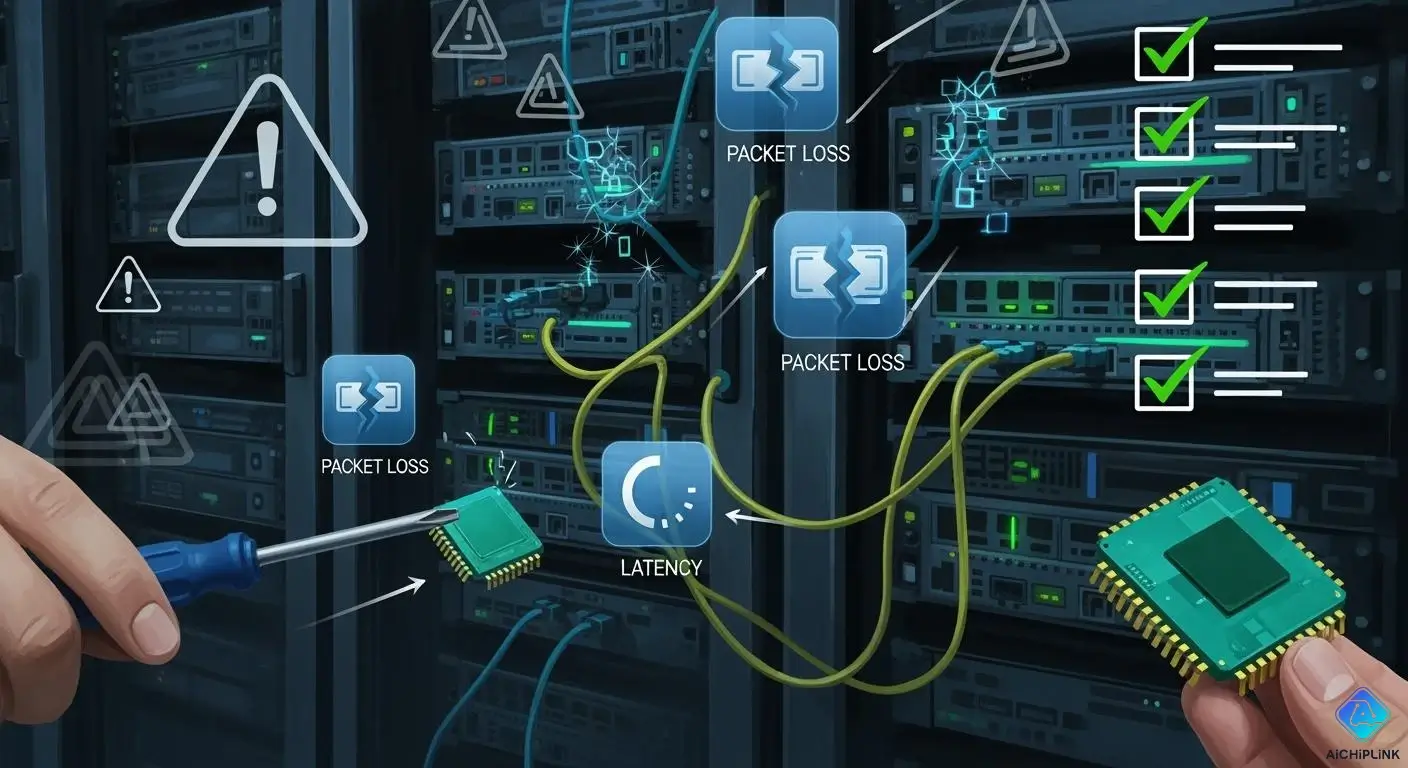
You need your server to help your business work well. If you have Packet Loss or latency, you get more than just tech problems.
Server NIC failures can cause big money loss and less work done for companies. When servers stop working, you can lose sales. You may pay more to fix things. You might get fines for breaking SLAs. Customers may trust you less. Workers may not do their jobs as well.
Even short outages can mean lost sales and more costs. Customers can get upset. You should find and fix these problems fast. Always check hardware and software to keep your network interface cards working.
Key Takeaways
-
Check your NIC drivers often and update them. This helps stop network slowdowns. It also makes things work better.
-
Watch your network for packet loss. Look for slow data transfer and dropped connections. Fix problems fast when you see them.
-
Use wired connections instead of Wi-Fi. This lowers packet loss. It also makes your network more reliable.
-
Take care of your NICs often. Clean them and check the cables. This helps your server work well.
-
Think about getting new NIC hardware. Do this if you have many failures or slow speeds. It can make your server work better.
Server NIC Basics
What Is a NIC?
A network interface card helps your server talk to other devices. The NIC is like a bridge between your server and the network. It sends and gets data. This helps information move fast and safely. Here are the main things a NIC does:
| Function | Description |
|---|---|
| Data Transmission | Gets data ready, sends it, and receives packets. This helps communication work well. |
| Data Reception | Ignores packets you do not need. It also helps with busy networks by using buffering. |
| Signal Conversion | Changes digital data into signals. These can be electrical, optical, or radio signals. |
| Protocol Handling | Works at the data link layer. It helps with frame formatting, finding errors, and controlling flow. |
| Device Identification | Uses a special MAC address to show which device it is. It also works with IP addresses for routing. |
NICs and Server Performance
Your NIC helps your server run well. The kind of NIC you pick can change how your server handles data. Some NICs use the server’s CPU for network jobs. This can slow things down if you move lots of data. Other NICs, like TOE or RDMA, do more work by themselves. These NICs help your server go faster and have less delay. Here is a table to compare NIC types and how they affect performance:
| NIC Type | Impact on Performance | Benefits |
|---|---|---|
| Standard NICs | Uses the CPU for network and storage jobs. This can hurt performance. | Can make the CPU work harder and cause slowdowns. |
| TOE NICs | Moves TCP/IP jobs to the NIC hardware. This makes things work better. | Makes the CPU do less, so TCP-based storage works faster. |
| RDMA NICs | Lets memory be used directly. It skips the CPU for moving data, so there is less delay. | Great for apps that need high performance and lots of data. |
Importance of NIC Health
A healthy NIC helps your server avoid problems. If your NIC is not working well, you may lose network connections. Data may move slowly. Sometimes, the network can stop working completely. These problems can make your server stop and hurt your business. Watch for these signs and fix them fast. Checking your NIC often helps keep your server safe from downtime.
| Symptoms of Poor NIC Health |
|---|
| Losing network connections |
| Data moves slowly |
| Network stops working |
Tip: You can stop many problems by updating drivers and checking cables often. A good NIC helps your server stay strong and keeps your network working well.
Packet Loss Issues
What Is Packet Loss?
Packet loss happens when one or more data packets do not reach their destination as they travel across a network. You may see this in both wired and wireless environments. Packet loss can cause delays and lower the quality of services like voice and video. When you send data, each packet must reach the other side. If some packets do not arrive, your connection can slow down or break. This problem is a key reason for network issues in many systems.
Causes of Packet Loss
You can face packet loss for many reasons. Some causes come from hardware, while others come from software or the environment. Here are the most common reasons:
-
Network congestion: When too many devices use the network, switches and routers can drop packets.
-
Faulty hardware: A failing network interface card, broken switch, or bad optical transceiver can cause packet loss.
-
Fiber cable issues: Dirty or damaged fiber connectors or cables bent too tightly can lead to packet loss.
-
Software bugs: Problems in network operating systems or firmware can drop packets.
-
Defective hardware: Old Ethernet cables or a failing network interface can cause packet loss.
Note: Packet loss can happen in any part of your network. You should check both hardware and software when you see this problem.
Detecting Packet Loss
Detecting packet loss is important for keeping your connection strong. You can use several tools to find where packets go missing. The most common tool is ping. When you use ping, you send small packets to another device and wait for a reply. If some packets do not come back, you have packet loss. You can also use traceroute to see where packets get lost along the path.
Other tools help you see more details:
-
Ping: Sends packets and checks if they return.
-
Traceroute: Shows each step your packets take and where they might get lost.
-
Obkio Network Performance Monitoring: Tracks packet loss over time and keeps records.
-
Wireshark: Captures and analyzes packets for deep checks.
-
PingPlotter: Turns traceroute data into easy-to-read graphs, showing packet loss and latency over time.
For basic testing, start with ping or traceroute. For ongoing checks, use tools like Obkio or SolarWinds NPM. If you need advanced help, Wireshark or iPerf can show you more. Online packet loss tests can give you a quick answer.
Tip: PingPlotter gives you a clear picture of your connection. It helps you spot where packet loss happens, making it easier to fix network issues.
Effects on Servers
Packet loss can hurt your server and the way users experience your services. Even a small amount of packet loss can cause big problems. For example, just 1% packet loss can lower your data speed by over 70%. This means your server may not send or receive data fast enough. You may see slow web pages, poor call quality, or buffering in videos. Real-time apps like voice calls or video chats can break up or drop calls. Cloud apps may feel slow or not work at all.
Here are some ways packet loss affects your server:
-
Slower data transfer
-
Poor voice and video quality
-
Buffering in streaming
-
Slow or failed web page loads
-
Dropped connections in cloud apps
Callout: High packet loss can make your connection unreliable. Users may get frustrated and stop using your service.
Fixes for Packet Loss
You can fix packet loss by following a few steps. Start with simple checks and move to more advanced fixes if needed.
-
Power cycle your devices. Turn off your server, switches, and routers, then turn them back on.
-
Switch to a wired Ethernet connection if you use Wi-Fi. Wired connections have less packet loss.
-
Change ports or cables. Try a different network port or replace old cables.
-
Update your network drivers and firmware. New software can fix bugs that cause packet loss.
-
Optimize your network settings. Adjust MTU (Maximum Transmission Unit) to help packets move better.
-
Use monitoring tools. Tools like ping, PingPlotter, or Obkio help you track packet loss over time.
-
Check logs for errors. Your server may show NIC errors in system logs.
-
Try a different NIC. If you still see packet loss, your network card may be bad.
-
Clean or replace fiber connectors if you use fiber cables.
-
Upgrade hardware if needed. Old or failing hardware can cause ongoing packet loss.
You can also use software solutions to help manage packet loss. Some tools can simulate real-world conditions and optimize your connection. These tools can help you avoid costly hardware upgrades. Still, if your hardware is old or broken, you may need to replace it.
Tip: Fixing packet loss early can save you time and money. Regular checks and updates keep your connection healthy.
Latency Problems
What Is Latency?
Latency happens when your server is slow to answer. It is the delay in a system. In networking, latency means how long data takes to move. You measure latency in milliseconds. Lower latency means things work faster. High latency makes your server slow and causes problems.
-
Latency is how long something is delayed.
-
Network latency is the time data needs to travel.
-
High latency makes things slow. Low latency makes things fast.
-
Latency is measured in milliseconds. It is the time between sending and getting data.
Causes of Latency
Many things can make latency worse. You may see delays because:
-
Too many people use the network.
-
Cables or connectors are broken.
-
NIC drivers are old.
-
Server hardware is not good.
-
Devices are far apart.
-
Wireless signals cause problems.
-
Game servers have too much traffic.
Identifying Latency Issues
You can find latency problems by checking how fast your server responds. If users say things are slow or laggy, latency may be the cause. Use tools to watch latency and other numbers. The table shows what to check:
| Metric | Importance |
|---|---|
| Latency | Keep response times low for good performance. |
| Throughput | Make sure you have enough bandwidth. |
| Error Rates | Watch for problems with data and sending. |
Impact on Server Performance
Latency can make your server work badly. You may see slow answers, less data speed, and unhappy users. Game players may see lag. Streaming may buffer a lot. The table shows how latency hurts your server:
| Impact Type | Description |
|---|---|
| Slow Response Time | High latency makes apps slow. Users get frustrated, especially with games or video calls. |
| Reduced Throughput | More latency means slower data speed. This is bad for apps that use lots of data. |
| Poor User Experience | High latency causes lag. Users do not like delays. |
| Increased Buffering | Streaming videos buffer more with high latency. Quality goes down and users get upset. |
| Lower Efficiency | Latency slows down data transfers. The network cannot handle lots of traffic well. |
| Impaired Cloud Services | High latency makes cloud apps slow. This can hurt business and make work harder. |
Reducing Latency
You can make latency better by changing your server and network. Try these steps:
-
Set BIOS to High Performance. Turn off C-states.
-
Set your system power to High Performance.
-
Turn on static offloads like UDP and TCP Checksums.
-
Turn on RSS for more traffic streams.
-
Turn off Interrupt Moderation for lowest latency.
-
Set CPU affinity for network adapter interrupts.
-
Turn on Jumbo Frames to make packets bigger and lower latency.
-
Turn off Energy Efficient Ethernet (EEE) to stop slow power states.
-
Turn off Interrupt Moderation to make network interrupts faster.
Tip: Update your NIC drivers often and check cables. This helps your game server work better.
NIC Driver Issues
Role of NIC Drivers
NIC drivers let your computer talk to the network card. You need drivers to send and get data. The driver is a link between software and hardware. When you start your server, the driver loads into memory. It stays there while your server is on. This lets programs use the network card through the operating system.
-
NIC drivers connect the operating system to the NIC hardware.
-
The driver stays in memory while your server runs.
-
Programs reach the NIC by using the operating system and its driver.
Tip: If you do not have the right driver, your network card will not work. Always make sure you have the correct driver for your hardware.
Common Driver Problems
NIC drivers can have problems on your server. These issues can slow down your network or stop it from working.
-
Old drivers can cause your server to have problems.
-
System logs may show errors like driver failures or packet drops.
-
Speed and duplex settings may not match between your NIC and the switch. This can cause connection problems.
Note: Always check your driver version and settings if you see network problems.
Diagnosing Driver Issues
You can use tools to find NIC driver problems. The table below shows some ways to check:
| Diagnostic Method | Platform | Description |
|---|---|---|
| ethtool | Linux | Shows NIC statistics, driver info, and link status. High errors may mean NIC problems. |
| PowerShell cmdlets | Windows | Get-NetAdapter and Get-NetAdapterStatistics show link status and adapter health. |
| dmesg / journalctl | Linux | Check for system alerts about NIC behavior. |
| Event Viewer | Windows | Look for logs about driver crashes or hardware problems. |
Use these tools to check for errors or crashes with your NIC driver.
Effects of Outdated Drivers
Old drivers can make your server’s network slow. You may see dropped connections or lose your network. Outdated drivers may not work well with new systems or hardware. This can make your server less reliable and cause downtime.
Updating or Reinstalling Drivers
You can fix many NIC problems by updating or reinstalling the driver. Get the newest driver from the hardware maker’s website. Remove the old driver before you install the new one. Restart your server after you update. This helps your network card work better and keeps your server running well.
Callout: Updating drivers often helps stop network problems and keeps your server safe.
Troubleshooting & Prevention
Troubleshooting Checklist
You need a simple checklist to keep your NICs working. This helps you find problems before they get worse. Use the table to match NIC issues with their signs.
| NIC Issue | Symptoms |
|---|---|
| Hardware failure | Total loss of network connection |
| Outdated drivers | Slow data speeds |
| Incorrect configuration | Connection drops sometimes |
Check each thing on this list if you have network trouble. You can fix many problems by updating drivers, checking cables, and matching your settings to your hardware.
Monitoring Tools
You should use monitoring tools to watch your NICs all the time. These tools help you find slowdowns early. You can stop outages by finding hardware problems or wrong settings before your server stops. Watching your NICs also helps you find cyber threats before they hurt your network.
-
Find slowdowns early and stop outages.
-
Spot hardware problems before they stop your work.
-
Catch cyber threats and keep your network safe.
When to Upgrade Hardware
You should think about getting new NIC hardware if you see many failures or slow speeds. If your NIC cannot handle your data, a new card can help. Old hardware may not work with new software or security tools. Upgrading helps your server stay fast and reliable.
Tip: Get a new NIC if you see lots of dropped connections or slow data speeds.
Preventive Maintenance
Regular care keeps your NICs working well. Clean dust from vents and check cables for damage. Install updates to keep your network safe and fast. Automate backups and security scans to lower mistakes. Make a backup and recovery plan to protect your data.
| Maintenance Routine | Description |
|---|---|
| Regular Cleaning | Remove dust from vents and check cables for damage. |
| Software Updates | Install updates to make things work better and safer. |
| Automation of Tasks | Automate backups and security scans to lower errors. |
| Backup and Recovery Strategy | Use onsite and offsite backups to keep your data safe. |
Note: A checklist helps you remember these steps. Check it often to keep your NICs working well.
Fixing NIC issues fast helps your server stay stable. If you watch your server often, you can find problems early. Quick fixes stop your network from going down. Doing regular checks keeps your network safe and saves money. New NICs, like SmartNICs, make your server work better and safer. Quantum-safe encryption protects your data from new dangers. Use the checklist to find problems before they get worse. This helps your system keep running well.
| Benefit | Description |
|---|---|
| Improved System Management | You can spot problems before your network slows down. |
| Increased Reliability | You have less downtime and your business stays strong. |
| Enhanced Security | You stop threats and keep your data safe. |
| Cost Savings | You do not have to pay for big repairs or lose money. |
| Customer Satisfaction | Your customers trust you because your IT works well. |
| Advancement | Description |
|---|---|
| SmartNIC/DPU Adoption | NICs do more jobs, so systems are faster and more reliable. |
| Quantum-Safe Encryption | New ways to protect data keep it safe from future attacks. |
| Energy-Efficient Solutions | NICs use less power but still work well. |
Tip: Learn about new hardware and best ways to use it. This helps your network stay strong.

Written by Jack Elliott from AIChipLink.
AIChipLink, one of the fastest-growing global independent electronic components distributors in the world, offers millions of products from thousands of manufacturers, and many of our in-stock parts is available to ship same day.
We mainly source and distribute integrated circuit (IC) products of brands such as Broadcom, Microchip, Texas Instruments, Infineon, NXP, Analog Devices, Qualcomm, Intel, etc., which are widely used in communication & network, telecom, industrial control, new energy and automotive electronics.
Empowered by AI, Linked to the Future. Get started on AIChipLink.com and submit your RFQ online today!


