Building a Magnetic Field Visualizer Using a Hall Effect Sensor, OLED Display, and Arduino
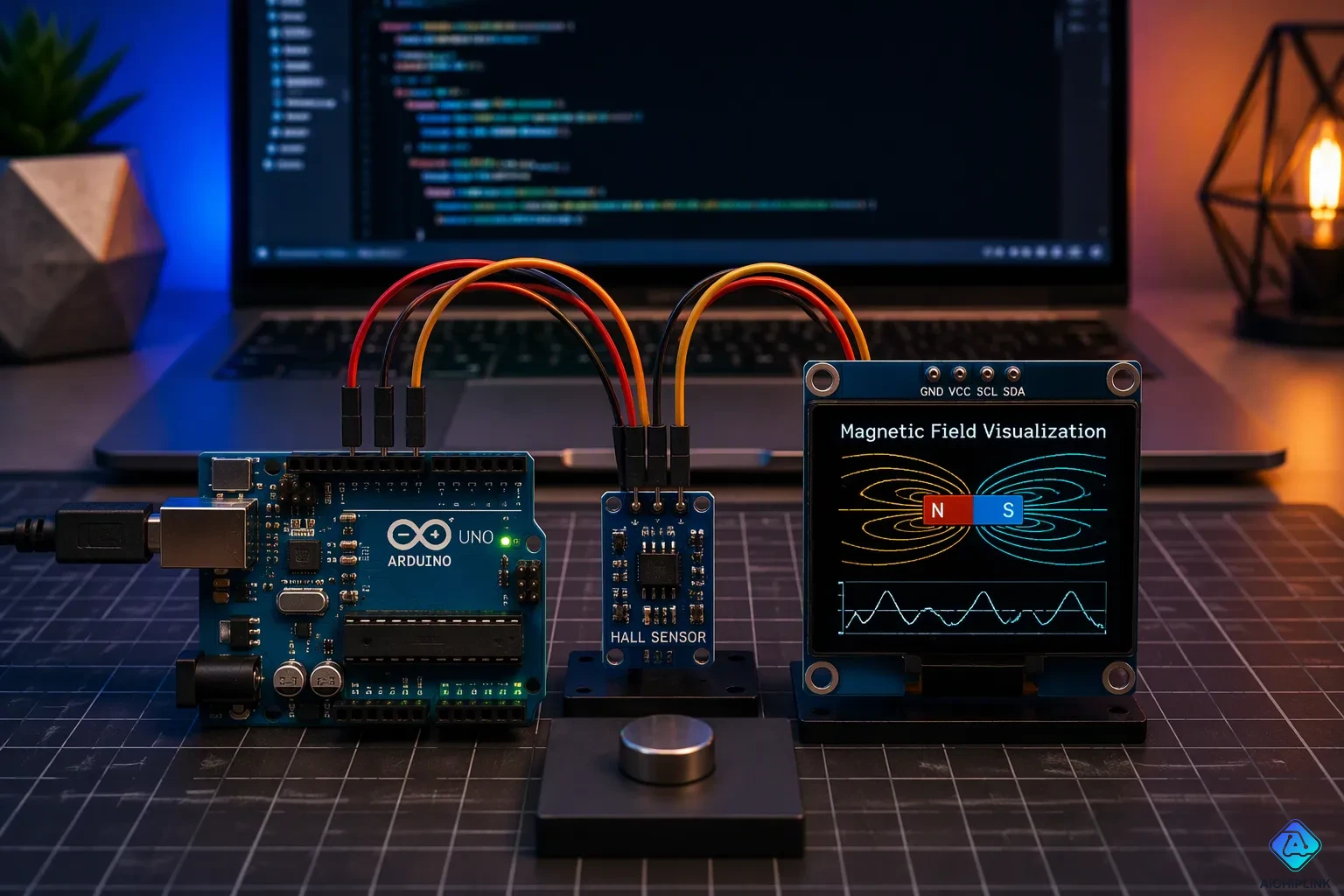
Magnets hide their power well. You can hold one against a fridge door, wave it past a speaker, or spin a small motor, yet the invisible force at work stays out of sight. This project changes that. With three affordable parts, you turn those unseen forces into a live magnetic field visualizer.
You will build a working device that reads magnetic field strength and shows it on a small screen in real time. An analog sensor feeds data to an arduino, and the display updates as a magnet moves closer or farther away. The build suits complete beginners. You need no advanced tools, just basic wiring skills and a curious mind about magnetic fields.
Key Takeaways
-
Use an analog Hall effect sensor to show how strong a magnetic field is in a smooth way.
-
Connect the sensor and display carefully so they do not get damaged.
-
Get the sensor's reading and turn it into a visual display, such as a bar graph.
-
Calibrate the sensor when it starts up to get accurate readings.
-
Try different magnets and placements to explore magnetic fields.
Parts for Your Magnetic Field Visualizer
Core Components and Quantities
You need three main parts for this magnetic field visualizer. First, get one A1302 analog hall effect sensor. Second, add one SSD1306 oled display, which is a small screen about an inch wide. Third, set aside one arduino uno board. That is the full list.
The A1302 is an analog hall effect sensor with a sensitivity of 1.3 mV/G. Its output is a linear voltage that goes up and down with magnetic flux density. This proportional response is just what a visualizer needs. A digital hall effect sensor only turns on or off at a set point, so it cannot show a field getting stronger. The analog sensor reports every step in between, which lets your arduino draw a smooth gauge instead of a blinking light.
| Component | Quantity | Key Spec |
|---|---|---|
| A1302 hall effect sensor | 1 | 1.3 mV/G sensitivity, linear analog output |
| SSD1306 oled module | 1 | I²C interface, 128x64 pixels |
| Arduino uno | 1 | 5V supply, analog input pins |
Optional Tools and Extras
A few extras make the build easier. Add a breadboard and a set of jumper wires so you can move connections without soldering. Keep a small magnet nearby for testing. A digital multimeter helps you check the 5V supply before you power the sensor.
Hall effect sensors are easy to work with, but good habits pay off. Check every wire twice. Label the oled ssd1306 pins if the markings are hard to see. These small steps save time later.
Wiring the Hall Effect Sensor to the Arduino
Pin Connections Table
A clean wiring plan keeps your hall effect arduino circuit simple. The A1302 has three pins: VIN (Pin 1), GND (Pin 2), and VOUT (Pin 3). Pin 1 accepts a positive DC voltage between 4.4 and 6 volts. Pin 2 goes to ground. Pin 3 releases an analog voltage that tracks magnetic field density. The table below maps every connection for the sensor and the ssd1306 oled display to the arduino uno.
| Component Pin | Arduino Uno Pin | Purpose |
|---|---|---|
| A1302 VIN (Pin 1) | 5V | Power supply |
| A1302 GND (Pin 2) | GND | Common ground |
| A1302 VOUT (Pin 3) | A0 | Analog output signal |
| OLED VCC | 5V | Power supply |
| OLED GND | GND | Common ground |
| OLED SDA | A4 | I2C data line |
| OLED SCL | A5 | I2C clock line |
The A1302 draws 11 mA at its 5 V operating supply, so the arduino uno handles it without trouble. On the Uno, SDA sits on A4 and SCL sits on A5. Those two pins stop working as analog inputs once the oled display connects. Plan your other analog needs around that limit.
Power and Ground Checks
Good wiring / connections start with the power off. Unplug the arduino from every power source before you touch a wire. Connect the board's GND pin to one breadboard ground rail, then link both ground rails together. Follow the table above for each lead.
Before you apply power, walk through a short checklist. Confirm that 5V never touches GND. Check that every ground in the project shares one common ground system. Tug each jumper wire to test for a loose fit. These hall effect sensors are sturdy, but reverse polarity destroys a device without protection in an instant.
Always do wiring with the power off. A swapped 5V and GND pair can burn the board or the sensor.
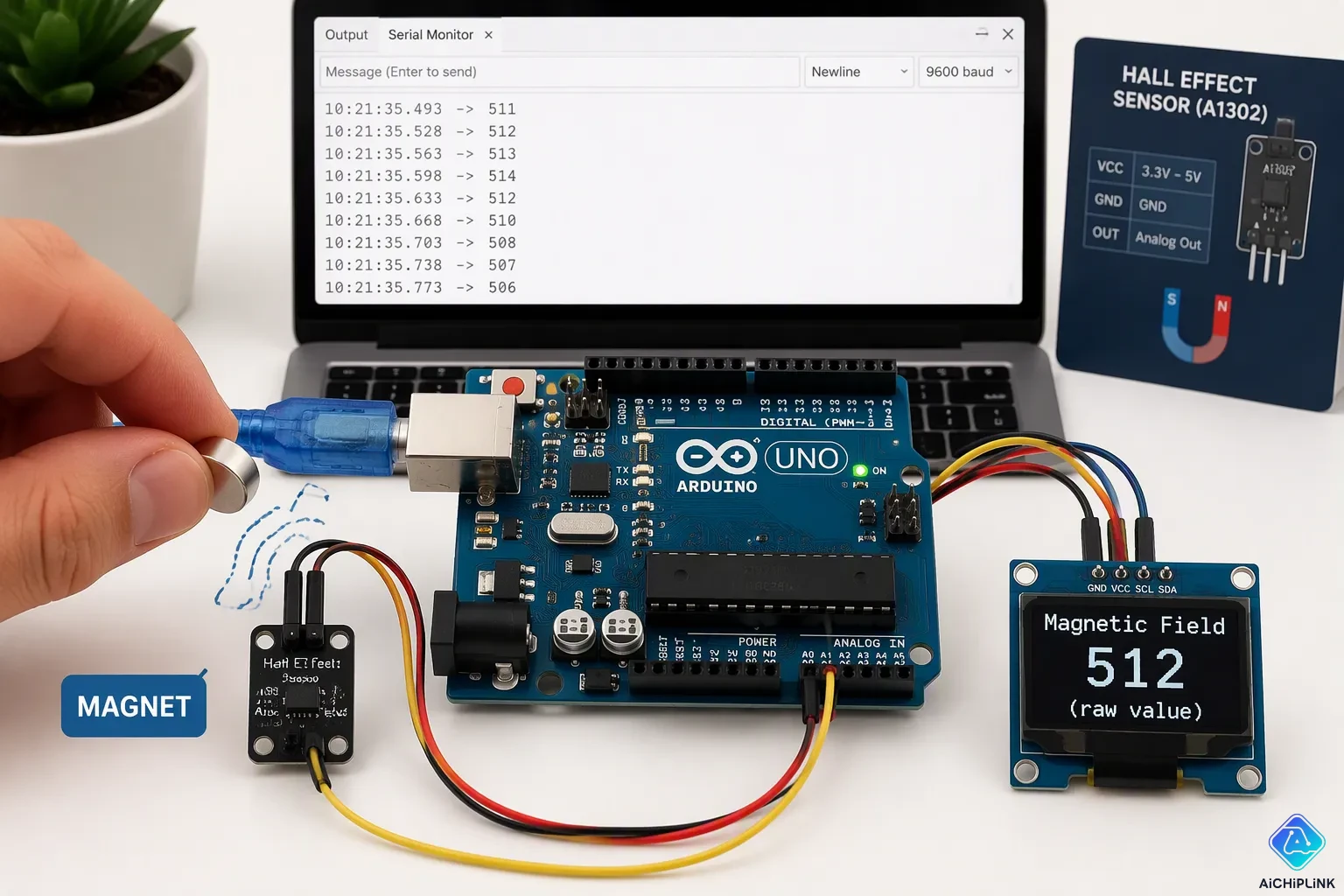
Once the checks pass, connect the arduino uno to your computer with a USB Type A to Type B cable. Upload a simple sketch that calls analogRead on the output pin and prints raw values to the serial monitor. Set Serial.begin(9600) and add a short delay between readings. Watch the numbers change as you bring a magnet near the sensor. A steady baseline reading confirms that your hall effect sensor and display both have clean power. If the numbers jump or the screen stays dark, recheck the ground rail first. Most faults in this build trace back to a single loose or misplaced ground lead.
Code for Reading and Displaying the Magnetic Field
Reading the Sensor Value
The analogRead function is the heart of this magnetic field visualizer. It uses the Arduino uno's built-in Analog-to-Digital Converter. The hardware samples the voltage on pin A0 and compares it against a 5V reference. The ADC compares the input against VREF, which is typically 5V on the UNO. A 10-bit converter divides that range into 1024 levels, so the function returns an integer from 0 to 1023. Each step equals about 4.88 mV. The conversion follows a simple rule: ADC value = (Vin / VREF) x 1023. A reading of 2.5V returns roughly 512. One sample takes about 100 microseconds on the Arduino uno.
Start your sketch by calling analogRead(A0) and storing the result in an integer. Print that number to the Serial Monitor with Serial.println(). Add a short delay of 1000 ms between readings. Upload the sketch and watch the values change as a magnet approaches. Open the Serial Monitor and observe the numbers update. This step confirms your hall effect arduino circuit works before you add graphics. The sensor sends a clean analog output that your Arduino reads without trouble.
The raw number tracks magnetic flux density in a linear way. The A1302 hall effect sensor outputs 1.3 mV per gauss, so a stronger field pushes the voltage up or down from the baseline. The sign of the change reveals magnetic field polarity. A positive shift means one pole faces the device; a negative shift means the other. This behavior makes hall effect sensors useful for detecting magnetic field direction as well as strength. These hall effect sensors respond to both poles, and the hall effect response stays predictable across the range. Most hall effect sensors need a stable supply. A steady baseline with no magnet nearby gives you a reference point. A second sensor reading confirms the display updates in real time. The magnetic field near a small magnet changes fast. Your Arduino sketch handles the math.
Drawing Output on the OLED
The oled ssd1306 module needs a library to draw shapes. The SSD1306 OLED Display Library by Saurav Sajeev offers a lightweight option with progress bars, gauges, and custom fonts. It supports 128x64 and 128x32 panels over I2C. The library is open source under the MIT license. You can also use Adafruit_SSD1306 with helper functions like drawBar and drawGauge.
The map function translates raw ADC values into pixel dimensions. The map function is the core mechanism that turns raw numbers into visual size. For a bar graph, map the reading from 0-1023 to 0-100, then call drawBar(display, 0, 50, 128, 10, value, 100). The bar fills as the magnet moves closer. A needle meter works the same way: drawGauge maps the value to an angle between 180 and 0 degrees.
Build the whole frame in the buffer first. Clear the screen, draw every element, then push the buffer with one call. Never push after each line, because that causes flicker. Gate redraws with a timer: if (millis() - last >= 100) { redraw(); }. One I2C transfer at the end of the frame is the rule. This keeps the oled display smooth and responsive.
Calibrating Your Hall Effect Sensors
Setting a Baseline
Every hall effect sensors build needs a starting point. At startup, measure the resting value with no magnet nearby. Average 50 samples and store the result as your baseline. The analog output of the A1302 sits near 512 at rest, because that is half of 5V on a 10-bit converter. Your own reading may land near 480 or 540. Part-to-part and supply variation explain that offset, so record your own number instead of trusting 512.
Average 50 samples with no magnet nearby, store the result as the baseline, then compute field as reading minus baseline. The value reads 0 at rest and swings positive or negative with magnet polarity.
Follow a short startup sequence to calibrate sensor baseline values. Define the sensor pin, then open serial communication at 9600 baud. Initialize the oled and show a "Calibrating..." message. Add up 100 readings with a short delay between each one, then divide the total by 100. Print the result and pause briefly. In the main loop, subtract the stored value from each new reading. A reading stuck near 1023 or 0 that never moves points to a wiring fault, not a real field.
Scaling and Reading the Output
Raw numbers mean little on a screen. Scale the baseline-relative value so the display responds clearly as a magnet approaches. Map the delta across the full width of your bar or gauge. Test with a magnet at several distances and adjust the range until the bar fills before the magnet touches the sensor.
The analog hall effect sensor reports applied magnetic flux density in a linear way, so the delta tracks field strength directly. Hall sensors on a 3.3V board behave differently. On an ESP32, power the module from 3.3V and use an ADC1 pin, where the 12-bit converter places the no-magnet baseline near 2048. The arduino uno keeps the simpler 512 reference. Either way, the sensor baseline you record at startup anchors every later reading. Run the calibration again whenever you move the build or change the supply.
Applications and Next Steps
Project Ideas to Try
Your magnetic field visualizer becomes a tool for exploring once it works. Try these experiments and compare what you see:
-
Draw or sketch the field patterns from different magnet setups, then compare them to see how moving magnets changes the overall field shape.
-
Test different magnet shapes, like bar, horseshoe, and round ones, to see how the field pattern changes with shape.
-
Put two bar magnets close together and watch how field lines show attraction (north-to-south) versus repulsion (north-to-north or south-to-south).
Each experiment teaches you something new about magnetic flux density. You can also build a three-sensor magnetometer. Place three hall effect sensors at right angles along the x-, y-, and z-axes to detect the three-dimensional parts of a field. This vector detection has tradeoffs: it needs three separate power sources and a three-dimensional layout. Plan for those limits before you start.
Upgrades for Better Sensitivity
You can take your build further with a few hardware changes. The table below lists upgrades and their effects.
| Upgrade | Effect on Sensitivity/Resolution |
|---|---|
| Replace silicon Hall elements with gallium arsenide (GaAs) Hall elements | GaAs elements are over 8x more sensitive than silicon and offer better temperature performance, ideal for linear sensing |
| Use unpackaged Hall elements instead of packaged ones | Removes enclosure constraints, enabling inter-element spacing down to hundreds of micrometers (vs. millimeter range) |
| Add a programmable linear gain amplifier | Preset gain ensures rapid response in high-bandwidth scenarios |
| Apply interpolation scanning via electric rails | Reduces pixel center distance to 0.6 mm, doubling resolution |
| Optimize or minimize measurement distance | Keeps the sensor probe close to the object; excessive or inconsistent gaps lose magnetic field data and add errors |
Start with the simplest fix: keep the sensor close to the magnet. Then add more magnetic sensors or log readings over time to spot small changes. A second sensor on your arduino uno gives you a point to compare against. Logging data to an SD card or serial port lets your arduino track trends across a session. These steps turn a single reading into a richer picture of the field around you.
You now have a working magnetic field visualizer. Bring a magnet near the sensor, and the bar graph fills left or right to show North or South polarity. The three-part setup is a reusable platform. Swap in new hall effect sensors or change the code, and you have a fresh sensing project.
Try different magnets, positions, and display styles. Watch how the bar responds as you move a magnet closer. Share your results with other makers, or iterate on the design. Your arduino build can grow into a digital compass, a magnetic proximity switch, or a rotational sensing system for motors. The oled display makes every reading easy to see, and hall effect sensors keep the build simple.

Written by Jack Elliott from AIChipLink.
AIChipLink, one of the fastest-growing global independent electronic components distributors in the world, offers millions of products from thousands of manufacturers, and many of our in-stock parts is available to ship same day.
We mainly source and distribute integrated circuit (IC) products of brands such as Broadcom, Microchip, Texas Instruments, Infineon, NXP, Analog Devices, Qualcomm, Intel, etc., which are widely used in communication & network, telecom, industrial control, new energy and automotive electronics.
Empowered by AI, Linked to the Future. Get started on AIChipLink and submit your RFQ online today!
Frequently Asked Questions
Why use an analog hall effect sensor instead of a digital one?
Analog hall effect sensors report every step of field strength. A digital part only switches on or off at a set point. The A1302 outputs 1.3 mV per gauss, so the sensor's linear response lets your display draw a smooth gauge.
Why does my reading sit near 512 with no magnet nearby?
Your arduino converts the 5V range into 1024 steps with its 10-bit ADC. Half of that range lands near 512. Record your own baseline at startup, because part and supply variation shift the resting value.
Does the display show which pole faces the sensor?
Yes. Hall effect sensors respond to both poles. A reading above baseline means one pole faces the device, and a reading below means the other. The sensor tracks direction as well as strength.
What should I check if the reading never changes?
A value stuck near 0 or 1023 points to a wiring fault, not a real field. Power down, then recheck the ground rail and the A0 connection. Hall effect sensors need clean power, so confirm the arduino 5V supply too.