Types of Network Interface Cards: A Comprehensive Guide
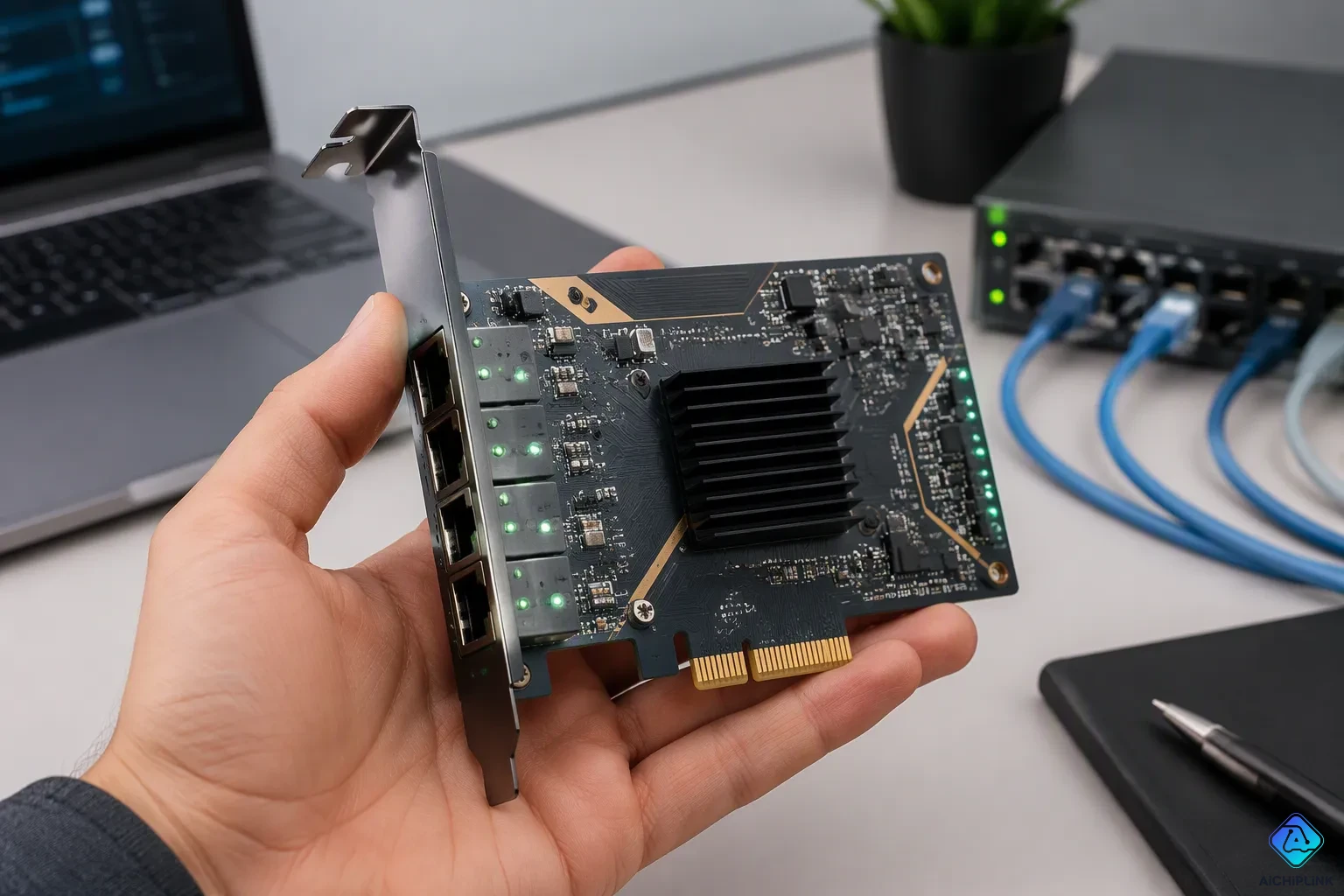
Network interface cards come in three main types: wired, wireless, and USB-based.
| Type | Speed | Stability | Installation |
|---|---|---|---|
| Wired | Fastest | Most stable | Internal or external |
| Wireless | Moderate | Varies with signal | Internal or external |
| USB | Varies | Good | Plug-and-play |
A wired network interface card uses an ethernet cable for top speed and steady performance. A wireless network interface controller uses radio signals and works well for mobile setups. A USB network card lets you plug it in and use it right away. Each NIC meets different needs. These types of network interface card choices differ in speed, stability, and setup. The right types of network interface cards depend on what matters most to you.
Key Takeaways
-
Wired network cards provide the fastest and steadiest connections for gaming and streaming.
-
Wireless network cards let you move around without cables, which is great for mobile devices.
-
USB network adapters are easy to use and are great for travel and laptops.
-
Pick the network card that fits what you need: speed, the ability to move around, or a simple setup.
-
Think about your budget and open slots when you pick a network interface card.
Wired Network Interface Cards
A wired network interface card needs an Ethernet cable to send and receive data. These cards use copper or fiber optics for transmission. You get the fastest and most stable connection with this type. A wired NIC supports many speeds: 10 Mbit/s, 100 Mbit/s, 1 Gbit/s, 2.5 Gbit/s, 5 Gbit/s, 10 Gbit/s, and up to 160 Gbit/s. Fiber optic network cards reach the highest end of that range.
Wired NICs run in full-duplex or half-duplex mode. This choice affects efficiency. A 100 Mbps full-duplex link sends at 100 Mbps and receives at 100 Mbps at the same time. It cannot send one file at 200 Mbps. Full duplex doubles the theoretical bidirectional capacity of a 10 or 100 Mbps link. It does not double the single-direction speed. Half-duplex systems make devices wait for a free channel before transmitting. That wait adds delay and lowers throughput. Full duplex removes that wait. It cuts latency and raises the overall data transfer rate. This matters most when traffic moves both ways.
Internal PCIe Cards
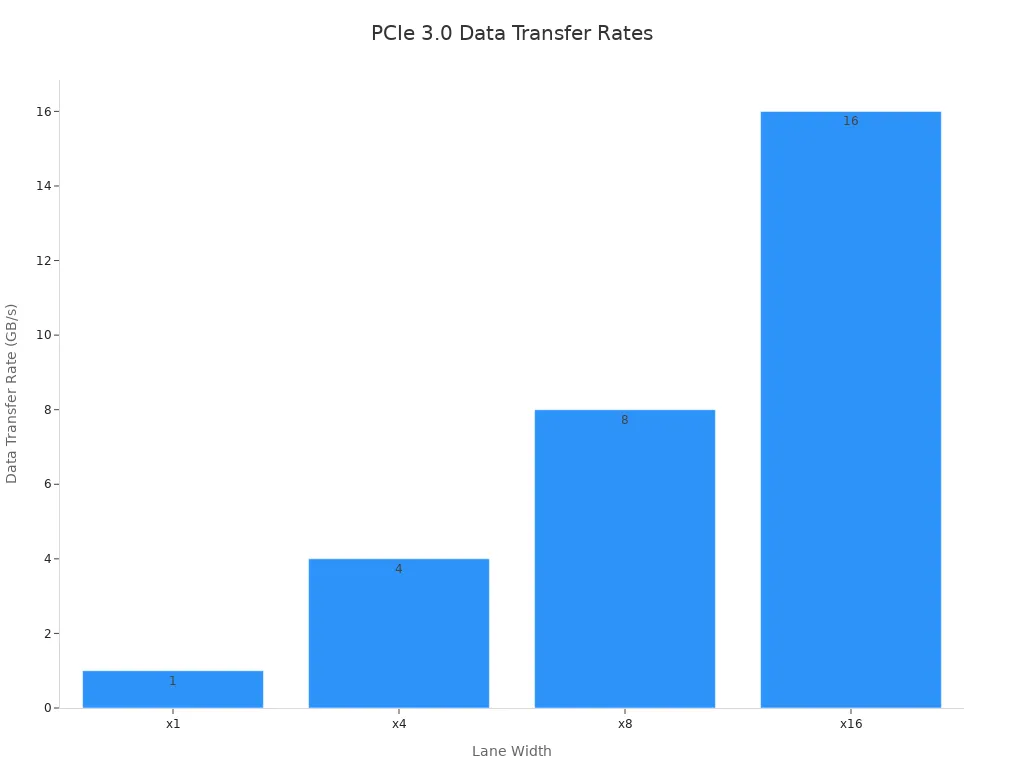
An internal wired NIC can be integrated into the motherboard or installed via expansion slots. The onboard network interface controller handles basic connectivity. A separate ethernet card adds more ports or higher speeds. PCIe NICs use lanes to move data. PCIe 3.0 moves 1 GB/s per x1 lane, 4 GB/s at x4, 8 GB/s at x8, and 16 GB/s at x16.
External USB-to-Ethernet Adapters
An external ethernet adapter plugs into a USB port. You get instant wired access without opening your computer. USB 3.1 Gen 2 adapters support 10 Gigabit Ethernet connections. The standard provides enough bandwidth to drive such speeds. This network card suits laptops and desktops with no free expansion slots.
Wireless Network Interface Cards
A wireless network card uses radio waves instead of cables. You do not need an ethernet cable for this type of network interface card. The network interface controller inside handles all wireless processing. Wireless nics work well in areas where cabling is impractical. Each NIC type serves a different purpose. You get freedom to move your device anywhere within signal range.
Internal PCIe and M.2 Cards
An internal network card fits into a PCIe or M.2 slot. Desktop computers use PCIe slots. Laptops use M.2 slots. A wireless NIC like the Intel AX210 gives strong performance with a clean setup. You do not have any dongle sticking out.
Modern Wi-Fi modules include models from Intel, MediaTek, and Realtek. The table below shows current options.
| Module | Wi-Fi Generation | Key Features |
|---|---|---|
| Intel AX2xx Series (incl. AX210) | Wi-Fi 6/6E | Industry-leading driver maturity, excellent BT coexistence, wide motherboard compatibility |
| MediaTek MT7921K | Wi-Fi 6E | Native Wi-Fi 6E, competitive power efficiency, solid throughput |
| Realtek RTL8822CE / RTL8852AE | Wi-Fi 6 | Lower cost, strong Wi-Fi 6 throughput, good Linux kernel support |
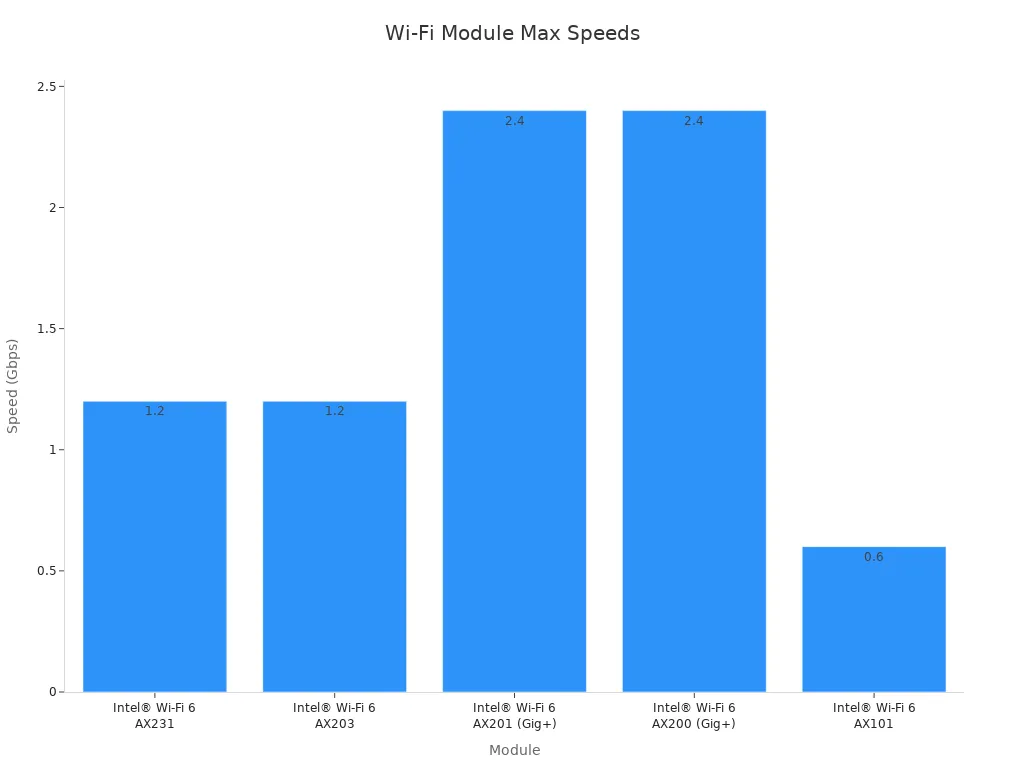
Intel modules reach up to 2.4 Gbps with 2x2 streams. The AX200 and AX201 deliver this speed. The AX210 adds Wi-Fi 6E support for 6 GHz band access.
PCIe NICs use their own lanes on your motherboard. This cuts latency compared to USB adapters. You get faster response times for gaming and streaming.
USB Wireless Dongles
A USB wireless dongle plugs into your computer through a normal USB port. You do not need to open your case. This makes it the simplest way to add wireless nics to your system.
These dongles work as plug-and-play devices. You put one into a free USB port. Your computer finds it right away. Most operating systems install drivers on their own.
These dongles come in different sizes and speeds. Nano dongles sit flush with your laptop. Larger dongles have outside antennas for better range. You can find Wi-Fi adapters that support Wi-Fi 6 or Wi-Fi 6E.
USB wireless network cards trade some speed for convenience. They work well for travel and short-term setups. You can move one between computers with ease.
Compared to wired network interface cards, wireless gives you more freedom to move.
USB Network Interface Cards
A USB network interface card connects through a USB port instead of an internal slot. These adapters come in wired and wireless versions. You plug one in and start using it right away. This makes them a practical choice for laptops or desktops with no free expansion slots. Unlike internal cards, USB NICs sit outside your computer case. You can move one between machines without opening anything.
USB Wired NICs
A USB wired NIC gives you an Ethernet port through a USB connection. The chipset inside determines your real-world speed. The Realtek RTL8153 and ASIX AX88179 are two common options. Their performance differs in measurable ways:
-
Realtek RTL8153 on a USB 3.2 Gen 1 port: 312 Mbits/sec client, 315 Mbits/sec server
-
Realtek RTL8153 on a USB 3.2 Gen 2 port: 302 Mbits/sec client, 312 Mbits/sec server
-
ASIX AX88179 on a USB 3.2 Gen 2 port: 945 Mbits/sec server, 830 Mbits/sec client
One user reported that the AX88179 chipset suffered regular resets and dropped connections on FreeBSD 13.x. The AX88179A variant worked flawlessly. An experienced FreeBSD user recommends AX88179 as the best option for stability and performance, followed by RTL8153. That same user warns against SMSC or U9200 chips.
Realtek RTL8153 based adapters clearly outperform ASIX AX88179, which fails to reach 1Gbps in many tests.
USB Wireless NICs
An external USB wireless network card adds Wi-Fi through a simple USB port. You do not need to open your case or find a free M.2 slot. These dongles work as plug-and-play devices. Your operating system usually installs the driver on its own. Nano models sit flush with your laptop. Larger models include external antennas for better range.
A USB network card trades some speed for convenience. You can carry one in a bag and use it on any computer. This network adapter suits travel and short-term setups. A USB network interface controller inside the dongle handles all radio processing. If you need the fastest link for gaming, a wired PCIe card still wins. For flexibility, a USB network card is hard to beat.
Network Interface Card Comparison
Speed and Latency
Speed and latency separate the three NIC types more than any other factor. A wired network interface card delivers the fastest and most stable link. Copper and fiber optic cables carry data with almost no interference. Wired NICs support speeds from 10 Mbit/s up to 160 Gbit/s. Full-duplex mode lets a link send and receive at the same time. That cuts latency and raises throughput. A 100 Mbps full-duplex link sends at 100 Mbps and receives at 100 Mbps at once. It cannot push one file at 200 Mbps.
Wireless nics depend on radio signals. Their speed changes with distance, walls, and other devices. Internal PCIe wireless cards cut latency compared to USB adapters. PCIe NICs use their own lanes on your motherboard. That gives faster response times for gaming and streaming. USB wireless nics trade some speed for convenience. A USB network card works well for travel and short-term setups.
USB wired adapters sit in the middle. The chipset inside sets the real-world speed. A Realtek RTL8153 adapter reaches about 312 Mbits/sec on a USB 3.2 Gen 1 port. An ASIX AX88179 adapter hits 945 Mbits/sec server and 830 Mbits/sec client on a USB 3.2 Gen 2 port. That gap shows why chipset choice matters for ethernet nics.
| Type | Speed | Latency | Best For |
|---|---|---|---|
| Wired PCIe | Up to 160 Gbit/s | Lowest | Gaming, streaming, servers |
| Wireless PCIe/M.2 | Up to 2.4 Gbps | Low | Desktops, laptops, mobility |
| USB Wired | Up to 945 Mbits/sec | Moderate | Laptops, no free slots |
| USB Wireless | Varies with signal | Higher | Travel, short-term setups |
Cost and Installation
Cost and installation follow a clear pattern across the types of network interface cards. Wired NICs cost the most when you buy a high-speed PCIe card. You must open your computer case and use a free expansion slot. Onboard network interface controller chips come free with most motherboards. That makes basic ethernet the cheapest option.
Wireless nics cost more than basic wired cards. An internal wireless network card needs a PCIe or M.2 slot. Laptops use M.2 slots. Desktops use PCIe slots. You open the case once and get a clean setup with no dongle sticking out. USB wireless dongles cost less and need no case access. You plug one into a free USB port. Your operating system usually installs the driver on its own.
USB network cards win on installation ease. A USB network interface card connects through a USB port instead of an internal slot. You can move one between machines without opening anything. That makes it the best pick for laptops or desktops with no free expansion slots. The trade-off is real. USB adapters cost less upfront but may deliver lower speed than a PCIe card. A network card that fits your slot and budget matters more than raw specs alone.
Choosing the Right Network Interface Card
You now know how wired, wireless, and USB network interface cards are different. The next step is to match the right type to your daily use. What you care about most drives your choice: speed and steadiness, moving around freely, or plug-and-play ease.
Best for Gaming and Streaming
Gaming and streaming need the lowest latency and the steadiest connection. A wired PCIe network interface card gives you both. PCIe NICs use their own lanes on your motherboard. That design lowers latency compared to USB adapters. You get faster response times when every millisecond counts.
Cloud gaming services set clear latency targets. GeForce Now needs latency under 80ms from an NVIDIA data center, with under 40ms suggested, along with speed tiers of 15 Mbps for HD at 60fps, 25 Mbps for 1080p at 60fps, and 40–45 Mbps for 4K.
| Requirement | General Cloud Gaming Guidance | GeForce Now Specific |
|---|---|---|
| Minimum/ideal latency | Aim for under 40ms ping to the nearest server | 40ms ideal |
| Maximum acceptable latency | Above 80ms causes noticeable input delay | 80ms max |
| Jitter requirement | Jitter matters nearly as much as average ping; a connection fluctuating between 20ms and 80ms feels worse than a steady 45ms | Not separately specified beyond the 80ms max / 40ms ideal latency guidance |
Jitter matters almost as much as average ping. A connection that jumps between 20ms and 80ms feels worse than a steady 45ms link. Wired ethernet nics avoid that jump because copper and fiber carry data with almost no interference.
Your wired NIC also affects CPU load during streaming. Several features help:
-
Interrupt moderation lowers CPU interrupts and cuts CPU usage, though it may add latency. Buffer coalescing can give similar savings when interrupt moderation is not available.
-
RSS queues spread incoming traffic across multiple logical processors. Raising them from the default of 2 to the maximum supported stops individual cores from overloading.
-
Hardware offloads such as TCP/UDP checksums, Large Send Offload (LSO), and segmentation offload move packet processing from the CPU to the adapter.
-
Buffer coalescing joins multiple packets into fewer interrupts, cutting CPU overhead on both send and receive paths.
Best for Office, Home, and Travel
Office work rarely needs the fastest link. A wired or wireless network card both handle video calls, email, and file transfers. Choose wired when your desk stays put. Choose a wireless network card when you move between meeting rooms.
At home, wireless nics fit most setups. You avoid running cables through walls. A USB wireless dongle works well when you cannot open your case or lack a free M.2 slot.
Travel puts convenience first. A compact USB adapter slips into a laptop bag. The TP-Link UE302C measures 68 × 24 × 19 mm, weighs 27 g, and has a foldable captive cable. It supports Windows, macOS, iPadOS, ChromeOS, Linux, and iOS. The Plugable USBC-E2500 is larger but includes a USB-C-to-USB-A conversion piece, so it moves between both port types. Pick the TP-Link for a USB-C-only bag. Pick the Plugable when you switch between USB-C and USB-A machines.
Match your NIC to what you care about most. Choose wired PCIe for speed and steadiness. Choose wireless for moving around. Choose USB for plug-and-play ease.
You now understand the three main types of network interface cards. Wired cards give you the fastest and most stable link. Wireless cards set you free from cables. USB adapters offer plug-and-play ease. Each network interface card serves a different purpose.
Your priority decides the best choice. Pick a wired nic for speed and stability. Choose wireless for mobility. Select USB for convenience. Do not chase raw specs alone. Match the card to your ethernet needs and daily use. A smart match beats a fancy spec sheet every time.

Written by Jack Elliott from AIChipLink.
AIChipLink, one of the fastest-growing global independent electronic components distributors in the world, offers millions of products from thousands of manufacturers, and many of our in-stock parts is available to ship same day.
We mainly source and distribute integrated circuit (IC) products of brands such as Broadcom, Microchip, Texas Instruments, Infineon, NXP, Analog Devices, Qualcomm, Intel, etc., which are widely used in communication & network, telecom, industrial control, new energy and automotive electronics.
Empowered by AI, Linked to the Future. Get started on AIChipLink and submit your RFQ online today!
Frequently Asked Questions
Which network interface card type gives the fastest connection?
A wired card delivers the fastest link. Copper and fiber cables carry data with almost no interference. Wired speeds reach up to 160 Gbit/s. Wireless and USB options cannot match that ceiling. Choose wired when raw speed matters most to you.
Do I need to open my computer to install a NIC?
It depends on the type you pick. Internal PCIe and M.2 cards require you to open the case and use a free slot. USB adapters need no case access at all. You plug one into a USB port and start using it.
Can a USB adapter match a PCIe card for gaming?
No. PCIe cards use their own lanes on your motherboard. That design lowers latency compared to USB adapters. You get faster response times when every millisecond counts. USB adapters trade some speed for convenience, so they suit travel better than competitive gaming.
Why does full-duplex mode matter for network interface cards?
Full-duplex mode lets a link send and receive at the same time. A 100 Mbps full-duplex link sends at 100 Mbps and receives at 100 Mbps at once. Half-duplex systems make devices wait for a free channel. That wait adds delay and lowers throughput.
What should I check before buying a nic?
Match the card to your priority. Choose wired PCIe for speed and stability. Choose wireless for mobility. Choose USB for plug-and-play ease. Also confirm you have a free expansion slot or USB port. A smart match beats a fancy spec sheet every time.