Understanding the Different Types of Adapter Cards for Your PC
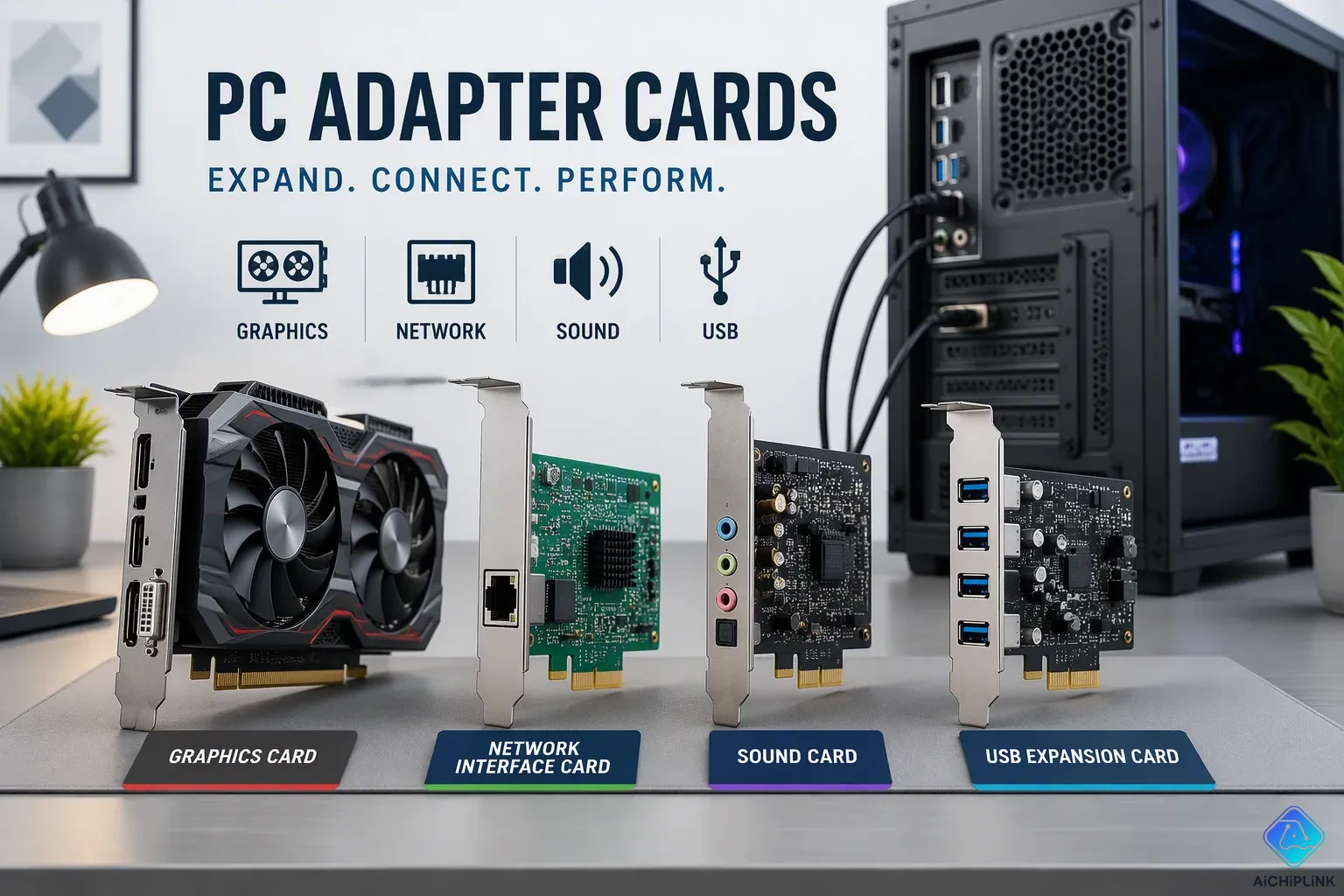
Have you ever wanted to make your PC's graphics better or get faster internet? An adapter card, also called an expansion card, is a board you plug into a slot on your motherboard, like PCIe. Adapter cards add new abilities to your computer. They boost performance for gaming. They also help you connect older devices. Most desktop motherboards support between three and seven expansion cards. Current boards often have four or five PCIe x16 slots. They also include several PCIe x1 slots for network cards. You can install a dedicated network adapter for faster internet. A wireless network card improves coverage at home. A network upgrade helps online gaming. Another network option adds ethernet ports. Each network choice requires checking your motherboard. Your network environment decides the pick. A solid network setup matters for streaming. Your network traffic benefits from a quality card. A graphics adapter card changes how visuals look. Performance varies by card quality. Each adapter card serves a unique role. Choose an adapter card that fits your needs. Power and cooling limit how many you can install. Upgrading with adapter cards creates a capable machine.
Key Takeaways
-
Graphics and network cards give the biggest boost to your PC's performance.
-
Verify your motherboard has the right slot and your power supply can handle the card.
-
Seat the card firmly until it clicks, connect all power cables, and install drivers from the manufacturer.
-
If the card doesn't work, check for loose connections, power, and driver conflicts.
Common Adapter Card Types
Adapter cards come in many forms, each built for a certain task. You can find them for video, network, sound, storage, and older connections. The two most common upgrades are for better graphics and faster network speeds. These options give the biggest visible boost for most people.
Graphics Card for Enhanced Visuals
A graphics card does the hard work of showing images on your screen. Your PC's built-in chip can handle simple jobs like browsing the web or typing documents. But tough programs need a separate video card. Modern video cards have their own processors and memory. This setup lets your main processor focus on other tasks.
Video quality gets much better with a dedicated graphics card. Games run smoother with better frame rates and more detail. Video editing tools work faster when rendering. Even watching videos improves with hardware help. You will see clearer text and brighter colors right away.
The gap between built-in and separate graphics keeps growing. A good graphics card turns your PC from a basic machine into a creative tool. Video pros use these cards for exact colors. Gamers need them to stay competitive. Pick a graphics card that fits what you do most. Light users need less power than serious gamers.
Boosting Network Speeds with Adapter Cards
A network interface card (NIC) links your computer to local networks and the internet. Most motherboards come with a basic ethernet port. But a better network adapter can give you faster speeds and steadier connections. You might pick a wireless adapter for ease or a wired NIC for reliability.
Network tech changes fast. Wi-Fi 5 had a top speed of 3.5 Gbps. The newer Wi-Fi 6E standard hits 9.6 Gbps. That is about 2.74 times faster than the older one. This gap matters for streaming, big downloads, and online games.
| Standard | Maximum Theoretical Throughput |
|---|---|
| Wi-Fi 5 | 3.5 Gbps |
| Wi-Fi 6E | 9.6 Gbps |
Network adapters also add more ways to connect. You can set up extra ethernet ports for special needs. A wireless card removes cable mess around your home. NICs come in different sizes and speed levels. Check your motherboard's open slots before buying. Your internet plan also decides if faster hardware helps you.
Beyond graphics and network, other adapter cards do key jobs. Sound cards improve audio for music and home theaters. Storage controllers add SATA or NVMe ports for more drives. USB cards give extra ports for devices. Serial adapters let you talk to old factory machines. Each card type fixes a different problem, so look at what your system lacks.
Adapter Cards and Expansion Slots
Every adapter card plugs into a slot on your motherboard. These slots are like data roads that connect the card to your computer. New motherboards use PCI Express, or PCIe for short. Old computers had other kinds of slots. You need to pick a card that fits your slot. If it doesn't match, the card won't work.
PCIe and AGP Slot Standards
PCI Express is the main type of slot on new motherboards. It comes in different sizes called lanes. A PCIe x1 slot works for network and sound cards. A PCIe x16 slot gives the most speed for graphics cards. The PCIe 4.0 standard can move data at 32 GB/s for an x16 slot. That speed handles tough tasks like gaming and video editing.
Older systems used the Accelerated Graphics Port, or AGP. That slot was only for video cards. AGP 8x had a top speed of 2.1 GB/s. Early PCIe 1.0 x16 slots were twice as fast at 4 GB/s. Because PCIe was faster, it became the better choice. By 2010, new motherboards stopped using AGP. Only very old chipsets still worked with it.
| Bus Type | Theoretical Bandwidth |
|---|---|
| AGP 8x | 2.1 GB/s |
| PCIe 1.0 x16 | 4 GB/s |
Before you buy an expansion card, check your motherboard manual. The manual shows what slots you have and their sizes. Doing this stops compatibility issues. A PCIe graphics card won't go into an AGP slot. Also, a new network card needs a PCIe slot. Knowing your slots saves you time and money.
Driver Integration for Performance
An adapter card needs more than just hardware to work. Your operating system uses drivers to talk to the card. Drivers are like translators for software and hardware. Without the right drivers, your computer might not see the card at all.
Good drivers make your card work well and stay stable. Old drivers can cause crashes, freezes, and slower speeds. A network card with bad drivers often drops its connection. A graphics card with old drivers may have visual problems. Download drivers from the maker's website. Windows Update gives basic drivers, but they don't have all the features.
Every type of adapter card needs drivers. Sound cards need drivers to process audio. Storage controllers need drivers to see drives. USB cards need drivers to recognize ports. Even basic network adapters need the right drivers. Check for updates often. Makers release updates to fix problems and boost speed. Good driver care keeps your cards working well.
Choosing an Adapter Card
Selecting the right adapter card requires checking several factors. Match the card to your motherboard and power supply. Understand how specifications affect performance.
Compatibility and Specifications
First, make sure your adapter card fits the correct slot on your motherboard. PCIe slots are the main type of expansion slots. Different cards need different slots. For example, a graphics card needs a PCIe x16 slot. A network interface card (NIC) works in a PCIe x1 or x4 slot. Some cards support PCIe 3.0 x16 and x8 slots. Others need an x8 slot. Always check your motherboard's slot layout. Matching the slot type is the first step to getting the right card.
Power needs are another thing to check. A card that uses a lot of power needs a strong PSU. High-end graphics cards use over 600W. You need a 1000W or bigger PSU for steady performance. Check that your PSU has the right connectors, like 12V-2x6. A PSU works best when it is 40% to 80% full.
The card's size matters. Some cards are low-profile and come with brackets for different cases. Measure the space inside your case before putting in a tall card. Check the exact slot type you need. PCIe slots work with older cards too. Network cards use these slots to connect.
Your NIC decides your network speed. Different adapter cards have different jobs. Each card type needs a specific slot. Ethernet cards have their own needs. Look over all specs before you buy. Check the ethernet port speed on the card. An ethernet card with more than one port can split the network into parts.
Performance Considerations
How well a card works depends on more than just speed. The PCIe version changes how much data it can move. Tests show that going from PCIe 5.0 to 4.0 costs about 1% of performance for graphics cards. The same is true between PCIe 4.0 and 3.0. In real games, the difference is small. Even 4K games do not fill up a PCIe 3.0 x16 slot. A PCIe 3.0 card works in a PCIe 4.0 slot. You can upgrade later and still keep the same speed. Worrying about PCIe 5.0 for the future is not critical.
Video RAM capacity impacts gaming performance. Higher resolutions demand more VRAM. The table shows VRAM effects on 4K gaming.
| VRAM Capacity | 4K Gaming Impact |
|---|---|
| 8GB | Playable only with compromises (lower textures, upscaling); best for lighter or older titles |
| 12GB | Settings-sensitive; stutters with ray tracing unless RT is reduced or disabled |
| 16GB | Practical baseline for 4K at high settings without constant compromises |
| 20-24GB | Premium headroom for ultra textures, ray tracing, and future titles |
When VRAM fills up, the game streams assets from system RAM or storage. This causes stutter, delayed texture loading, inconsistent frame pacing, or sudden drops during camera movement.
Having more VRAM only helps if the GPU is strong enough. A slow GPU with 24GB of VRAM will lose to a faster GPU with 16GB. The limit is often how fast the shaders run or how quickly memory moves data. Look at specs like core clock and memory speed. PCIe compatibility changes your upgrade options. Your choice of graphics card is important.
Network cards also have performance points. A NIC with Wi-Fi 6E gives 9.6 Gbps speed. Older Wi-Fi 5 only reaches 3.5 Gbps. This matters when streaming or gaming online. Ethernet cables give steady, low lag. For gaming, use ethernet if you can. A good NIC cuts down on network drops. Different network cards work best in different setups. Pick a NIC that works with your router. Check that it is compatible. Getting Wi-Fi 6E now means faster speeds later.
Sound cards make audio clearer. The sound work goes to a separate chip. This cuts down on electrical noise. A dedicated card gives better sound. It also has a better signal-to-noise ratio. Check what audio formats the card supports. For the future, pick a card with extra room. A good NIC improves network speed. A graphics card with more VRAM stays useful longer. A NIC with fast speeds won't need replacing soon. A PSU with extra power lets you add more parts later. Think about future needs when you pick your adapter card.
Step-by-Step Installation Guide
Installing an adapter card is not hard. You can finish the job in about fifteen minutes with basic tools. The key is to prepare well and be patient. Follow each step carefully so you do not harm your hardware.
Preparing Your System
First, turn off your PC completely. Unplug the power cable from the back of the power supply. Press the power button for five seconds to let out any leftover electricity in the capacitors. This simple step keeps both you and your parts safe.
Next, ground yourself to stop static electricity from hurting sensitive parts. Static can ruin an adapter card in an instant. Touch a metal part of your PC case before you handle any parts. You can also wear an anti-static wrist strap for more safety. Work on a hard surface, not a carpeted floor.
Open your PC case by following the maker's instructions. Most new cases use thumbscrews on the side panel. Put the panel aside in a safe spot. Look inside and find the expansion slots on your motherboard. A graphics card needs a PCIe x16 slot. A network interface card fits into a PCIe x1 or x4 slot. Check your motherboard manual to confirm the slot layout.
Take off the metal bracket cover at the back of your case that lines up with your chosen slot. Keep the screw from this bracket. You will need it to hold your new card in place. Now take your adapter card out of its anti-static bag. Hold it by the edges only. Do not touch the gold contacts on the bottom edge.
Line up the card with the slot. Press down firmly and evenly until the card clicks into place. The card should sit level in the slot. Secure the card to the case using the screw you saved earlier. Connect any needed power cables from your power supply to the card. High-end graphics cards need dedicated power connectors. Some network adapters also need power connections.
Common Installation Mistakes
Many first-time builders make avoidable errors during installation. The most common mistake is not seating the card fully. A card that looks installed may still sit slightly loose. Press until you hear a positive click. This click confirms the card locks into the slot.
Critical Warning: With the newer 12VHPWR GPU connector, failing to fully seat the plug can cause overheating and burning, potentially damaging both the cable and the graphics card. Prevention: Press the connector firmly until you hear or feel a positive click to ensure a secure connection.
Another common error involves forgetting to connect auxiliary power. Modern graphics cards draw significant power from the power supply. Without these cables connected, the card will not display anything on your screen. Always double-check that every power connector clicks into place.
Most commonly missed step: The installer prompts you to update the QSPI firmware before the Jetson Linux installation begins. You must press
Yto confirm. The prompt only waits 30 seconds and is easy to miss. If it times out, the installation fails later. If this happens, restart the installation and pressYwhen the prompt appears.
Driver installation creates another source of confusion. You must install the correct drivers for your operating system. A sound card needs its specific audio drivers. A network interface card requires updated network drivers. Download drivers from the manufacturer's website rather than relying on generic versions. Proper drivers ensure stable performance and full feature access.
Check compatibility before you close your case. Verify that your power supply can handle the new card's demands. Confirm that the card fits within your case dimensions. A long graphics card may not fit in a compact case. Measure the available space first.
Finally, test your system before replacing the side panel. Power on your PC and check that the operating system recognizes your new hardware. Open Device Manager to confirm the adapter card appears without errors. Run a quick test to verify functionality. A network adapter should connect to your router. A sound card should produce audio. This final check saves you from reopening your case later.
Troubleshooting Common Problems
Even careful installation can hit snags. Knowing what goes wrong helps you fix issues fast. Most problems fall into two groups: conflicts between parts and mistakes during setup.
Driver and Hardware Conflicts
Driver conflicts cause many adapter card failures. Your operating system might show an error icon in Device Manager. You might see a yellow triangle next to your new hardware. This symbol means the system cannot talk to the card properly.
Old drivers often create these conflicts. A previous graphics card might leave behind its software. That leftover driver fights with your new card's driver. The result causes crashes or poor performance. Remove old drivers completely before installing new ones. Use the manufacturer's cleanup tool when available.
Hardware conflicts also happen when two cards demand the same resources. Your motherboard assigns resources automatically. Sometimes the assignment fails. Check Device Manager for resource conflicts. You can change the resource settings manually. This fix usually solves the problem.
A network interface card might stop working after a Windows update. The update replaces your driver with a generic version. Generic drivers lack full features. They often cause dropped connections. Download the latest driver from the NIC maker's website. Reinstall that driver to restore full function.
Installation Issues
Physical installation problems appear right away. Your computer might not detect the adapter card at all. First, power down and open your case. Press the card firmly into its slot. You should hear a click when it seats correctly. Check that the retention clip locks into place.
Power connections cause another common issue. High-end graphics cards need dedicated power cables. A sound card might also need auxiliary power. Without these connections, the card stays silent or dark. Verify every power plug clicks into its socket.
Your system might boot but show nothing on screen. This symptom often means the card sits in the wrong slot. A graphics card requires a PCIe x16 slot. A network adapter works in a smaller PCIe x1 slot. Check your motherboard manual for correct placement.
Some cards need a BIOS update before they work. Older motherboards might not recognize newer hardware. Visit your motherboard maker's website for BIOS files. Follow their update instructions carefully. A failed BIOS update can damage your system.
Test each adapter card one at a time. Install a single card and confirm it works. Then add the next card. This method isolates problems quickly. You know exactly which card causes trouble. Patience during troubleshooting saves hours of frustration later.
Adapter cards extend your PC's abilities in meaningful ways. A dedicated graphics card transforms gaming visuals. Network adapters deliver faster, steadier connections for streaming and online play. Even sound cards improve audio quality beyond built-in options.
Before purchasing any adapter card, verify your motherboard's slot type and your power supply's capacity. A PCIe x16 slot suits graphics cards. Smaller PCIe x1 slots handle network adapters and sound hardware. Check your NIC's specifications against your router's capabilities.
Installation requires patience. Ground yourself, seat the card firmly, and connect auxiliary power. Install proper drivers afterward.
With careful research, you can upgrade your system confidently. Anyone can master this process with the right knowledge.

Written by Jack Elliott from AIChipLink.
AIChipLink, one of the fastest-growing global independent electronic components distributors in the world, offers millions of products from thousands of manufacturers, and many of our in-stock parts is available to ship same day.
We mainly source and distribute integrated circuit (IC) products of brands such as Broadcom, Microchip, Texas Instruments, Infineon, NXP, Analog Devices, Qualcomm, Intel, etc., which are widely used in communication & network, telecom, industrial control, new energy and automotive electronics.
Empowered by AI, Linked to the Future. Get started on AIChipLink and submit your RFQ online today!
Frequently Asked Questions
How Do I Know Which Slot My Adapter Card Needs?
Look at your motherboard manual first. It shows every expansion slot type. A graphics card needs a PCIe x16 slot. A network adapter fits in a PCIe x1 slot. Match the adapter card to the slot before you buy it.
Why Won't My New Adapter Card Work After Installation?
Several things can cause this problem. The card might sit loose in its slot. Press firmly until you hear a click. Check power connections. Install the correct drivers from the maker's website. Test one card at a time to find conflicts.
Do I Need a Network Adapter If My Motherboard Has Ethernet?
Built-in ethernet works fine for basic tasks. A dedicated network adapter gives faster speeds and newer standards like Wi-Fi 6E. Your network setup decides if it helps. Streaming and online gaming get better with improved network hardware. Check your internet plan before upgrading. A quality network connection cuts lag during online play. Your network speed matters most for large downloads.
Can I Install Multiple Adapter Cards at Once?
Yes, most motherboards support several expansion cards. Power supply capacity limits your options. High-end graphics cards use a lot of power. Network adapters use less energy. Most network adapters work fine with standard power supplies. Your setup may need only one card.
How Often Should I Update Adapter Card Drivers?
Check for updates every few months. Makers release fixes for bugs and security issues. New drivers can boost performance. Windows Update gives basic drivers. Visit the maker's website for the latest versions. Regular updates keep your system stable. Network adapter drivers especially need attention for steady connections.