Introduction
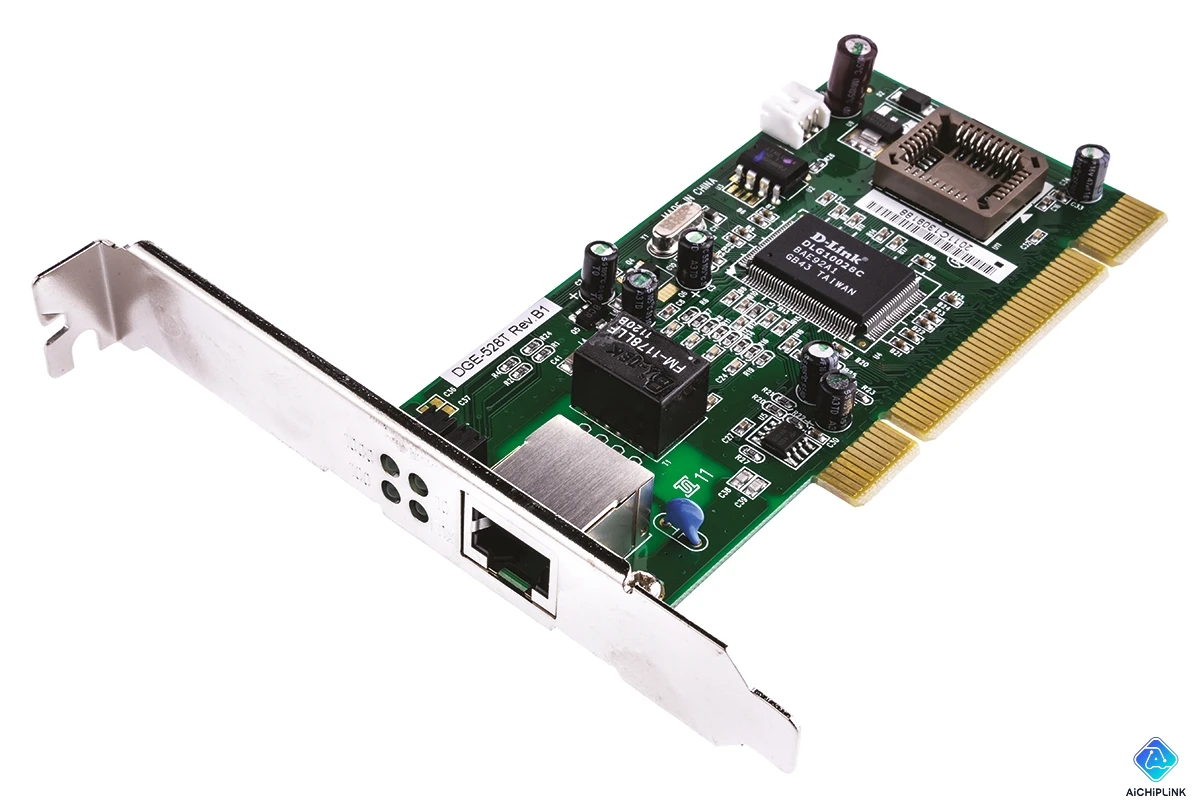
A Network Interface Controller (NIC), also called a network interface card, network adapter, or Ethernet card, is the hardware component that connects your computer to a network. Without a NIC, your device cannot communicate over Ethernet or Wi-Fi—it's the essential bridge between your computer and the internet. This beginner-friendly guide explains what NICs are, how they work, different types available, and practical tips for understanding and choosing network hardware.
What is a Network Interface Controller (NIC)?
Simple Definition
A Network Interface Controller (NIC) is a hardware device that allows computers to connect to networks. Think of it as your computer's "network port"—it converts digital data from your computer into signals that can travel over network cables or wireless signals, and vice versa.
Physical Forms
NICs come in different physical formats:
1. Built-in (Integrated/Onboard):
- Already installed on your computer's motherboard
- Most modern laptops and desktops have integrated NICs
- No installation required—just plug in Ethernet cable or connect to Wi-Fi
2. Expansion Cards (PCIe):
- Add-on cards installed in motherboard PCIe slots
- Used to upgrade speed (10 Gigabit), add ports, or replace failed onboard NICs
- Common in desktop PCs, servers, workstations
3. USB Network Adapters:
- External dongles plugging into USB ports
- Portable, easy to install (plug-and-play)
- Popular for laptops lacking Ethernet ports (MacBook, Ultrabooks)
What NICs Do
Primary Functions:
- Physical Connection: Provides RJ-45 port (Ethernet) or wireless antenna (Wi-Fi)
- Data Conversion: Translates computer data ↔ network signals
- Addressing: Assigns unique MAC address for network identification
- Speed Negotiation: Determines connection speed (10/100/1000 Mbps, 10 Gbps)
- Error Detection: Checks data integrity using checksums (CRC)
How Network Interface Controllers Work
Basic Operating Principles
Data Flow: Computer → Network
Step 1: Computer Application
    ↓ (data packets)
Step 2: Operating System (network stack)
    ↓ (formatted packets with IP address)
Step 3: NIC Driver (software)
    ↓ (adds MAC address, creates Ethernet frame)
Step 4: NIC Hardware
    ↓ (converts to electrical/light/radio signals)
Step 5: Physical Medium
    → Ethernet cable OR Wi-Fi radio waves
Data Flow: Network → Computer
Physical Medium (cable/wireless)
    ↓ (electrical/light/radio signals)
NIC Hardware (receives signals)
    ↓ (converts to digital data)
NIC Driver (checks MAC address—"is this for me?")
    ↓ (removes Ethernet frame)
Operating System (processes IP packet)
    ↓
Computer Application (displays webpage, email, etc.)
MAC Address: The NIC's Unique ID
Every NIC has a MAC (Media Access Control) address—a unique 48-bit identifier assigned by the manufacturer.
Format: AA:BB:CC:DD:EE:FF (hexadecimal)
Example: 00:1A:2B:3C:4D:5E
Structure:
- First 24 bits (OUI): Organizationally Unique Identifier—identifies manufacturer (e.g., Intel, Realtek)
- Last 24 bits: Device-specific—unique to that NIC
Purpose:
- Layer 2 addressing: Identifies devices on local network (Ethernet level)
- ARP (Address Resolution Protocol): Maps IP addresses to MAC addresses
- Switch forwarding: Network switches use MAC addresses to route traffic
Analogy:
- IP address = Mailing address (can change when you move)
- MAC address = Social Security Number (permanent identifier)
Speed Negotiation (Auto-Negotiation)
When you plug in an Ethernet cable, the NIC and network switch automatically negotiate the best speed:
Negotiation Process:
NIC announces: "I support 10/100/1000 Mbps"
Switch announces: "I support 10/100/1000/10G"
Both agree: "Let's use 1000 Mbps (Gigabit)"
Connection established at 1 Gbps
Duplex Modes:
- Full-duplex: Send and receive simultaneously (modern standard)
- Half-duplex: Send OR receive (one at a time)—obsolete
Types of Network Interface Controllers
By Connection Type
1. Wired (Ethernet) NICs
Speeds:
- 10 Mbps: Ancient (10BASE-T)—obsolete
- 100 Mbps: Fast Ethernet (100BASE-TX)—budget/legacy devices
- 1 Gbps: Gigabit Ethernet (1000BASE-T)—standard for home/office
- 2.5/5 Gbps: Multi-Gigabit (2.5GBASE-T, 5GBASE-T)—emerging consumer standard
- 10 Gbps: 10 Gigabit Ethernet (10GBASE-T)—servers, workstations, enthusiasts
- 25/40/100 Gbps: Data center only
Common Ethernet NICs:
- Intel I219-V: Onboard Gigabit NIC (consumer motherboards)
- Realtek RTL8125B: 2.5 Gigabit NIC (gaming motherboards)
- Intel X550: Dual-port 10 Gigabit PCIe card (servers)
2. Wireless (Wi-Fi) NICs
Standards:
- Wi-Fi 4 (802.11n): Up to 600 Mbps—legacy
- Wi-Fi 5 (802.11ac): Up to 3.5 Gbps—common
- Wi-Fi 6 (802.11ax): Up to 9.6 Gbps—modern standard
- Wi-Fi 6E: 6 GHz band support
- Wi-Fi 7 (802.11be): Up to 46 Gbps—emerging (2024+)
Form Factors:
- M.2/PCIe cards: Internal laptop/desktop (e.g., Intel AX210)
- USB dongles: External adapters (portable)
- Mini PCIe: Older laptops (replaceable)
By Physical Interface
1. PCIe (PCI Express):
- Desktop add-in cards
- Speeds: PCIe x1 (1 Gbps), x4 (10 Gbps), x8 (25+ Gbps)
- Hot-swappable in servers
2. Onboard/Integrated:
- Soldered directly to motherboard
- Reduces cost, saves expansion slots
- Standard in all modern computers
3. USB:
- USB 2.0: Up to 480 Mbps (100 Mbps Ethernet realistic)
- USB 3.0: Up to 5 Gbps (1 Gbps Ethernet, Wi-Fi 5)
- USB 3.1/3.2: 10-20 Gbps (2.5/5 Gbps Ethernet, Wi-Fi 6)
4. Thunderbolt:
- Thunderbolt 3/4: 40 Gbps bandwidth
- Supports 10 Gbps Ethernet adapters
- Common on MacBook Pro, high-end laptops
Practical Applications and Use Cases
Home Users
Typical Setup:
- Onboard Gigabit Ethernet NIC (1 Gbps)—sufficient for most home internet (even 1 Gbps fiber)
- Integrated Wi-Fi 5/6—laptops, smartphones, tablets
When to Upgrade:
- Gaming: 2.5 Gbps NIC reduces latency on local network
- Multi-gigabit internet: If you have >1 Gbps internet (fiber)
- Wi-Fi dead zones: Add Wi-Fi 6 USB adapter or PCIe card
Small Business / Office
Requirements:
- Gigabit Ethernet: Standard for office PCs
- 10 Gbps uplinks: Between switches and server
- Redundancy: Dual-port NICs for servers (failover)
Example Setup:
Desktop PCs: 1 Gbps onboard NIC
File Server: Dual-port 10 Gbps PCIe NIC
Network Switch: 24× 1 Gbps + 4× 10 Gbps SFP+
Internet Router: 1 Gbps WAN + Gigabit LAN
Servers & Data Centers
High-Performance Requirements:
- 25/40/100 Gbps NICs: Inter-server communication
- RDMA support: Remote Direct Memory Access (low latency)
- SR-IOV: Single Root I/O Virtualization (for virtual machines)
- Redundancy: Dual/quad-port NICs with failover
Advanced Features:
- TCP/UDP offload: NIC handles protocol processing (frees CPU)
- Jumbo frames: 9000-byte packets (vs standard 1500) for efficiency
- Quality of Service (QoS): Traffic prioritization
Choosing the Right NIC
For Most Users (Home/Office)
✅ Built-in Gigabit Ethernet is sufficient—no upgrade needed
✅ Wi-Fi 6 (802.11ax) for wireless devices
✅ USB Ethernet adapter for laptops without Ethernet ports
Recommendations:
- USB-C to Gigabit Ethernet: Anker, Cable Matters (~$15-20)
- Wi-Fi 6 USB adapter: TP-Link Archer TX20U, ASUS USB-AX55 (~$30-50)
For Power Users
✅ 2.5 Gbps Ethernet NIC for local file transfers (NAS, media servers)
✅ 10 Gbps NIC for content creators (4K/8K video editing)
✅ Wi-Fi 6E for latest wireless performance
Recommendations:
- 2.5G PCIe card: ASUS XG-C100C (~$30)
- 10G PCIe card: ASUS XG-C100F (~$100)
For Servers
✅ Dual-port 10 Gbps minimum
✅ Intel NICs preferred (better driver support, reliability)
✅ SFP+ ports for fiber connections
Recommendations:
- Intel X550-T2: Dual-port 10GBASE-T (~$300)
- Mellanox ConnectX-4: Dual-port 25 Gbps (~$150 used)
Common NIC Issues and Solutions
Problem 1: No Network Connection
Symptoms: "Network cable unplugged" or "No Wi-Fi networks found"
Solutions:
- Check physical connection: Cable plugged in? Wi-Fi enabled?
- Verify driver: Device Manager → Network adapters → Update driver
- Test cable/port: Try different cable or port on switch
- Reset NIC: Disable/re-enable in Device Manager
Problem 2: Slow Speeds
Symptoms: 100 Mbps instead of 1000 Mbps, or slow downloads
Solutions:
- Check negotiated speed: Control Panel → Network Connections → Status → Details
- Cable quality: Cat 5e minimum for Gigabit, Cat 6A for 10 Gbps
- Force speed: NIC properties → Speed/Duplex → "1.0 Gbps Full Duplex"
- Update drivers: Download latest from manufacturer
Problem 3: Intermittent Disconnections
Symptoms: Connection drops randomly, "Limited connectivity"
Solutions:
- Power management: Disable "Allow computer to turn off this device to save power"
- Driver rollback: Newer isn't always better—try older stable driver
- Overheating: Check NIC temperature (sensors), improve airflow
Conclusion
Network Interface Controllers (NICs) are the essential hardware enabling computers to connect to networks via Ethernet or Wi-Fi. Understanding NICs—how they work, MAC addresses, speed negotiation, and types—helps you troubleshoot network issues, choose appropriate hardware upgrades, and optimize network performance for your specific needs, whether home user, gamer, or IT professional.
Key Takeaways:
✅ NIC = Hardware connecting computer to network (Ethernet or Wi-Fi)
✅ Built into modern computers—motherboard includes NIC
✅ MAC address = Unique permanent identifier for each NIC
✅ Gigabit (1 Gbps) sufficient for most home users
✅ Upgrade options: 2.5/10 Gbps PCIe cards, USB adapters, Wi-Fi 6
✅ Auto-negotiation determines connection speed automatically
✅ Driver updates critical for performance and stability
Need networking help? Visit AiChipLink.com for network hardware guidance and technical consultation.

Written by Jack Elliott from AIChipLink.
AIChipLink, one of the fastest-growing global independent electronic components distributors in the world, offers millions of products from thousands of manufacturers, and many of our in-stock parts is available to ship same day.
We mainly source and distribute integrated circuit (IC) products of brands such as Broadcom, Microchip, Texas Instruments, Infineon, NXP, Analog Devices, Qualcomm, Intel, etc., which are widely used in communication & network, telecom, industrial control, new energy and automotive electronics.
Empowered by AI, Linked to the Future. Get started on AIChipLink.com and submit your RFQ online today!
Frequently Asked Questions
What is the difference between NIC and network card?
There is no difference between a NIC and a network card—both refer to the same hardware component that enables a computer to connect to a network. “NIC” (Network Interface Controller) is the formal technical term, while “network card” is more commonly used in everyday language, and both can refer to wired (Ethernet) or wireless network adapters.
Do I need to buy a NIC or is it built into my computer?
Most modern computers already have a built-in NIC on the motherboard, so you typically don’t need to buy one for standard networking. You only need an additional NIC if you want faster speeds, need an Ethernet port on a device that lacks one, or want to add or replace wireless or wired connectivity.
What is MAC address and why does it matter?
A MAC address is a unique hardware identifier assigned to each network interface, used to identify devices on a local network. It plays a key role in network communication, security (such as MAC filtering), and device management, helping routers and switches deliver data to the correct device.
What speed NIC do I need for my home network?
A Gigabit (1 Gbps) NIC is sufficient for most home networks, as it matches the speed of typical internet connections. Higher-speed NICs like 2.5 Gbps or 10 Gbps are only necessary for advanced use cases such as high-speed file transfers, NAS systems, or multi-gigabit internet plans.
Can I install multiple NICs in one computer?
Yes, you can install multiple NICs in a single computer to enable features like network redundancy, traffic separation, or increased bandwidth through link aggregation. While this setup is common in servers and advanced systems, most home users only need a single NIC.