RAM vs SSD Upgrade: Which One Makes Your Computer Faster?
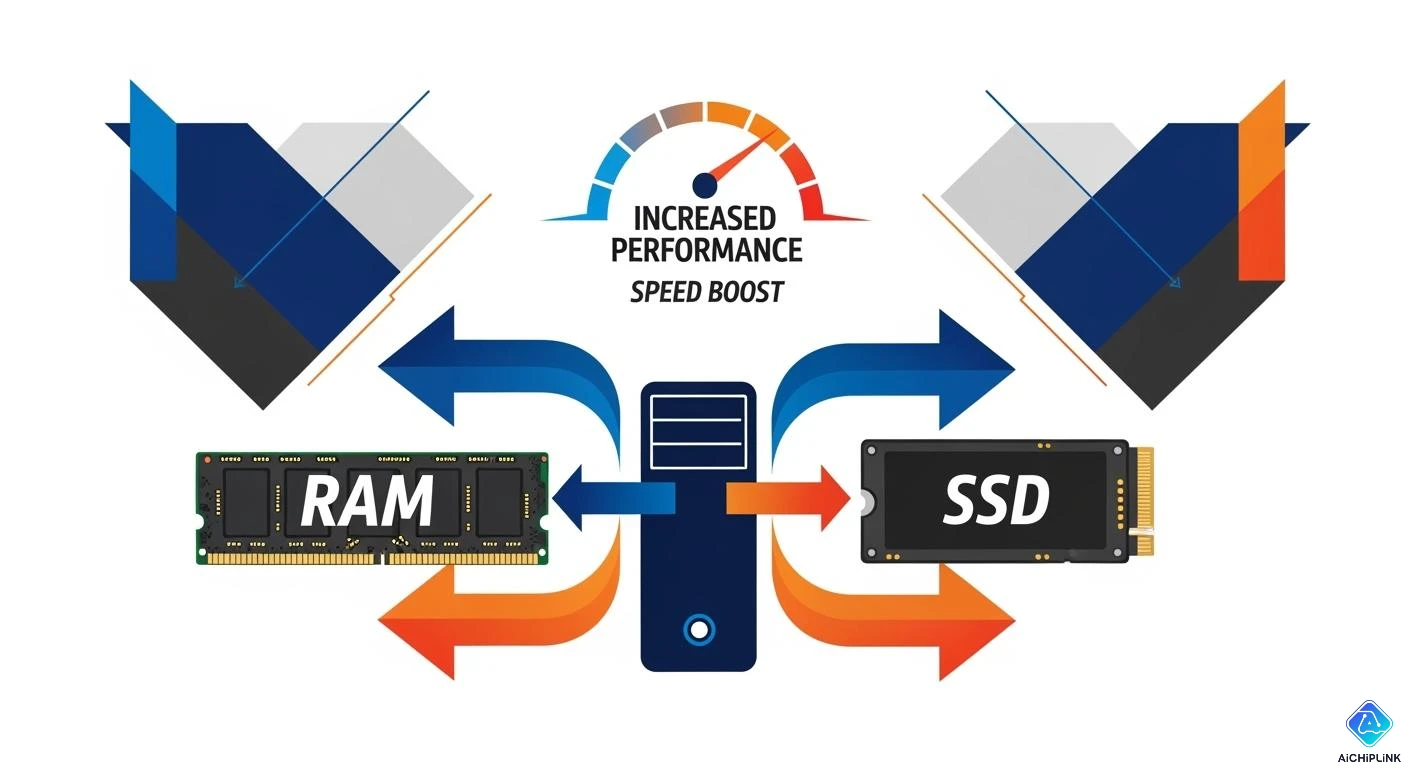
When you want your computer to go faster, you have to consider the differences between RAM vs SSD. Getting an SSD can make your computer start up in just a few seconds, significantly improving boot times. It also helps your computer respond to commands faster. On the other hand, RAM allows your computer to handle many tasks simultaneously, meaning you can open more apps without issues. If your computer takes a long time to turn on or open applications, upgrading to an SSD can make a big difference. Conversely, if your computer struggles with multitasking, increasing your RAM can provide the necessary boost. Ultimately, the best choice between RAM vs SSD depends on how your computer operates and your daily usage needs.
Key Takeaways
-
Upgrading to an SSD makes your computer start up faster. It also helps apps open more quickly. This makes your computer feel much faster.
-
More RAM lets your computer do many things at once. It helps stop lag and makes multitasking better.
-
Find out what is wrong with your computer. If it starts up slowly, you may need an SSD. If it is slow when doing many things, you may need more RAM.
-
For the best speed, upgrade both RAM and SSD. This helps if your computer is slow and bad at multitasking.
-
Always save your files before you upgrade your SSD. This keeps your data safe during the upgrade.
RAM And SSD: What They Are
RAM Explained
You use RAM when you open programs or switch tasks. RAM is like your computer’s short-term memory. It keeps data for a short time so the CPU can get it fast. If you have more RAM, your computer can handle more things at once. This lets you run many apps without slowing down. RAM gives your CPU fast memory to do hard jobs. The speed of RAM changes how fast your CPU moves data. If you use lots of programs, you need enough RAM to keep things smooth. New operating systems use RAM to work better. More RAM helps you multitask and makes your computer smoother.
-
RAM keeps data for quick use.
-
RAM helps your CPU run apps well.
-
More RAM means you can do more things at once.
SSD Explained
An SSD is a kind of storage that uses special memory and circuits. SSDs do not have moving parts like old hard drives. This makes them stronger and saves energy. You will see the change when you start your computer or open files. SSDs read and write data much faster, so your computer starts and loads apps quickly. SSDs can reach speeds up to 7000 MB/s, but hard drives are about 500 MB/s. This makes your computer respond faster and work better.
| Feature | HDD | SSD |
|---|---|---|
| Cost | Cheaper | More expensive |
| Speed | Slower | Faster |
| Durability | Less durable | More durable |
| Highest capacity | 10 TB | 4 TB |
| Energy efficiency | Use more energy | Use less energy |
Tip: If you upgrade to an SSD, your old computer can feel new again.
How Each Affects Computer Performance
RAM and SSD upgrades help your computer in different ways. RAM lets you do more things at once. When you add RAM, your CPU can work with more data. This makes your computer run smoother. You will notice this when you make videos or play games. But adding RAM does not help as much as getting a better CPU or GPU.
An SSD upgrade changes how your computer stores data. Your computer starts faster and opens apps quickly. SSDs are about 100 times faster than hard drives. This means you get to your files right away and your computer works better. SSDs give fast results, but how much they help depends on your computer and how you use it.
-
RAM helps you do more things at once.
-
SSD makes your computer faster and more responsive.
-
Both upgrades make your computer better, but in different ways.
RAM vs SSD: Impact On Performance
Boot Times And System Responsiveness
When you switch from a hard drive to an SSD, your computer starts much faster. It can turn on in just a few seconds. SSDs use quick memory chips, so they move data fast. This makes your computer feel new and more responsive. You press the power button, and your desktop shows up almost right away.
-
Switching from HDD to SSD makes boot times much shorter.
-
Adding more RAM helps boot times if you have less than 4 GB.
-
After 8 GB of RAM, adding more does not help boot times much.
If you want your computer to react faster, SSDs make the biggest difference. RAM upgrades help if your computer has very little memory. But SSDs help more with starting up and loading your system.
Note: SSDs make your computer much faster when starting and opening files. RAM helps more when you run many programs at once.
Multitasking And Running Applications
Every time you open or switch apps, you use RAM. More RAM lets your computer do more things at once. If you use lots of apps, you need enough RAM to stop lag and slowdowns. With 16 GB of RAM, you can run many apps, but you might need to close some background tasks for best speed. With 32 GB, you can play games, stream, and chat without slowing down.
-
More RAM helps your computer run many apps smoothly.
-
Higher RAM means less lag and better multitasking.
-
People with more RAM switch between apps more easily.
Adding RAM makes your computer work better when you do many things at once. SSDs help with speed, but RAM is important for multitasking. If your computer gets slow when you open lots of apps, more RAM can fix this.
Tip: If you use big files or heavy apps, more RAM keeps your computer fast and smooth.
Data Access And Application Launch
When you get an SSD, your apps open much faster. SSDs read data quickly, so programs start almost right away. RAM upgrades do not make apps open faster, but they help when you use many apps at once.
| Upgrade Type | Effect on Application Launch Speed | Effect on Multitasking |
|---|---|---|
| SSD | Makes apps open much faster | Not as helpful |
| RAM | Does not make apps open faster | Helps with multitasking |
SSDs make opening files and apps much quicker. RAM upgrades let you use more apps without slowing down. Both upgrades help your computer, but they fix different problems. SSDs fix slow loading and opening. RAM fixes slow multitasking and lag.
-
Upgrading RAM and SSD can make your computer faster and smoother.
-
SSDs give a big speed boost because of their fast memory chips.
-
Both upgrades are good ways to make your computer last longer.
SSDs last a long time and do not break easily. Most people only replace SSDs to get more space or newer tech. Always back up your data, no matter which upgrade you pick.
Callout: Disk space is cheaper now. SSDs cost more than hard drives, but they work much better because they have no moving parts.
You should pick the upgrade that fixes your computer’s main problem. If your computer is slow to start or open apps, SSDs help most. If your computer slows down with lots of apps, more RAM makes it work better and faster.
Choosing Your Upgrade
Identifying Slow Computer Symptoms
You might not know if you need a ram or ssd upgrade. The answer depends on what problems you see each day. If your computer shows memory warnings, freezes, or crashes with many apps open, you probably need more ram. Sometimes, your computer uses storage as extra memory. This is called disk swapping. It makes your computer slow and hard to use with many tasks.
If your computer takes a long time to start, loads apps slowly, or is slow when opening files, you should think about an ssd upgrade. You might hear your hard drive making noise. The system may feel slow when loading files. These signs mean your storage is not fast enough for your needs.
Here is a table to help you pick the right upgrade:
| Symptoms Indicating Need for More RAM | Symptoms Indicating Need for a Faster SSD |
|---|---|
| Memory Warnings | Long Boot Times |
| Application Freezes or Crashes | Slow Application Loading |
| Frequent Disk Swapping | Delayed File Access |
| Slow System Responsiveness During Loading | |
| Frequent Waiting During File Operations | |
| HDD Noise and Activity Delays |
Tip: If you see memory warnings or your computer freezes with many apps open, upgrade the ram first. If your computer takes a long time to start or open files, upgrade the ssd first.
Matching Upgrade To Usage Patterns
What you do every day helps you choose the best upgrade. If you play games, make videos, or work in an office, your needs are different. Gamers need more ram for multitasking and a fast ssd for quick loading. People who make videos or pictures need lots of ram and a fast ssd for big files. Office workers get the most from an ssd upgrade. It makes the computer faster and better with apps.
The table below matches what you do to the best upgrade:
| Usage Pattern | Upgrade Priority | Key Components to Upgrade |
|---|---|---|
| Gaming | 1. GPU | Focus on graphics card for performance improvement. |
| 2. CPU | Upgrade if playing CPU-heavy games. | |
| 3. RAM | 16 GB minimum; 32 GB for multitasking. | |
| 4. Storage | NVMe SSD for faster load times. | |
| Content Creation & Editing | 1. CPU | Multi-core processors for rendering. |
| 2. RAM | 32 GB minimum for 4K editing. | |
| 3. GPU | Important for GPU-accelerated tasks. | |
| 4. Storage | Fast NVMe storage for project access. | |
| Office Work | 1. SSD | SSD for improved responsiveness. |
| 2. RAM | 16 GB for most tasks; 32 GB for heavy multitasking. | |
| 3. CPU | Modern CPUs sufficient for office tasks. | |
| 4. GPU | Integrated graphics are usually adequate. |
If you use your computer for office work, upgrade the ssd first. This will make your computer much faster. If you play games or edit videos, upgrade the ram first. This helps you run more apps and work with big files. For old laptops, an ssd upgrade can make it feel new. You will see faster starts and better app speed.
Note: Always pick the upgrade that matches your main tasks. If you use many apps at once, upgrade the ram first. If you want faster file access and starts, upgrade the ssd first.
Checking Current RAM And Storage
Before you pick a ram or ssd upgrade, check what your computer has now. You can use built-in tools to see your ram and storage. Here are some ways to check your system:
-
Using Task Manager:
Press Ctrl + Shift + Esc to open Task Manager. Click Performance and pick Memory. You will see ram speed, size, and type. -
Using Command Prompt:
Press Windows + R, type cmd, and press Enter. Typewmic memorychip get speedto see ram speed. For more info, usewmic memorychip get speed, manufacturer, capacity. -
Using PowerShell:
Open PowerShell as admin. TypeGet-WmiObject Win32_PhysicalMemory | Format-Table Manufacturer,Speed,ConfiguredClockSpeed,Capacityfor more ram info. -
Using System Information Utility:
Press Windows + R, type msinfo32, and press Enter. Look for Installed Physical Memory (RAM) and Available Physical Memory. -
Checking in BIOS/UEFI:
Restart your computer and enter BIOS by pressing Del, F2, or F10. Go to Hardware Info or Memory to see ram speed and settings.
You should also check your storage space. Open File Explorer and look at your drives. If your main drive is almost full, you may need an ssd upgrade for better speed. If you have less than 8 GB of ram, upgrade the ram first for a big boost.
Callout: Always check your hardware before you upgrade. This helps you buy the right part and get the best speed boost.
When you compare ram vs ssd, think about your computer’s problems, your daily tasks, and your hardware. If you see memory problems or slow multitasking, upgrade the ram first. If you want faster starts and quicker app launches, upgrade the ssd first. For the best speed, upgrade both if you can. This gives your computer the biggest boost.
User Recommendations For Performance
General Users
You want your computer to be fast and easy to use. If you open lots of browser tabs or programs, more ram helps. It lets your computer do more things at once. If files open slowly or you wait a long time for photos, get an ssd. For office work, both ram and ssd upgrades help your computer run better. If you use big files, upgrade both for the best speed.
-
Add ram to make multitasking smoother.
-
Get an ssd for faster file opening and quick starts.
-
Both upgrades help with graphic design work.
Gamers
Gaming needs several strong computer parts. Ram lets you play games and run other apps together. An ssd makes games load faster and helps open-world games run smoother. An ssd does not give more frames per second, but you wait less.
| Aspect | SSDs | HDDs |
|---|---|---|
| Read/Write Speeds | Faster, less waiting | Slower, more waiting |
| Game Load Times | Much shorter | Longer load times |
| Reliability | Better, no moving parts | Can break more easily |
| Impact on FPS | No change | No change |
| Open-World Performance | Smoother, loads data faster | Can freeze or stutter |
Try to have at least 16GB of ram for games. Upgrade to an ssd for better game speed and fewer problems.
Creative Professionals
If you edit photos or videos, you need lots of ram and a fast ssd. A fast ssd opens big files and creative apps quickly. With 32GB or more ram, you can edit videos and multitask without crashes. For 4K video, 64GB ram or more keeps things smooth. A fast ssd, like PCIe Gen 5, makes exports quicker and editing easier. Many creative workers use 48GB or more ram for top results.
Older Computers
Old computers get much faster with an ssd. An ssd removes slow loading and makes apps start quickly. More ram helps you run more programs at once without slowing down. Upgrading both gives the biggest speed boost and makes your computer easier to use.
| Upgrade Type | Benefits | Impact on Usability |
|---|---|---|
| SSD | Faster starts, quicker app loading, better speed | Makes using your computer much nicer |
| RAM | Better multitasking, less slow storage use | Helps when you do many things at once |
Tip: Upgrade both ram and ssd in old computers to make them feel new.
How To Upgrade RAM Or SSD
Upgrading RAM Steps
You can boost your computer’s performance by adding more ram. Follow these steps to upgrade ram safely:
-
Turn off your computer and unplug it from the wall.
-
Touch a metal part of the case or wear an anti-static wrist strap to prevent static electricity from damaging the ram.
-
Open your computer’s case or back panel. Find the ram slots on the motherboard.
-
Remove old ram if needed. Press the clips on each side to release it.
-
Line up the new ram with the slot. Push it in firmly until the clips snap into place.
-
Close the case or panel. Plug your computer back in and turn it on.
Tip: Always check your computer manual for the correct type of ram before you upgrade.
Upgrading SSD Steps
A new ssd can make your computer start faster and open files quickly. Here is how you can upgrade your ssd:
-
Delete files you do not need to free up space.
-
Check your current drive for errors using built-in tools.
-
Update your operating system and drivers.
-
Back up all important data to an external drive or cloud storage.
-
Create a recovery drive for your system.
-
Prepare a clean workspace and use an anti-static wrist strap.
-
Gather tools like a screwdriver and a USB flash drive for rescue software.
-
Install the new ssd inside your computer. Connect the old drive externally if you need to move data.
Note: Always back up your data before you upgrade your ssd to avoid losing files.
Compatibility And Backup Tips
Before you upgrade ram or ssd, check your computer’s specifications. Make sure your motherboard supports the new ram and storage type. Look at the manual or use system tools to see what your computer can handle. Always create a backup of your important files. This protects your data if something goes wrong during the upgrade. Careful planning helps you get the best performance from your upgrade.
Common Misconceptions
RAM And SSD Myths
You might hear many things about RAM and SSD upgrades that are not true. Some people say adding more RAM always makes your computer faster. This is not correct. If you already have enough RAM for your tasks, adding more will not help. Your computer will not run faster just because you have extra RAM sitting unused.
Another myth is that SSDs only help with storage space. In reality, SSDs make your computer start up and open programs much faster. Some people think SSDs wear out quickly. Modern SSDs last for many years, even with daily use. You do not need to worry about replacing them often.
Tip: You should check what your computer needs before you buy new parts. Upgrading the wrong part will not fix your problem.
Mistakes To Avoid
When you upgrade RAM or SSD, you can make mistakes that slow down your computer or waste your money. Many users buy the wrong SSD for their system. Some SSDs do not fit or work with certain computers. Always check your computer’s manual or website before you buy.
You must handle computer parts carefully. Static electricity can damage RAM or SSDs. Touch a metal part of your case or wear an anti-static wrist strap before you start.
Some users forget to set the right BIOS settings. If you install a SATA SSD, set your BIOS to AHCI mode. This helps your SSD work at full speed. When you move your files to a new SSD, a fresh operating system install works better than cloning your old drive. This avoids problems and gives you better performance.
You should also make sure your SSD has TRIM support and correct partition alignment. These steps help your SSD last longer and keep it fast.
| Mistake | Description | Solution |
|---|---|---|
| Choosing the wrong SSD | Buying drives that do not fit or work with your computer | Research SSD types and check compatibility |
| Improper handling | Damaging parts with static electricity | Ground yourself before touching components |
| Incorrect BIOS/UEFI configuration | BIOS settings stop SSD from working right | Set BIOS to AHCI mode for SATA SSDs |
| Skipping fresh OS installation | Cloning old drives causes issues | Install a fresh OS for best results |
| Neglecting TRIM and alignment | SSD slows down without these settings | Enable TRIM and check partition alignment |
Note: Careful planning and setup help you get the best results from your upgrade.
When you compare ram vs ssd, you see that each upgrade helps your computer in different ways. Ram improves multitasking and lets you switch between apps without lag. SSD upgrades boost boot times and make your computer’s responsiveness much better. You should check if your computer slows down when opening files or running many apps. Look at your system specs and see if you need more ram or a faster drive. If you feel unsure, ask a professional for help. This way, you get the best responsiveness and speed from your computer.

Written by Jack Elliott from AIChipLink.
AIChipLink, one of the fastest-growing global independent electronic components distributors in the world, offers millions of products from thousands of manufacturers, and many of our in-stock parts is available to ship same day.
We mainly source and distribute integrated circuit (IC) products of brands such as Broadcom, Microchip, Texas Instruments, Infineon, NXP, Analog Devices, Qualcomm, Intel, etc., which are widely used in communication & network, telecom, industrial control, new energy and automotive electronics.
Empowered by AI, Linked to the Future. Get started on AIChipLink and submit your RFQ online today!
Frequently Asked Questions
How do you know if you need more RAM or an SSD?
You can check your computer’s speed. If your computer slows down with many apps open, you need more RAM. If your computer takes a long time to start or open files, you need an SSD.
Can you upgrade both RAM and SSD at the same time?
Yes, you can upgrade both. You get the best speed boost when you add more RAM and install an SSD together. Your computer will start faster and handle more tasks at once.
Will upgrading RAM or SSD delete your files?
Upgrading RAM will not delete your files. Installing a new SSD can erase data if you do not move your files first. Always back up your important files before you upgrade storage.
How much RAM do you need for everyday use?
Most people need at least 8 GB of RAM for daily tasks. If you play games or use creative apps, 16 GB or more works better.