How RAM Affects Your Computer’s Speed and Performance
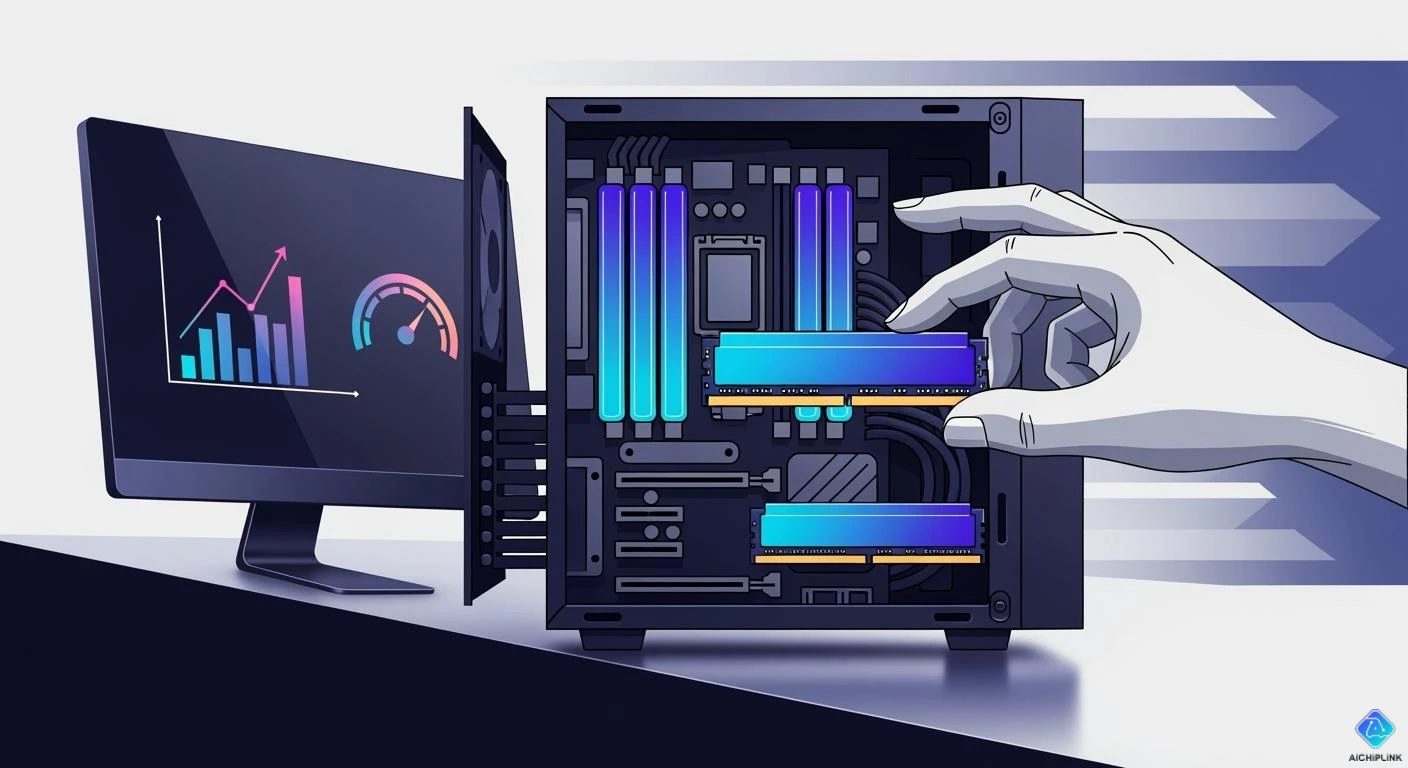
You notice your computer getting slower when you open many programs or switch between apps. This slowdown occurs because RAM affects speed, determining how efficiently your computer performs daily tasks. When your computer lacks sufficient RAM, you may experience longer loading times, lag or freezing, and occasionally encounter memory error messages. Many users report delays when transitioning between apps, which can hinder productivity due to these issues. Understanding how RAM affects speed can help you decide if upgrading your RAM will resolve these problems and enhance your computer's performance.
Key Takeaways
-
RAM is your computer’s short-term memory. It helps your computer get and use data fast.
-
Enough RAM lets you do many things at once. 8 GB is the least you need for daily tasks.
-
RAM speed matters for how well your computer works. This is important for games and editing videos.
-
More RAM helps only if your computer does not have enough now. Check how much RAM you use before you buy more.
-
Knowing what RAM your computer needs helps you choose better. This makes your computer work well.
What Is RAM and How It Works
RAM’s Role in Speed
You use ram every time you open a program or browse the internet. Ram acts as your computer’s short-term memory, storing information that your CPU needs right away. When you launch an app, ram holds the data so your computer can access it quickly. Ram speed measures how fast your computer can read and write this information. Higher ram speed means your computer responds faster when you switch between tasks or load new files.
Think of ram as your desk space. The more ram you have, the more items you can keep within reach. Ram speed is like how quickly you can grab those items. If your desk is small or you move slowly, you waste time searching for what you need.
-
Ram, or Read-Write Memory, serves as the main memory of your computer, temporarily storing data for quick access.
-
Ram enables fast read and write operations, directly supporting your CPU for smooth program execution.
-
Ram is volatile memory, which means it loses data when you turn off your computer.
-
Ram provides high-speed, short-term memory essential for your CPU’s operations.
-
The amount of ram needed varies based on usage, with 12 GB being a recommended minimum for general performance.
RAM vs Storage
You might confuse ram with storage, but they serve different purposes. Ram speed is much higher than storage speed. Ram handles quick tasks, while storage keeps your files safe for the long term. When you save a document, it goes to storage. When you open it, ram loads the file so you can work on it.
-
Ram is significantly faster than storage, with DDR4 ram achieving peak transfer rates of 25.6GB/s.
-
Storage, especially SSDs, is slower because of memory chip limitations and interface bottlenecks.
-
Ram is volatile and used for quick data access.
-
Storage is non-volatile and used for long-term data retention.
You rely on ram speed for smooth multitasking and fast responses. Storage keeps your photos, music, and documents safe even when your computer is off. Ram speed affects how quickly your computer can handle active tasks, while storage speed affects how fast you can open or save files.
How RAM Affects Speed and Performance
RAM Capacity and Multitasking
You notice how ram affects speed when you try to do many things at once on your computer. Ram capacity decides how many programs you can run at the same time without slowdowns. If you open several apps, like a web browser, a music player, and a word processor, you use more ram. When ram fills up, your computer starts to slow down. You might see apps taking longer to open, or your system may freeze for a few seconds. Sometimes, switching between tasks feels sluggish. These problems happen because your computer runs out of space in ram to keep everything ready for quick access.
-
Applications take longer to open when ram is full.
-
You experience sluggish performance when switching between tasks.
-
Your computer may freeze or hang more often.
-
The system feels less responsive overall.
Having enough ram lets you run multiple applications at once without delays. For example, you can research online, listen to music, write a report, and check emails all together. Ram capacity makes this possible by giving your computer enough space to keep everything running smoothly. If you open many browser tabs, each one uses ram. Modern browsers use a multi-process model, so every tab and extension runs separately. This design keeps your browser stable but uses more ram. Closing other programs can free up ram for your browser, making it faster.
RAM Speed and Data Transfer
Ram speed measures how quickly your computer can move data between the CPU and ram. You see the effect of ram speed when you launch programs or switch between tasks. Ram speed is measured in Megahertz (MHz). Higher ram speed means your computer can process requests faster. This leads to smoother program launches and better multitasking. If you use resource-heavy apps like games or video editors, ram speed becomes even more important. Faster ram allows your CPU to access data quickly, which improves overall system efficiency.
-
Ram speed shows how fast your computer can read and write data.
-
Faster ram means quicker data transfer between the CPU and other parts.
-
You get better performance in demanding apps with higher ram speed.
-
Everyday tasks may not show a big difference, but heavy workloads do.
When you use faster ram, you notice quicker application launches and improved multitasking. For example, games and creative software benefit from higher ram speed. You get less waiting time and more responsive controls. The actual boost depends on your system and the apps you use. If you only browse the web or write documents, the difference may be small. But for gaming and editing videos, ram speed can make a real impact.
When More RAM Doesn’t Help
You might think adding more ram always makes your computer faster. This is not always true. Once you have enough ram for your tasks, adding more does not increase speed. For example, most modern games use less than 16GB of ram. If you upgrade from 16GB to 32GB, you may only see a 1-5% improvement in frames per second (FPS). The extra ram does not help because your system already has enough for the game.
| RAM Size | FPS Gain (%) |
|---|---|
| 16GB to 32GB | 1-5% |
Modern games and many apps do not use more than 16GB of ram. If your computer has enough ram, adding more will not change performance much. You see the biggest gains when you upgrade from too little ram to enough ram. After that, the speed stays about the same. Ram affects speed most when your system is limited by ram. If you already have enough, focus on other upgrades like a faster storage drive or a better CPU.
Tip: Check your current ram usage before upgrading. If your computer rarely uses all its ram, adding more will not make it faster.
You now know how ram affects speed in real-world situations. Ram capacity helps with multitasking and running multiple applications. Ram speed improves data transfer and system responsiveness. More ram only helps if your system needs it. Understanding these points helps you make smart choices for better performance and smoother program launches.
RAM Requirements for Different Uses
Everyday Tasks
You use your computer for web browsing, email, and office applications every day. For these tasks, you do not need a large amount of ram. Most users find that 8 GB of ram gives a smooth and reliable experience. If you use only a few apps at a time, 4 GB can work, but you may notice your computer slows down, especially with modern browsers.
-
4 GB of ram can run basic tasks, but you may see sluggish performance.
-
8 GB of ram is the realistic minimum for a smooth experience in 2026.
-
More ram helps if you keep many browser tabs or apps open.
Tip: If you want your computer to stay fast for years, choose at least 8 GB of ram.
Gaming and Creative Work
You want the best gaming experience when you play new games or work with creative software. Ram plays a big role in how smooth your games run and how quickly creative apps respond. If you have too little ram, your gaming experience will suffer from lag or crashes. Creative work like video editing or graphic design also needs more ram for fast results.
| Workload / Task | Minimum RAM Requirement | Recommended RAM Amount |
|---|---|---|
| Video Editing | 8-16GB | 64GB |
| Graphic Design | 8-16GB | 32GB |
| Gaming | 16GB | 32GB |
You get a better gaming experience with 16 GB or more. Creative professionals often use 32 GB or more for large projects.
Professional and Heavy Workloads
You need more ram for demanding jobs like software development, running virtual machines, or analyzing big data. If you use several coding tools or run many virtual machines, start with 32 GB of ram. For heavy simulations or big data analysis, 64 GB or more is best.
-
32 GB of ram is the starting point for virtualization and software development.
-
For big data or many virtual machines, 64 GB or more is recommended.
-
General programming works well with 8 to 16 GB of ram.
-
Large projects or complex coding may need 32 GB or more.
Note: Always check your software’s requirements before upgrading your ram. This helps you match your computer to your work needs.
System Limits on RAM
OS and Hardware Constraints
You might want to add more ram to your computer. But sometimes, your system will not let you use all of it. Operating systems have set limits for memory. Some address bits are saved for things like input/output or security. This means you get less ram to use. The operating system also has built-in limits that affect ram.
Hardware is also important for ram capacity. The CPU design decides how much memory you can use. The memory bus and chip pins also limit the ram you can install. Even if your computer supports more ram, hardware can still limit what you use.
Note: The most ram your system can use depends on both hardware and software. Some address space is saved for things like peripherals and ROM. So, not all your ram is available for programs.
You should check your operating system and motherboard before upgrading ram. Popular systems like Windows 10 and macOS Ventura need at least 16 GB of ram for smooth use. Both say 32 GB is best for top performance.
| Operating System | Minimum RAM | Recommended RAM |
|---|---|---|
| Windows 10 | 16 GB | 32 GB |
| macOS Ventura | 16 GB | 32 GB |
32-bit vs 64-bit Systems
You need to know if your system is 32-bit or 64-bit. This changes how much ram your computer can use. A 32-bit system can only use up to 4 GB of ram. If you add more, it will not work unless you turn on special features like PAE. A 64-bit system can use much more ram, sometimes up to 128 GB or even 2 TB.
| System Type | Maximum RAM Supported |
|---|---|
| 32-bit | up to 4 GB |
| 64-bit | up to 128 GB (Windows 10) and up to 2 TB (Windows 10 Pro, Education, Enterprise) |
The way systems handle addresses is different too. A 32-bit system is stuck with less than 4 GB of ram. A 64-bit system can use 1 TB to 4 PB, so you can add much more ram for big jobs.
| Architecture | Addressing Capability | Usable RAM Limit |
|---|---|---|
| 32-bit | Limited to < 4 GB | Needs PAE for > 4 GB |
| 64-bit | Supports 1 TB to 4 PB | Usually > 4 GB |
Tip: If you want to upgrade ram for heavy work, make sure your system is 64-bit and your hardware can handle more ram.
Upgrading RAM: What to Know
Checking Your RAM
You can check your ram on Windows and Mac computers. On a Mac, click the Apple icon in the top left. Then pick 'About This Mac.' You will see your computer's details under 'Memory.' Open 'Activity Monitor' and look at the 'Memory' section for more info. On Windows, press 'Winkey + Pause Break' to see your ram. You can also right-click 'This PC' and choose 'Properties.' If you search 'System Information' in Windows, you will find ram details.
If you want to upgrade ram in a desktop, follow these steps: 1. Turn off your computer and unplug it. 2. Take off the side panel. 3. Find the memory slots on the motherboard. 4. Put the ram module in at an angle and push until it clicks. 5. Close the panel and turn your computer back on.
Tip: Always check your computer's specs before you upgrade memory.
Signs You Need More RAM
Your computer may slow down when you do many things at once. If your computer freezes or crashes a lot, you might need more memory. If your task manager shows ram use over 80%, your computer is struggling. Long start times and slow app loading are also signs. If browser tabs crash or reload often, your ram is working too hard.
| Sign of Insufficient RAM | Description |
|---|---|
| Frequent System Freezes and Crashes | More crashes happen when you multitask with less than 8GB of ram. |
| Slow Performance During Multitasking | Going from 4GB to 16GB of ram makes multitasking 65% faster. |
| High Memory Usage in Task Manager | Ram use above 80-90% means you should upgrade memory. |
| Long Boot Times and Loading Delays | Computers with 32GB of ram start up 30% faster than those with 8GB. |
| Browser Tabs Crashing or Reloading | Chrome uses over 1GB of ram with 10-15 tabs open, showing memory is low. |
Upgrade Tips and Compatibility
Before you upgrade memory, check your motherboard’s max ram support. Make sure the ram type, like DDR4 or DDR5, matches your system. Check how many slots you have for new ram. Using dual-channel can help your computer run better. For laptops, see if the ram can be changed or if it is soldered.
| Factor | Description |
|---|---|
| RAM Type | Use DDR4 or DDR5 that matches your motherboard. |
| Speed | Use ram sticks with the same speed; if not, they run at the slowest speed. |
| Number of Slots | Check if you have open slots for more ram. |
| Motherboard Support | Make sure you do not go over the max ram your motherboard allows. |
| Accessibility | See if your laptop’s ram can be upgraded or if it is fixed in place. |
| Dual-Channel Configuration | Put ram in matching slots for better speed. |
Note: Using the wrong ram can cause errors or hurt your computer. Always check if the ram fits before you upgrade.
Adding more memory can make your computer faster, especially if you use lots of programs. You will see apps open quicker and switching between them will be smoother if your ram is enough.
You need RAM to do many things at once on your computer. RAM helps your computer start up fast and work smoothly. It lets you open many programs without slowing down. If your computer is slow, your typing is delayed, or it crashes a lot, you might need more memory. Adding more RAM makes programs open faster and your computer work better. Your computer will also answer your commands more quickly. Before you buy more RAM, make sure it fits your computer. Check if your memory use is always high. This will help you get the best speed for what you do.
-
Look for slow computers, memory warnings, or apps closing by themselves.
-
Check how much RAM you use before you buy more.
Tip: Open your system monitor and watch memory use while you work. If it is always close to full, adding RAM will make your computer faster.

Written by Jack Elliott from AIChipLink.
AIChipLink, one of the fastest-growing global independent electronic components distributors in the world, offers millions of products from thousands of manufacturers, and many of our in-stock parts is available to ship same day.
We mainly source and distribute integrated circuit (IC) products of brands such as Broadcom, Microchip, Texas Instruments, Infineon, NXP, Analog Devices, Qualcomm, Intel, etc., which are widely used in communication & network, telecom, industrial control, new energy and automotive electronics.
Empowered by AI, Linked to the Future. Get started on AIChipLink and submit your RFQ online today!
Frequently Asked Questions
What happens if you run out of RAM?
You may notice your computer slow down or freeze. Programs can crash or take longer to open. Your system might use storage as extra memory, but this is much slower than RAM.
How does more RAM help with faster boot-up?
More RAM lets your computer load system files and apps quickly. You see a faster boot-up because your system can handle more data at once during startup.
Can you mix different RAM sizes or speeds?
You can mix RAM sticks with different sizes or speeds. Your computer will use the slowest speed and smallest size for all sticks. For best results, use matching RAM modules.
Is RAM the same as computer memory?
Yes, RAM is a type of computer memory. It stores data that your computer needs right now. Other types of memory, like storage, keep files for the long term.
How do you know if you need more RAM?
You may need more RAM if your computer feels slow, freezes, or shows memory warnings. Check your system monitor. If RAM stays close to full, an upgrade can help.