How to Build a Smart Door Lock Using Arduino Nano 33 IoT & SG92 Servo Motor
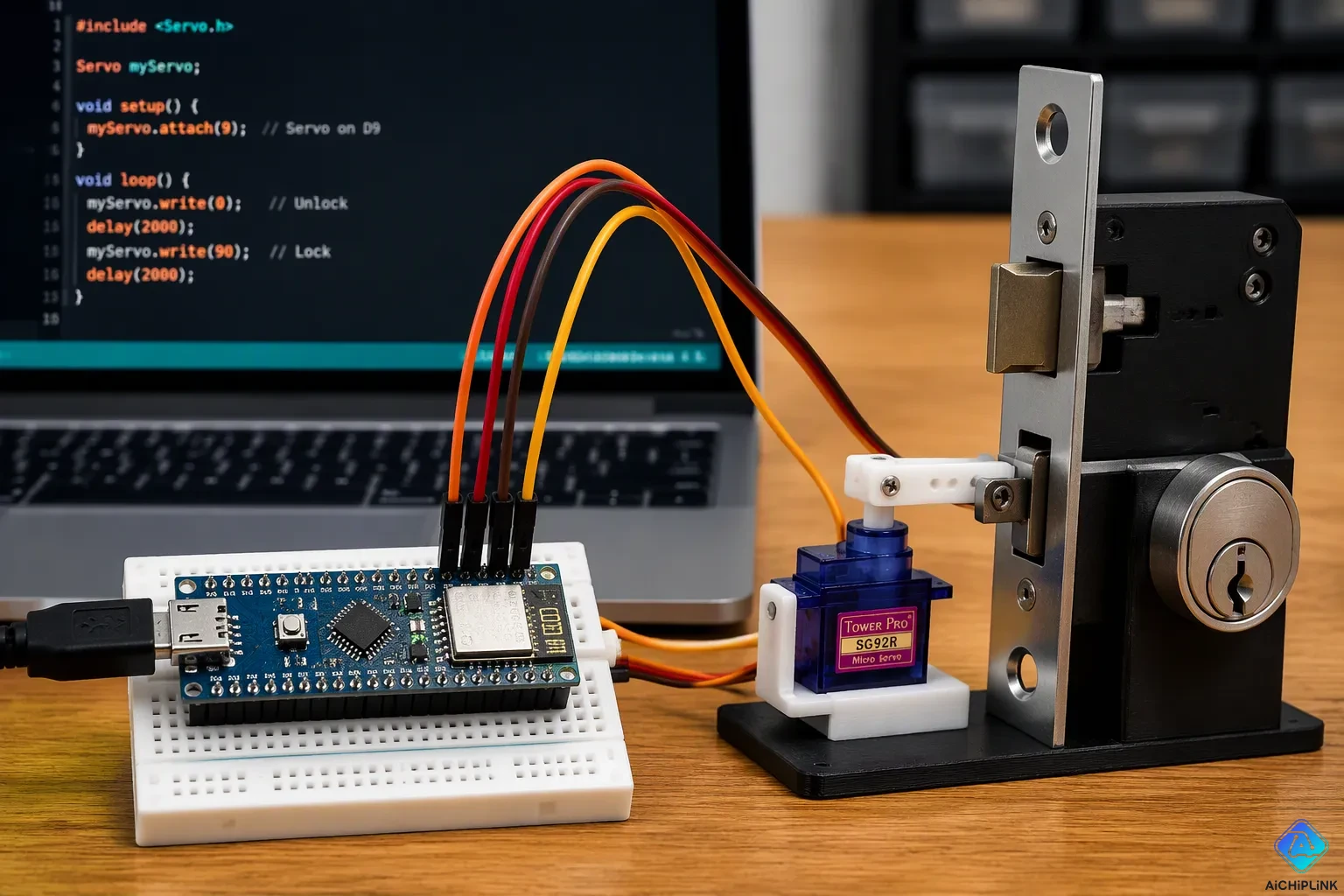
You can build a smart door lock that opens from your phone or laptop browser over WiFi. This tutorial pairs an Arduino Nano 33 IoT with an SG92 servo motor. The board is a WiFi-enabled smart door lock brain with built-in WiFi, and the servo is a small, low-cost actuator. Together they form a remote control door lock you can command from any browser on your network.
You will finish with a wired circuit, uploaded code, and a working lock. Expect beginner skill level and about one afternoon of work. The servo stands in for the deadbolt in this prototype, so you learn the lock mechanism logic before you touch a real door lock mechanical assembly. Treat security testing as your final step.
Key Takeaways
-
Collect the Arduino Nano 33 IoT, SG92 servo, and a separate 5V power supply to build your smart lock.
-
Wire the servo with care: connect the signal wire to pin 9, connect power to the outside power supply, and make sure both share a common ground.
-
Set up WiFi on the Nano 33 IoT with the WiFiNINA library, so you can control the lock from a browser.
-
Write Arduino code to move the servo between the locked and unlocked positions and to handle web requests.
-
Try the lock from a web browser on your network. Fix any problems before you put it on a door.
Smart Door Lock Parts and Tools
Hardware Components
You need a small set of parts to build this smart door lock. Each item plays a clear role in the build.
-
Arduino Nano 33 IoT (1): the microcontroller board that runs your code and connects to WiFi through its NINA-W102 module.
-
SG92 servo motor (1): a micro servo that turns the lock arm. It runs on 4.8–6 VDC and delivers a stall torque of 2.5 kg-cm at 5 V.
-
Jumper wires (about 6): carry signal, power, and ground between the parts.
-
Breadboard (1): holds the connections without soldering.
-
External 5V power source (1): a battery pack or wall adapter that feeds the servo directly.
-
Optional lock linkage (1): a small arm or 3D-printed bracket that stands in for the door lock mechanical assembly.
The Nano 33 IoT measures just 45 × 18 mm and weighs 5 g, so it fits inside a small enclosure. Its I/O pins run at 3.3 V, and each pin sources only 7 mA. Keep that limit in mind. The servo draws far more current than a pin can supply, and the next section shows how to handle it.
Software and Libraries
Two libraries make this tutorial work. The WiFiNINA library handles the network connection on the Nano 33 IoT. The Servo library controls the SG92 servo motor with simple angle commands.
Install both before you write any code. Open the Arduino IDE and go to Tools > Manage Libraries. Search for WiFiNINA and install it from the results. Then search for Servo and install that library the same way. The Servo library comes from the Arduino Libraries GitHub organization as the Servo Library for Arduino. Check that both names appear under Sketch > Include Library before you move on. A missing library causes compile errors, and those errors confuse beginners fast.
Wire the Servo Motor
The wiring stage turns your parts pile into a working circuit for the servo motor. Three connections link the micro servo to the arduino compatible development board: signal, power, and ground. Get these right and the rest of this tutorial flows smoothly.
Pin Connection Table
The SG92 follows a standard three-pin layout. Match each wire to its function before you plug anything in.
| Pin | Signal | Wire Color (standard) | Function |
|---|---|---|---|
| 1 | Signal (PWM) | Yellow / Orange / White | Control signal (3.3 V or 5 V logic) |
| 2 | VCC (positive) | Red | +4.8 V to +6.0 V DC |
| 3 | GND (negative) | Brown / Black | 0 V common ground |
The signal wire goes to pin 9 on the Nano 33 IoT. The Servo library uses that pin for pulse-width control. The red wire goes to your external 5V supply, not to the board. The brown wire goes to the supply's negative terminal.
Wiring Steps and Safety Checks
Follow these steps in order. Each one protects your hardware.
-
Connect the brown wire to the external supply's negative terminal.
-
Run a jumper from that same terminal to a GND pin on the Nano 33 IoT.
-
Connect the red wire to the supply's positive terminal.
-
Connect the orange signal wire to pin 9.
-
Label each wire with tape, then recheck every connection before you apply power.
The ground wire must share the same ground as the microcontroller. A floating ground causes random twitching and overheating.
Power is the biggest risk in this build. The Nano's pins source only 7 mA, and the servo draws far more current when it moves. Powering the servo motor from the board would overload it. Keep the supply between 4.8 and 6.0 V, and never connect a 9 V or 12 V battery directly. Over-voltage overheats the internal H-bridge and warps the gearbox. The Nano's pins run at 3.3 V logic, and the SG92 accepts 3.3 V or 5 V logic, so you need no level shifter here.
Add a 100–470 µF bulk capacitor plus a 100 nF bypass capacitor near the servo header. These parts absorb current spikes that cause jitter and brown-outs. Keep the power and ground leads short, and use at least 22 AWG wire for runs over 30 cm. Long thin leads add inductance and turn current steps into voltage spikes.
Test the supply under load. Command the servo to a stalled position and measure the voltage at its connector. A sag below 4.0 V means your supply or wiring is too weak. Then sweep the servo motor from 1.0 ms to 2.0 ms in 100 µs steps and confirm smooth motion with no buzzing. Probe the signal pin if you own a logic analyzer. Confirm a 20 ms period, a 1.0–2.0 ms high pulse, and jitter under 5 µs. Hold a stalled position for 60 seconds and check the case temperature. A rise above 40 °C over ambient means you are pushing the motor past its rated torque.
These checks matter for a door lock mechanical assembly, where a stalled motor could jam against the bolt. A wifi drop or a failed iot command cannot fix bad wiring, so verify the circuit before you mount it on a door.
How the Lock Works
WiFi and Web Server Setup
Your lock joins your home wifi network through the WiFiNINA library. Open the sketch and replace the placeholder credentials with your own network name and password. Store them as character arrays, such as char ssid[] = "MySSID"; and char pass[] = "MyPassword";. You can also keep them in a separate arduino_secrets.h file.
The connection sequence follows a fixed pattern:
-
Include the library with
#include <WiFiNINA.h>. -
Declare the SSID and password as character arrays.
-
In
setup(), check that the module responds withWiFi.status() == WL_NO_MODULE. -
Call
WiFi.begin(ssid, pass)inside a loop until the status readsWL_CONNECTED, with a delay between attempts.
The built-in web server then answers browser requests on the board's IP address. This wifi-controlled locking system needs no extra hardware. If you prefer a phone app over a browser page, Arduino IoT Cloud offers an optional dashboard path for the same iot-based door lock. Both routes work well, and the choice comes down to your preference.
Lock and Unlock Logic
A servo holds a set angle instead of spinning freely, and that trait suits a lock mechanism. The servo sits at one angle for locked and turns to another for unlocked. Typical positions are 0° for locked and 90° for unlocked, though you can adjust both to match your linkage. The bolt should sit fully extended at the locked angle and fully retracted at the unlocked angle.
The servo starts at 150° (locked). An unlock command rotates it smoothly to 0° (unlocked), holds for 5000 ms, then returns to 150°. A helper function steps one degree at a time with an 8 ms delay for smooth motion.
This tutorial uses a timed re-lock, so the door never stays open by accident. A browser command triggers the servo, and the code returns it after the hold period. Test the angles before you trust the security of the setup.
Write the Arduino Code
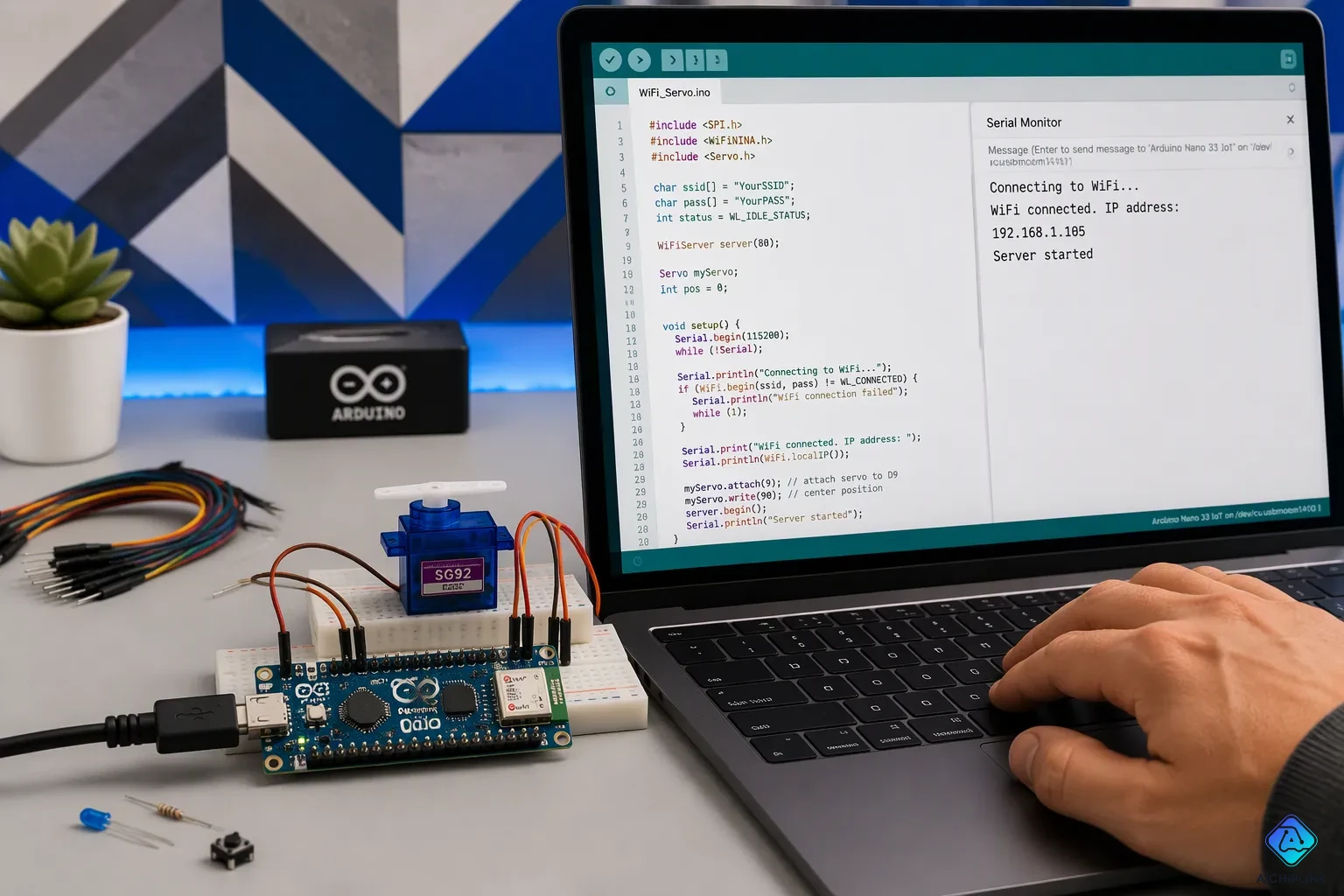
Code Walkthrough
The arduino code has three jobs: join your wifi network, answer browser requests, and move the servo. Start with the includes. The sketch pulls in SPI.h and WiFiNINA.h for the network, plus Servo.h for the actuator. The Nano 33 IoT carries the NINA W102 module, an ESP32-based radio that supports 802.11 b/g/n on 2.4 GHz and Bluetooth 4.2. The official WiFiNINA library talks to it directly.
Your credentials go in two character arrays. They are case sensitive, so check every letter. The network must run 2.4 GHz b/g/n with WPA2 PSK authentication, not WEP. Move closer to the router if the signal is weak. Intermittent connection errors are acceptable; reset the WiFi driver before retrying if failures persist.
The setup block follows a fixed order:
-
Open the serial port and wait for it.
-
Check that the module responds with
WiFi.status() == WL_NO_MODULE. -
Loop on
WiFi.beginuntil the status readsWL_CONNECTED, with a delay between attempts. -
Print the IP address and signal strength so you know where to point your browser.
The loop block listens for HTTP requests. A request to the root path serves the simple webpage with two links. A request to /unlock turns the servo to 0 degrees, holds, then returns it to 150. A request to /lock sends it straight back. The control webpage is just that HTML string.
Keep the pulse range inside the servo datasheet limits. Adjust the second and third values in
servo.attach(9, 1000, 2000)if the servo motor jitters or locks up.
Three mistakes trip up beginners. A wrong port causes upload errors, so note the ports before and after you plug in the board. Leftover template code causes compile errors, so delete stray void loop(); lines. Misplaced wiring leaves the servo frozen, so recheck the signal pin.
Full Commented Sketch
Comments make the code readable. Use // for single lines and /* */ for blocks. The compiler ignores both.
#include <SPI.h>
#include <WiFiNINA.h>
#include <Servo.h>

char const *SSID_NAME = "your_SSID";      // your network name
char const *SSID_PASS = "your_PASSWORD";  // your network password
int status = WL_IDLE_STATUS;
Servo lockServo;                          // create servo object

void setup() {
  Serial.begin(9600);
  while (!Serial);
  if (WiFi.status() == WL_NO_MODULE) {    // module check
    Serial.println("WiFi module failed!");
    while (true);
  }
  while (status != WL_CONNECTED) {        // retry until connected
    status = WiFi.begin(SSID_NAME, SSID_PASS);
    delay(10000);
  }
  lockServo.attach(9, 1000, 2000);        // signal pin and pulse range
  lockServo.write(150);                   // start locked
}
The remaining lines add the server and the two routes. Read each comment before you change a value. This tutorial keeps the sketch short on purpose, so you can trace every line of the iot logic yourself.
Test Your Smart Door Lock
Upload the Sketch
You now hold a finished sketch and a wired circuit. The upload step brings them together. Open the arduino ide and install the board package first. Go to Tools > Board > Boards Manager, search for Arduino SAMD, and install the package that lists the Arduino Nano 33 IoT. The board then appears as Arduino NANO 33 IoT in the board menu.
Next, select the board and the port under the Tools menu. The Nano 33 IoT uses native USB, so the serial port disappears during upload and reappears a few seconds later. Wait for it to return before you open the Serial Monitor. If the board never shows up, double-tap the reset button at the top center. The board enters bootloader mode and appears as a serial device, which makes recovery easy.
Control from a Browser
Open the Serial Monitor at 9600 baud. Wait for the connection message, then read the IP address the board prints. The WiFi.localIP() call supplies that address. You can also assign a fixed address such as IPAddress ip(192, 168, 137, 13); so the lock always answers at the same spot on your network.
Type the address into a browser on any device joined to the same wifi network. A control page appears with Lock and Unlock buttons.
Press Unlock and watch the servo swing to its open angle. Press Lock and confirm it returns. The servo should move smoothly between the two positions with no buzzing. Run the cycle several times. A steady response confirms your smart door lock works, and the iot link holds. If the servo stalls, recheck the signal wire and the external supply before you mount anything on a real door.
You built a smart door lock that you control from a browser on the Nano 33 IoT. Your servo now takes commands over wifi, and the code keeps the bolt in place until you tell it to move.
Want to make it better? Add HTTP Basic Authentication to the web page:
-
Read the request header into a string.
-
Check for the Base64-encoded
username:passwordvalue. -
Show the page if it matches, or send back
401 Unauthorizedwith aWWW-Authenticateheader.
Log every lock event, then upgrade to a stronger servo or a real door lock mechanical assembly. If you want other options, think about an electric strike plate with a mechanical deadbolt, or keypad and RFID entry. These iot skills carry over well to smart home projects.
Test the security carefully before this tutorial's prototype guards a real door.

Written by Jack Elliott from AIChipLink.
AIChipLink, one of the fastest-growing global independent electronic components distributors in the world, offers millions of products from thousands of manufacturers, and many of our in-stock parts is available to ship same day.
We mainly source and distribute integrated circuit (IC) products of brands such as Broadcom, Microchip, Texas Instruments, Infineon, NXP, Analog Devices, Qualcomm, Intel, etc., which are widely used in communication & network, telecom, industrial control, new energy and automotive electronics.
Empowered by AI, Linked to the Future. Get started on AIChipLink and submit your RFQ online today!
Frequently Asked Questions
Can I power the servo from the Nano 33 IoT's 5V pin?
No. Each Nano pin sources only 7 mA, and the servo motor pulls far more current when it moves. Use an external 5V supply between 4.8 and 6.0 V. Tie its ground to a board GND pin so both parts share a common reference.
Why does my servo twitch or buzz?
A weak supply or a floating ground causes most twitching. Check that the ground wire runs to the same terminal as the supply's negative lead. Add a 100–470 µF capacitor near the servo header to absorb current spikes. Keep power leads short and use at least 22 AWG wire for long runs.
Will this setup work with a real deadbolt?
Not directly. The SG92 is a small actuator, and a real deadbolt needs more torque. Treat this build as a learning platform. Upgrade to a stronger servo or a solenoid, then add a proper linkage. Test the mechanism thoroughly before it guards an actual door.
Do I need Arduino IoT Cloud for this project?
No. The built-in web server answers browser requests on the board's IP address, and that path needs no cloud account. Arduino IoT Cloud is an optional route if you want a phone dashboard. Both approaches control the same servo, so pick the one that fits your workflow.
How do I find the board's IP address?
Open the Serial Monitor at 9600 baud after upload. The sketch prints the address from WiFi.localIP(). Type that address into a browser on any device joined to the same network. You can also assign a fixed address in code so the lock always answers at the same spot.