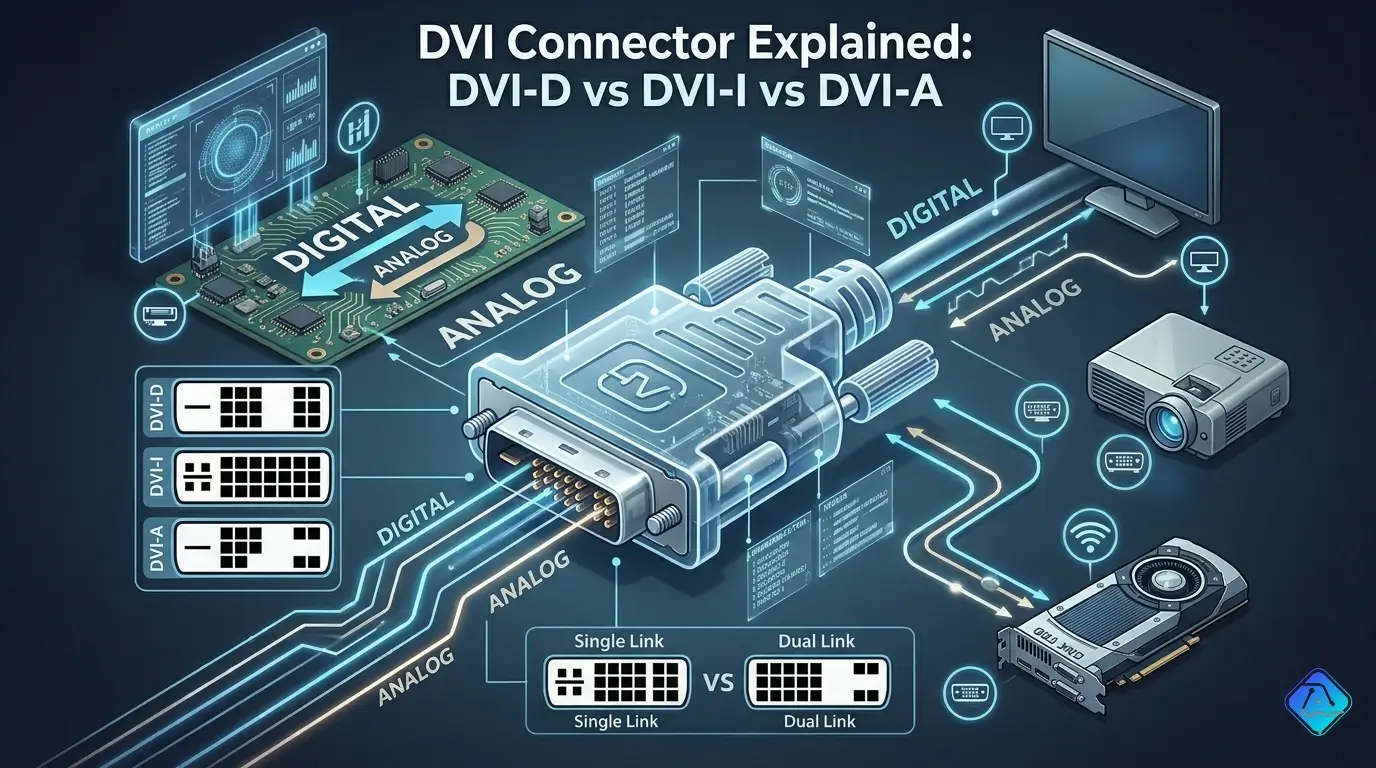
Here is a situation that trips up a surprising number of people: you have a DVI cable and a DVI port. The cable's central pin block looks the same as the port. The connector lines up. You push — and it does not go in. Not because you have the wrong connector family, but because those four small pins arranged in a square around the wide flat blade on your cable are slightly too wide to fit into the port that has no matching slots.
That physical incompatibility is not an accident and not a manufacturing defect. It was designed into the DVI standard deliberately, to prevent a very specific mistake: someone trying to drive an analog monitor from a connector that only outputs digital signals. The flat blade on a DVI-I connector (which carries both analog and digital) is slightly wider than the flat blade on a DVI-D connector (digital only) — just enough to make a DVI-I cable mechanically impossible to insert into a DVI-D port without modification. The reverse is compatible: a DVI-D cable goes into a DVI-I port just fine, because you are giving a flexible port a more limited cable.
Once you understand this one physical fact, the entire DVI type system falls into place. DVI-D, DVI-I, and DVI-A are not three competing connectors. They are three configurations of the same connector shell, each carrying a different subset of the possible signals, with physical shape differences that enforce the correct compatibility rules in hardware rather than relying on users to read a label.
1.0 The Three DVI Types: What Each Name Means
DVI stands for Digital Visual Interface, developed by the Digital Display Working Group (DDWG) and first released in 1999. The standard was designed to replace VGA as the standard PC monitor connection, while maintaining backward compatibility with the analog VGA infrastructure that existed in hundreds of millions of devices at the time.
The three connector variants reflect three different answers to the question "which signals do you need to carry?":
DVI-D (Digital): Carries digital video signals only. No analog capability. This is the type found on most LCD monitors and many graphics cards sold after roughly 2005, once analog CRT monitors had largely disappeared from mainstream use.
DVI-I (Integrated): Carries both digital and analog video signals in the same connector. The "I" stands for Integrated — both signal types are integrated into one physical connector. DVI-I is the most flexible type: it works with digital monitors (using the digital pins), analog monitors through a passive DVI-to-VGA adapter (using the analog pins), and any cable that is DVI-D or DVI-I.
DVI-A (Analog): Carries analog video signals only. No digital capability. The electrical signals are equivalent to VGA. DVI-A was always rare and is now essentially obsolete — the only practical use case was connecting devices that had DVI-A ports to VGA monitors using a passive adapter, without needing a powered signal converter. Today, if you encounter a DVI-A connector, it is almost certainly on legacy industrial or professional equipment from the early 2000s.
2.0 Pin Counts and Physical Differences
The DVI connector shell accommodates a maximum of 29 pins in a three-row layout, plus one wide flat blade (the "ground blade") at one end. The different DVI types populate different subsets of these positions:
The digital section (TMDS pins): DVI uses TMDS — Transition Minimized Differential Signaling — to carry the digital video data. Each color channel (Red, Green, Blue) uses one differential pair (two pins), and there is one clock pair, giving 4 TMDS links × 2 pins = 8 pins for single-link digital. Dual-link adds a second set of RGB pairs for 12 pins total in the digital section, plus 6 additional pins for the expanded TMDS set.
The analog section: Four pins in a square arrangement around the flat blade carry the analog video signals (equivalent to VGA's R, G, B, HSync, VSync). The flat blade itself serves as the analog ground. These pins are present in DVI-I and DVI-A but absent in DVI-D.
The critical physical difference — the flat blade width:
The flat blade on a DVI-I connector is measurably wider than the flat blade on a DVI-D connector. This is an intentional mechanical enforcement: a DVI-I male connector physically cannot be inserted into a DVI-D female port because the wider blade does not fit the narrower slot. You cannot work around this by removing the four analog pins from a DVI-I connector — the blade incompatibility remains.
Complete pin count reference:
| Type | Configuration | Digital Pins | Analog Pins | Flat Blade | Total |
|---|---|---|---|---|---|
| DVI-A | Single link only | 0 | 12 | 1 (wider) | 17 (12+5) |
| DVI-D | Single link | 18 | 0 | 1 (narrow) | 19 (18+1) |
| DVI-D | Dual link | 24 | 0 | 1 (narrow) | 25 (24+1) |
| DVI-I | Single link | 18 | 4 | 1 (wider) | 23 (18+5) |
| DVI-I | Dual link | 24 | 4 | 1 (wider) | 29 (24+5) |
All DVI types also include DDC (Display Data Channel) pins — a clock and data line pair that lets the source device read the monitor's EDID (Extended Display Identification Data), enabling automatic resolution and timing detection.
3.0 Specifications: Resolution, Bandwidth, and Cable Length
Single-link vs dual-link:
Single-link DVI uses one set of TMDS data pairs and operates at up to 165 MHz pixel clock. This supports resolutions up to 1920 × 1200 at 60 Hz (WUXGA) — covering 1080p (1920×1080) and the slightly taller 1920×1200 format that was common in professional displays.
Dual-link DVI doubles the TMDS data pairs (adding a second complete set of RGB differential pairs alongside the first, sharing the same clock). This doubles bandwidth to approximately 2 Gbps, supporting resolutions up to 2560 × 1600 at 60 Hz (WQXGA) — the native resolution of 30-inch large-format monitors like the Dell 3008WFP and Apple Cinema HD Display 30.
Note that dual-link DVI is only available in DVI-D and DVI-I variants. DVI-A is single-link only, which is one of several reasons it was commercially marginal.
Maximum cable length:
The DVI specification does not mandate a maximum cable length, as the limit depends on the TMDS clock frequency. Practical guidelines:
- Up to 4.5 metres (15 feet) for resolutions up to 1920 × 1200 at 60 Hz
- Up to 15 metres (49 feet) for resolutions up to 1280 × 1024 at 60 Hz
- Beyond 15 metres: a DVI signal repeater or active cable (externally powered) is required
At dual-link resolutions (2560 × 1600), recommended maximum cable length drops to approximately 3 metres due to the higher TMDS clock frequency. This is one practical limitation of DVI that DisplayPort handles better through its packet-based transmission architecture.
Bandwidth comparison (DVI vs successors):
| Interface | Max Bandwidth | Max Resolution | Audio |
|---|---|---|---|
| DVI Single Link | 1.65 Gbps | 1920 × 1200 @ 60 Hz | No |
| DVI Dual Link | ~2 Gbps | 2560 × 1600 @ 60 Hz | No |
| HDMI 1.4 | 10.2 Gbps | 4K @ 30 Hz | Yes |
| DisplayPort 1.4 | 32.4 Gbps | 8K @ 60 Hz | Yes |
DVI and HDMI use the same TMDS electrical specification for their digital signals — which is why a passive DVI-D to HDMI adapter works for video, carrying the identical TMDS data across a pin remapping without any signal conversion. HDMI adds audio, CEC control, and Ethernet channels that DVI simply has no provision for.
4.0 Compatibility Matrix: What Connects to What
The compatibility rules follow directly from the physical pin/blade differences:
| Male Cable Type | Female Port Type | Compatible? | Notes |
|---|---|---|---|
| DVI-D Single | DVI-D Single | ✅ Yes | Direct match |
| DVI-D Single | DVI-D Dual | ✅ Yes | Single-link speeds only |
| DVI-D Single | DVI-I Single/Dual | ✅ Yes | Digital signal; analog pins on port unused |
| DVI-D Dual | DVI-D Dual | ✅ Yes | Full dual-link bandwidth |
| DVI-I Single | DVI-I Single/Dual | ✅ Yes | Digital or analog selected by signal |
| DVI-I Dual | DVI-I Dual | ✅ Yes | Full dual-link + analog available |
| DVI-I Any | DVI-D Any | ❌ No | Wider flat blade does not fit DVI-D port |
| DVI-A | DVI-I | ✅ Yes | Analog signal only; digital pins missing |
| DVI-A | DVI-D | ❌ No | No digital signals; analog pins missing from DVI-D |
| DVI-D | DVI-A | ⚠️ Physically fits* | *But carries no analog signal — no image |
The asymmetric rule: DVI-D male fits DVI-I female (digital-only cable into flexible port). DVI-I male does NOT fit DVI-D female (flexible cable into digital-only port — blocked by wider blade).
Passive adapter compatibility (no signal conversion needed):
- DVI-I to VGA: ✅ Passive adapter works — uses the four analog pins directly
- DVI-D to VGA: ❌ Passive adapter cannot work — DVI-D has no analog pins; an active converter (powered) is required
- DVI-D to HDMI: ✅ Passive adapter works for video — TMDS signals are identical; audio not included
- DVI-I to HDMI: ✅ Passive adapter works for video — uses digital pins; analog pins unused
5.0 The Real Differences That Affect Your Setup
The scenario that matters most: your graphics card has DVI-I, your monitor has DVI-D.
This is the most common configuration in systems from roughly 2000–2015. Graphics cards typically shipped with DVI-I (to maintain VGA adapter compatibility), while LCD monitors used DVI-D (digital only, no VGA support needed). The good news: a DVI-D cable works perfectly between a DVI-I source and a DVI-D monitor. The digital TMDS signals are identical; the analog pins on the graphics card's DVI-I port are simply left unconnected. No adapters, no active converters, no signal degradation.
The scenario that does not work: trying to use a passive DVI-to-VGA adapter on DVI-D.
Passive DVI-to-VGA adapters only work with DVI-I or DVI-A sources. They work by routing the four analog pins (which carry VGA-equivalent RGBHV signals) from the DVI connector directly to the corresponding VGA pins. A DVI-D source has no analog pins — there are no RGBHV signals to route. If you try to connect a passive DVI-to-VGA adapter to a DVI-D port, the connector may physically partially fit but no image will appear. An active DVI-D to VGA converter (containing its own DAC to convert the digital TMDS signal to analog) is required.
Single vs dual link — when does it matter?
Single-link DVI covers every standard resolution up to and including 1920 × 1200 at 60 Hz, which encompasses 1080p (1920 × 1080) and the 1200-line WUXGA format. If your monitor's native resolution is 1920 × 1200 or lower, single-link DVI is fully adequate. Dual-link DVI is only needed for resolutions above 1920 × 1200 — specifically for 2560 × 1600 monitors. Both the source (graphics card) and the cable must support dual-link for the benefit to be realized; a dual-link cable on a single-link port provides no advantage.
DVI-A in practice:
For any setup involving exclusively modern equipment (post-2005), DVI-A is irrelevant. If you encounter a DVI-A port on older industrial equipment and need to connect it to a VGA monitor, a passive DVI-A to VGA adapter works — the signals are electrically identical. If you need to connect it to a digital display, an active DAC converter is required.
6.0 ⚠️ Three Compatibility Mistakes That Are Easy to Make
Mistake 1: Assuming any DVI cable fits any DVI port
The DVI-I to DVI-D incompatibility (DVI-I male cannot fit DVI-D female due to wider flat blade) trips up a surprising number of users who assume all DVI connections are interchangeable. If you buy a DVI cable without checking the type and find it does not physically insert into your port, compare the flat blade width. A DVI-I cable going into a DVI-D port is the most common cause. Solution: use a DVI-D cable, or verify that your port is DVI-I before buying a DVI-I cable.
Mistake 2: Trying to use a passive DVI-to-VGA adapter on a DVI-D port
Passive DVI-to-VGA adapters are sold without always clearly labeling which DVI type they require. Many buyers purchase a passive adapter, plug it into a DVI-D port on their graphics card, connect a VGA monitor, and get no image. The adapter is not defective — it simply cannot work without analog signal pins at the source. Check the port type first: if it is DVI-D (no four pins around the flat blade), you need an active digital-to-analog converter, not a passive adapter.
Mistake 3: Expecting DVI-to-HDMI to carry audio
DVI and HDMI use the same TMDS electrical standard for their video data, making passive DVI-D to HDMI cables fully functional for video — no signal conversion required. However, DVI has no provision for audio in its specification. A passive DVI-to-HDMI cable carries video only. If your HDMI monitor or TV requires audio over the same cable, DVI cannot provide it regardless of adapter type. Transmit audio separately (3.5mm, optical, or HDMI from a different source port).
7.0 Decision Guide: Which DVI Type Do You Need?
You need DVI-D if:
- Your monitor has only a DVI port and your source has DVI (digital LCD monitor connection — the most common modern use case)
- You want to use a passive DVI-to-HDMI adapter for video
- You have a DVI-D port on your graphics card (you have no choice, but DVI-D covers all standard LCD resolutions)
You need DVI-I if:
- Your source has a DVI-I port and you want to use a passive DVI-to-VGA adapter to connect an analog monitor
- You want maximum flexibility — a DVI-I cable is forward and backward compatible with DVI-D and DVI-I ports (DVI-I male fits DVI-I female; DVI-D male fits DVI-I female)
- You are buying a cable that must work with either DVI-D or DVI-I destination ports without knowing which you will have
You need Dual-Link DVI-D or DVI-I if:
- Your monitor's native resolution exceeds 1920 × 1200 (e.g., a 2560 × 1600 30-inch display)
- Both your graphics card output and your cable must support dual-link
You do not need DVI at all if:
- Your system supports HDMI or DisplayPort — both carry higher resolutions, higher refresh rates, audio, and HDR signaling that DVI cannot provide
- You need 4K or higher resolution (DVI maximum is 2560 × 1600, and only on dual-link which is less common on modern equipment)
- You need audio over the video cable
When NOT to use DVI: DVI has no provision for audio, no support for 4K resolution, no support for adaptive sync technologies (G-Sync, FreeSync), and no support for HDR. For any application beyond connecting a 1080p or 1440p display to a PC or laptop where legacy compatibility is the constraint, HDMI 2.0 or DisplayPort 1.4 are better options in every measurable way.
8.0 Real Questions About DVI Connectors
Q: My graphics card has a port labeled DVI with what looks like all the pins. Is it DVI-I or DVI-D, and how can I tell without a label?
A: Look at the flat blade (the wide rectangular pin at one end of the connector) and the area immediately around it. If you see four small round pins arranged in a square pattern surrounding the flat blade, it is DVI-I (analog capability present). If there are no surrounding pins and the flat blade sits alone, it is DVI-D. The four pins are visible with the naked eye — no tools required. This visual identification works for both male (cable) and female (port) connectors.
Q: I have a DVI-I port on my graphics card and a VGA monitor. Will a cheap DVI-to-VGA adapter work, or do I need an expensive active converter?
A: A passive DVI-to-VGA adapter works perfectly with a DVI-I source. The analog VGA signals are physically present on the four pins surrounding the flat blade of the DVI-I connector — a passive adapter simply routes those pins to VGA positions in the cable. No signal conversion, no external power, no active electronics. The adapter costs only a few dollars. One caveat: confirm the port is actually DVI-I (four pins around the flat blade present) before buying the adapter. If the port is DVI-D (digital only, no surrounding pins), you need an active converter with a built-in DAC.
Q: I bought a DVI-D to HDMI cable but my TV's HDMI input shows no picture. Is the cable defective?
A: Possible but not the most likely cause. A few things to check: first, confirm the DVI source is actually outputting a signal — some graphics cards disable DVI output in certain configurations. Second, verify the cable is wired for DVI-D (digital), not DVI-A (analog) — a DVI-A to HDMI connection carries no compatible signal. Third, confirm that the HDMI device accepts digital video without audio input; some TVs expect at least a basic audio signal before routing a video connection to a valid input. Fourth, remember that DVI carries no audio — if the TV is waiting for an audio signal before activating the display, that can cause a blank screen.
9.0 Quick Reference Card
Three Types — One Sentence Each:
- DVI-D: Digital only. No analog capability. Most LCD monitors and many graphics cards.
- DVI-I: Digital + analog. Maximum flexibility. Accepts DVI-D cables; works with VGA via passive adapter.
- DVI-A: Analog only. Essentially obsolete. Rare on anything made after 2005.
Pin Count Reference:
| Type | Single-Link | Dual-Link | Max Resolution |
|---|---|---|---|
| DVI-A | 17 pins (12+5) | N/A | Limited by analog (1920×1200 effective max) |
| DVI-D | 19 pins (18+1) | 25 pins (24+1) | 1920×1200 / 2560×1600 |
| DVI-I | 23 pins (18+5) | 29 pins (24+5) | 1920×1200 / 2560×1600 |
The Compatibility Rules in Three Lines:
- DVI-D male → DVI-I female: ✅ Works
- DVI-I male → DVI-D female: ❌ Does NOT fit (wider flat blade)
- Passive DVI-to-VGA: ✅ Only with DVI-I or DVI-A source (requires analog pins)
How to identify a DVI port by sight:
- Four small round pins around the flat blade? → DVI-I or DVI-A (has analog)
- No pins around the flat blade? → DVI-D (digital only)
- More pins in the central grid? → Dual-link variant
DVI does NOT carry audio — unlike HDMI. A passive DVI-to-HDMI cable carries video only.

Written by Jack Elliott from AIChipLink.
AIChipLink, one of the fastest-growing global independent electronic components distributors in the world, offers millions of products from thousands of manufacturers, and many of our in-stock parts is available to ship same day.
We mainly source and distribute integrated circuit (IC) products of brands such as Broadcom, Microchip, Texas Instruments, Infineon, NXP, Analog Devices, Qualcomm, Intel, etc., which are widely used in communication & network, telecom, industrial control, new energy and automotive electronics.
Empowered by AI, Linked to the Future. Get started on AIChipLink and submit your RFQ online today!
Frequently Asked Questions
What is the main difference between DVI-D, DVI-I, and DVI-A?
The key difference lies in the signal type each connector supports: DVI-D carries digital signals only, DVI-I carries both digital and analog signals, and DVI-A carries analog signals only. This determines compatibility—DVI-I is the most flexible, while DVI-D is the most common for modern digital displays.
Can I use a DVI-I cable with a DVI-D port?
No, a DVI-I cable cannot be inserted into a DVI-D port due to the wider flat blade and extra analog pins. This is a deliberate physical design to prevent incompatible connections. However, a DVI-D cable will work perfectly in a DVI-I port.
Does DVI support audio like HDMI?
No, DVI does not support audio transmission. Even when using a passive DVI-to-HDMI adapter, only video signals are carried. Audio must be transmitted separately using another cable or interface.
When do I need dual-link DVI instead of single-link?
Dual-link DVI is only necessary when using high resolutions above 1920×1200, such as 2560×1600. For standard resolutions like 1080p, single-link DVI is fully sufficient and more commonly used.
Why doesn’t my DVI-to-VGA adapter work?
If your adapter isn’t working, it’s likely because you’re using it with a DVI-D port, which does not carry analog signals. Passive DVI-to-VGA adapters only work with DVI-I or DVI-A ports. For DVI-D, you need an active converter that can transform digital signals into analog.