How to Build an Arduino Door Alarm Sensor using a Magnetic Reed Switch
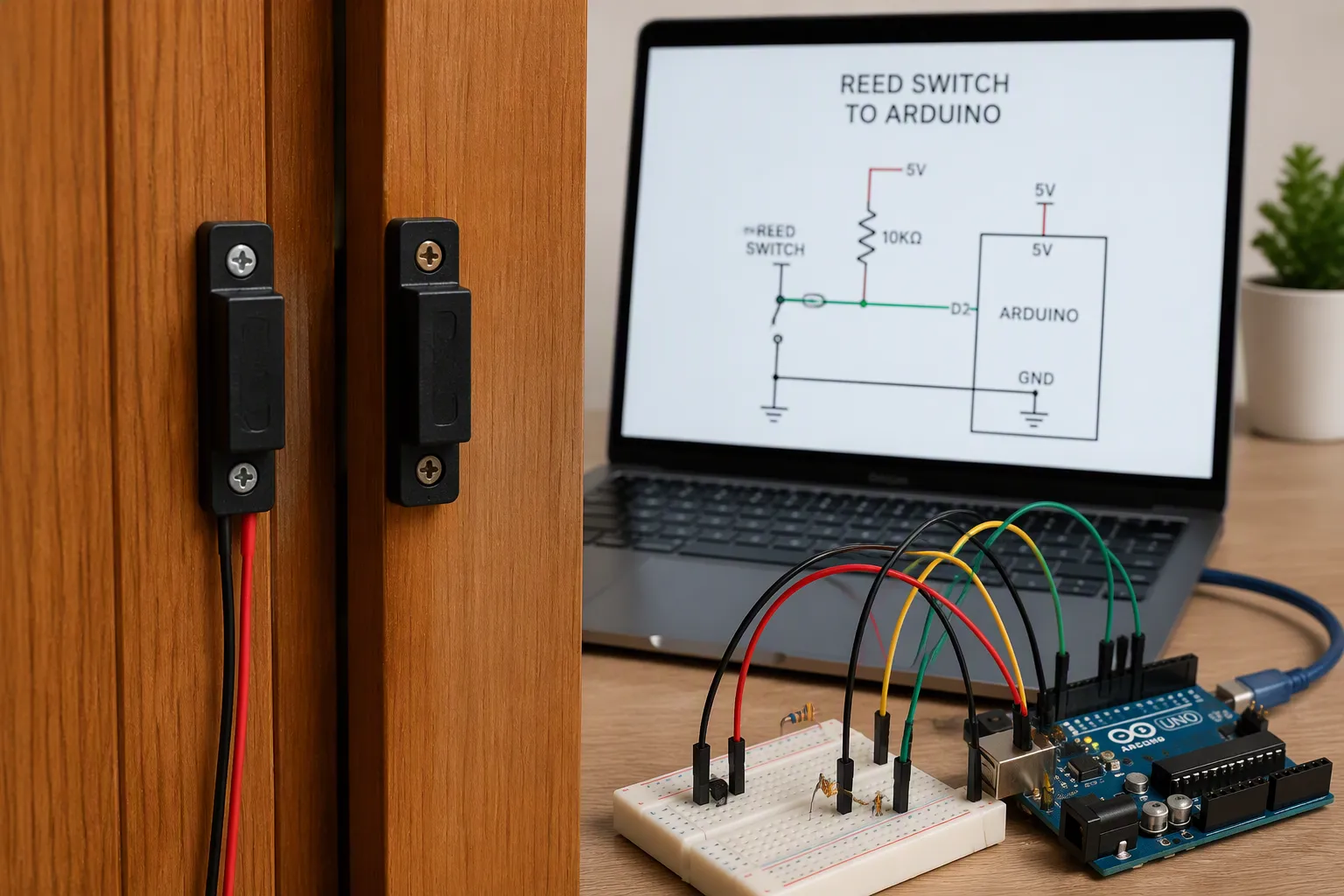
You want to know the moment someone walks through a door. Maybe it's the back gate, a storage room, or the door you want to monitor at night. Whatever the case, you can build a working arduino door alarm sensor with a magnetic reed switch, and you don't need a workshop full of gear to do it.
The idea is simple. Reed switches sit in the frame, a small magnet sits on the door, and the alarm sounds when the door opens. This door sensor is a great first project. You need no prior electronics experience — if you can strip a wire and follow a picture, you're ready.
Key Takeaways
-
Gather simple parts like an Arduino, reed switch, and buzzer to start your door alarm project.
-
Wire the reed switch to your Arduino with a pull-up resistor for reliable door detection.
-
Upload a short code to make the alarm sound when the door opens.
-
Mount the switch and magnet carefully so they line up when the door is closed.
-
Test your alarm and adjust the gap or code to fix false triggers.
Arduino Door Alarm Sensor Overview
What You Will Build
You will build a small, self-contained arduino door alarm sensor. One half of the switch screws to the door frame. The other half, a small magnet on the door, sits right next to it when the door is shut. The moment the door opens, the two halves separate and your Arduino sounds a buzzer or lights an LED. That is the whole trick, and it works every time the door moves.
The MC-38 is a common, easy-to-find choice for this build. It comes as a two-piece set with pre-wired leads, so you skip any soldering. Its sensing distance is 15–25 mm, which gives you a forgiving gap to work with during mounting. The switch is rated for 100 mA and 3 W, and the cable runs about 30.5 cm, long enough to reach a breadboard on most doors.
This project suits a complete beginner. You need no coding background and no special tools. Plan on an afternoon for your first attempt, and less once you have done the wiring once.
Parts and Tools
Gather these parts before you start:
| Part | Notes |
|---|---|
| Arduino Uno (or compatible board) | Any standard board works |
| MC-38 magnetic reed switch | Two-piece set with wired leads |
| Piezo buzzer | For the audible alert |
| LED and resistor | Optional visual indicator |
| Breadboard and jumper wires | For a solder-free build |
| Small screwdriver | For mounting |
Prices vary by region. The MC-38 alone sells for a few dollars or the local equivalent, and an Arduino Uno R3 with a USB cable is widely available for a modest sum. Jumper wires cost very little. You likely already own a screwdriver.
Reed Switch Wiring to the Arduino
How a Reed Switch Works
A reed switch responds to a magnetic field without any physical contact. Two ferromagnetic contacts sit sealed inside a glass tube filled with inert gas. Bring a magnet close, and the contacts become magnetized. They attract each other and snap together, closing the circuit. The switch stays closed while the field remains. Pull the magnet away, and the contacts demagnetize and spring back open.
That snap action is fast, and reed switches handle high switching speeds well. For a door, though, speed hardly matters. You just need a clear state change when the door moves.
A normally open reed switch is the typical pick for door alarms. It sits open with the door shut and the magnet in place, then closes when the magnet moves away. Wait — that sounds backwards, so let's be precise. In most door setups, the magnet holds the contacts closed while the door is shut. When the door opens, the field disappears and the switch opens, which your Arduino reads as a trigger. Either way, the state flips the moment the door moves, and that flip is your signal.
| Feature | Normally Open (NO) | Normally Closed (NC) |
|---|---|---|
| Default state | Open | Closed |
| Magnet effect | Closes circuit | Opens circuit |
| Power in idle state | None | Draws power |
| Common use | Door sensors | Fail-safe systems |
Normally open switches suit battery-powered builds because they draw no power at rest. Normally closed versions shine in fail-safe systems, where a cut wire should trip the alarm. For a simple home build, normally open keeps things easy.
Wiring the Circuit
Keep the connections simple. Run one lead of the reed switch to a digital input on your board, say pin 2. Run the other lead to ground. Add a 10kΩ pullup resistor between that input and the 5V rail for stable readings. This is standard arduino wiring with external pull-up, and it prevents the input from floating.
You can skip the external part. Enable the internal pull-up resistor in your sketch with pinMode(2, INPUT_PULLUP), and the board supplies the pullup for you. Many modules, like the KY-021, already carry an onboard 10kΩ resistor, so you wire them straight to the arduino pin.
For the alert, connect a piezo buzzer's positive lead to an output pin such as pin 8 and its negative lead to ground. Add an LED if you want a visual cue. The LED's negative (shorter) pin goes to GND, and its positive leg runs through a resistor to another output pin.
Double-check every jumper before powering up. Proper wiring here saves you a debugging session later. Once the door sensor's pin reads cleanly and the buzzer sits on its output, you are ready for code.
Code for a Normally Open Reed Switch
The Sketch Explained
Here is a short sketch that reads your sensor and lights an LED when the door opens. Copy it into the Arduino IDE and upload it to your board.
const int REED_PIN = 2;   // Reed switch input
const int LED_PIN = 13;   // Built-in LED

void setup() {
  Serial.begin(9600);
  pinMode(REED_PIN, INPUT_PULLUP);  // Enable internal pull-up
  pinMode(LED_PIN, OUTPUT);
}

void loop() {
  int proximity = digitalRead(REED_PIN);
  if (proximity == LOW) {
    Serial.println("Switch closed");
    digitalWrite(LED_PIN, HIGH);
  } else {
    Serial.println("Switch opened");
    digitalWrite(LED_PIN, LOW);
  }
}
Let's walk through it block by block. The first two lines give names to your pins. Naming them makes the rest of the code easier to read and change later.
The setup block runs once when the board powers on. Serial.begin opens a channel so you can watch readings on your computer. The line pinMode(REED_PIN, INPUT_PULLUP) sets your arduino pin to input pull-up mode. That single call turns on the internal pull-up resistor, so you need no external part. The last line tells the board the LED pin will send voltage out.
The loop block repeats forever. digitalRead checks the pin and stores the result. With the internal pull-up resistor active, the input reads HIGH by default. A closed switch pulls it LOW, which makes the circuit active low. When the reading is LOW, the switch is closed and the LED turns on. When it reads HIGH, the switch opened and the LED turns off.
This logic fits a normally open setup where the magnet holds the contacts together while the door is shut. The moment the door opens, the magnetic field drops away and the reading flips. That flip is your signal.
Adjusting Alarm Behavior
The basic sketch lights an LED, but you can make it trigger an alarm with sound. Add a buzzer on pin 6 and call tone(BUZZER_PIN, 2000) inside the open-door branch. Call noTone(BUZZER_PIN) in the else branch to silence it.
A blinking alert grabs attention better than a steady light. The millis() function tracks time without pausing your sketch. Store the last blink time, compare it to the current time, and flip the LED state once the gap passes your chosen interval. A 200-millisecond blink interval gives a quick, urgent pulse.
You can also add a short delay before the alarm sounds. This prevents a brief bump from setting it off. Keep the delay modest so a real entry still gets caught.
Test each change on its own. Change one thing, upload, and watch the serial monitor. That habit makes debugging far easier than changing five things at once.
Mounting and Testing Your Door Sensor
Mounting on the Door
Pick your spot before you drill anything. Mount the reed switch on the door frame and the magnet on the door itself. The two pieces must line up face to face when the door is shut. Keep the gap small, because a typical switch like the MC-38 senses across roughly 15–25 mm, and a closer magnet gives you more reliable triggering.
| Aspect | What to Expect |
|---|---|
| Maximum sensing gap | About 15–25 mm; closer is better |
| Correct alignment | Detection works as intended |
| Misalignment | The sensor fails to trigger |
Screw the switch half in place first, then hold the magnet half against the door and test the fit. Slide the magnet until it sits centered on the switch. Tighten the screws once the alignment looks right. A clean, flat surface helps here, so wipe away dust or paint buildup around the mounting area.
Testing and Troubleshooting
Power up your board and open the serial monitor. Close the door and watch the readings settle into one steady state. Now open the door slowly. The reading should flip the moment the magnet pulls away, and your buzzer or LED should respond. Close it again and confirm the alarm stops. Repeat this a few times to check the state of the door reads consistently.
No response usually means a dead zone. The magnet sits too far away or off axis, so reposition it until the field lines reach the reeds. False triggers often come from contact bounce, where the reeds strike each other and send rapid pulses. Add software debouncing, or smooth the signal with a small capacitor or RC filter. Also check your wiring for loose jumpers, and confirm the internal pull-up resistor is enabled in your sketch.
A few more fixes worth trying:
-
Clean dirt or debris off the mounting surface.
-
Move the sensor away from nearby electronics and windy spots.
-
Enable a short delay to absorb brief bumps.
If the alarm still misbehaves, swap in a fresh magnet. Magnets weaken over time with heat and weather exposure.
You now have a complete, working arduino door alarm sensor. Your reed switches, magnet, and code all work together, and your door sensor alerts you the moment the door is open.
Want more? Add a buzzer, a blinking LED, or a notification module. Reed switches reward tinkering, and small tweaks teach you plenty.
Try it on an entry door, a cabinet, or a pet door. Reed switches suit all three, and magnetic setups stay reliable in each spot. Reed switches are cheap, too, so build a second one.
Keep experimenting. Your next Arduino project will feel easier than this one.

Written by Jack Elliott from AIChipLink.
AIChipLink, one of the fastest-growing global independent electronic components distributors in the world, offers millions of products from thousands of manufacturers, and many of our in-stock parts is available to ship same day.
We mainly source and distribute integrated circuit (IC) products of brands such as Broadcom, Microchip, Texas Instruments, Infineon, NXP, Analog Devices, Qualcomm, Intel, etc., which are widely used in communication & network, telecom, industrial control, new energy and automotive electronics.
Empowered by AI, Linked to the Future. Get started on AIChipLink and submit your RFQ online today!
Frequently Asked Questions
Can I use a normally closed reed switch instead?
Yes. A normally open switch suits most door alarms, but a normally closed one works too. It stays closed at rest and opens near a magnet. Flip the logic in your sketch so the alarm triggers on a HIGH reading instead of LOW.
How far apart can the switch and magnet sit?
The MC-38 senses across roughly 15–25 mm. Keep the gap closer than that for reliable triggering. A wider gap may work sometimes and fail other times, so test the fit before you tighten the screws.
Why does my alarm trigger when the door is shut?
Check the alignment first. A misaligned magnet leaves the reed switch in a half-state. Also look at your wiring for loose jumpers, and confirm the pull-up resistor is active. Contact bounce can cause false triggers too, so add a short delay in your code.
Do I need a resistor if I use the internal pull-up?
No. Calling pinMode(2, INPUT_PULLUP) turns on the board's internal resistor, so you can skip the external 10kΩ part. Many sensor modules already carry one onboard. Either way, your readings stay stable.
Can I power this from a battery?
Yes. Reed switches draw no power at rest, which makes them a good fit for battery builds. A piezo buzzer and an LED add little draw. Skip the serial monitor and put the board to sleep between triggers to stretch battery life.