How to Build an Analog Clock using ESP32 & SSD1306 OLED Display
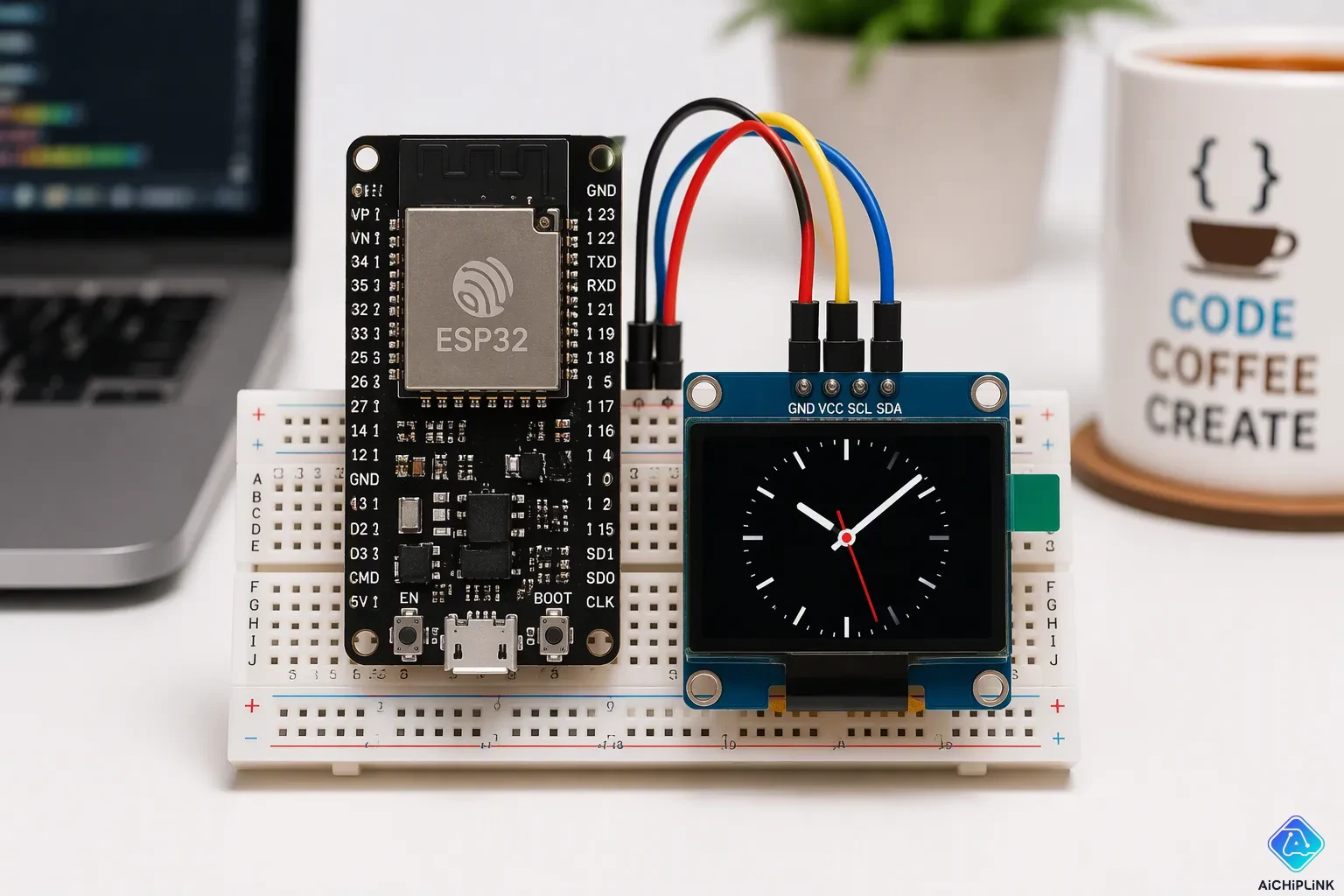
You can build an analog clock with an ESP32 and an SSD1306 OLED display, even as a beginner. This step-by-step guide walks you through parts, wiring, software setup, and the full code. A steps-by-step guide format keeps every stage short and easy to follow.
By the end, you will have a working clock that draws hour, minute, and second hands on the OLED. The clock face updates in real time, and NTP syncing keeps it accurate. Expect about 90–150 minutes of work, suitable for ages 12 and up, with a cost under $35. Beginners and hobbyists will find it a fun weekend project.
Key Takeaways
-
Build a working analog clock with an ESP32 and a small OLED screen. This project costs under $35 and takes about 90–150 minutes.
-
Connect the OLED to the ESP32 using just four wires. Use GPIO 21 for SDA and GPIO 22 for SCL to keep wiring simple.
-
Install the ESP32 board package and two libraries in the Arduino IDE. This setup lets you draw graphics and control the display easily.
-
Sync the clock with an NTP server over Wi-Fi for accurate time. No extra real-time clock module is needed.
-
Draw the clock hands using simple math. Convert hours, minutes, and seconds into angles and refresh the screen every second.
Parts for Building the Analog Clock
ESP32 and OLED Display
You need two main parts for building the analog clock: an ESP32 development board and a small OLED screen. Any common ESP32 board works, and the DIYables 38-Pin ESP32S is a solid pick at $8.99. It runs an ESP-WROOM-32 dual-core chip with built-in WiFi and Bluetooth, and it programs over USB Type-C through a CP2102 converter. The 38-pin layout gives you plenty of GPIO access, and the board works directly with the Arduino IDE.
| Board | Key Specs | Price Range |
|---|---|---|
| DIYables 38-Pin ESP32S | ESP-WROOM-32, WiFi/Bluetooth, USB Type-C, CP2102 | $8.99 |
| DOIT ESP32 DEVKIT V1 | Dual-core ESP32, WiFi/Bluetooth, USB-to-UART | ~$7.27–$9.99 |
| Wemos Lolin32 (with OLED) | ESP32 plus built-in 0.96" SSD1306 screen | ~$3.99–$18.99 |
For the screen, grab a 0.96" OLED display built on the SSD1306 controller with an I2C interface. It shows crisp white pixels on black, and it needs only two signal wires. You do not need a separate RTC module. The ESP32 pulls the time from an NTP server over WiFi, so the clock stays accurate without extra hardware. This project suits beginner-to-intermediate makers, and you can finish it in a weekend.
Wires and Breadboard
A half-size breadboard and a handful of jumper wires cover the wiring. You need four female-to-female jumpers for the I2C connections between the board and the screen. Female ends slide onto the OLED header pins without soldering, so you can test everything first.
Keep the wires short and color-coded. Red for power, black for ground, and two other colors for the data lines make troubleshooting simple. This step-by-step guide assumes no soldering at all. Once the clock works, you can move the circuit to a perfboard for a permanent build.
Wire the OLED Display Using the ESP32 Pinout
I2C Connections
The ESP32 talks to the SSD1306 over the I2C interface, which uses just two signal lines: SDA for data and SCL for the clock. This is why the oled display via i2c needs so few wires. The screen only needs power and those two data lines. Check the esp32 pinout before you plug anything in, because the default i2c pins matter here.
On most ESP32 boards running the Arduino IDE, GPIO 21 is SDA and GPIO 22 is SCL. Calling Wire.begin() with no arguments uses these defaults. You can remap the i2c pins to other GPIOs if you need to, but then you must call Wire.begin(SDA, SCL) with your chosen pins. Unlike an Arduino UNO with its fixed A4 and A5, the ESP32 is flexible. Confirm the pin definition for your specific board if you are unsure.
Wiring Checklist
Follow this table to link the oled to the board:
| OLED Pin | ESP32 Pin |
|---|---|
| Vin | 3.3V |
| GND | GND |
| SCL | GPIO 22 |
| SDA | GPIO 21 |
Work through the wiring one wire at a time. Connect Vin to 3.3V first, then GND to GND. Next, run SCL to GPIO 22 and SDA to GPIO 21. Double-check each link against the esp32 pinout before you power up. A swapped SDA and SCL line is the most common mistake, and it leaves the oled blank. Use red for power, black for ground, and two other colors for the data lines.
Keep the data wires short. Long jumpers can pick up noise and cause the display to fail. Once everything is seated, plug in the USB cable. If the screen stays dark, recheck your links and confirm the address your module uses. A steady, well-lit screen means your setup is correct and you are ready for the code. Then move on to the software.
Set Up the IDE and Libraries
ESP32 Board Package
The Arduino IDE does not include the ESP32 by default. You first add support for it through the Board Manager. Open File → Preferences and look for the Additional Board Manager Address field. Paste https://espressif.github.io/arduino-esp32/package_esp32_index.json there and click OK. This link tells the IDE where to find the latest ESP32 package.
Next, open the Board Manager, search for ESP32, and install the package by Espressif Systems. Restart the IDE after installing so the new board definitions load. Then choose your board from Tools → Board → ESP32 Arduino. Pick the ESP32 Dev Module profile if you are not sure which one fits your hardware. Choosing the right board helps uploads go smoothly.
SSD1306 and Graphics Libraries
Your oled display needs two libraries before it can draw anything. Install Adafruit_SSD1306 for the display driver and Adafruit_GFX for the graphics basics like lines, circles, and text. Open the Library Manager, search for "Adafruit SSD1306," and choose the library published by Adafruit. Click Install, then pick Install all when the IDE asks about dependencies. The IDE adds Adafruit GFX and Adafruit BusIO on its own.
This oled library takes care of the i2c handshake for you, so you never deal with low-level bus code. Since version 1.2, you set the display size in the constructor instead of editing the header file. If you want to draw ellipses, install Adafruit GFX 1.12.2 or later, because 1.12.1 is missing the drawEllipse and fillEllipse functions. Before you write your own sketch, compile and upload an official SSD1306 128×64 i2c example. A working example shows that your wiring, address, and bus settings are correct. Then you can build the clock code on a setup you know works.
Upload the Clock Code
The Complete Sketch
Now comes the fun part. You paste the full sketch into the Arduino IDE and send it to the board. The code below is a shortened skeleton that shows the structure. Get the complete version from the project files and paste it in place of the placeholder lines.
#include <Wire.h>
#include <Adafruit_GFX.h>
#include <Adafruit_SSD1306.h>
#include <WiFi.h>
#include <time.h>
#include <sntp.h>

Adafruit_SSD1306 display(128, 64, &Wire, -1);
int hrs, mins, secs;

void setup() {
  Serial.begin(115200);
  // connect wifi, start NTP, init oled, compute face points
}

void loop() {
  // read current time, draw face and hands, refresh
}
Before you hit upload, check one thing. Some ESP32 boards fail to enter bootloader mode on their own. You then see the error A fatal error occurred: Failed to connect to ESP32: Timed out waiting for packet header. The fix is simple. Hold GPIO0 low by pressing the boot button while the IDE uploads. Users reported this on Arduino IDE v1.6.5 and v1.6.11, and the ESP32 Arduino Core repository shows similar reports. Hold the button until the upload starts, then let it go.
Key Code Sections
The sketch breaks into clear pieces. Each one has a job, and the table below maps them out.
| Component | Purpose |
|---|---|
| Library inclusions (Wire.h, Adafruit_GFX.h, Adafruit_SSD1306.h, WiFi.h, time.h, sntp.h) | Provide i2c communication, oled graphics and display control, wifi connectivity, and time/NTP management |
| Wi-Fi credentials and NTP config variables (ssid, password, ntpServer1, ntpServer2, gmtOffset_sec, daylightOffset_sec) | Store network credentials and NTP server/timezone settings for synchronization |
| Global variables (hrs, mins, secs, display object, NUM_POINTS, RADIUS, pointsX[], pointsY[]) | Hold current time values, the SSD1306 display instance, and precomputed clock-face point coordinates |
| setup() | Runs once: initializes serial, configures time sync, connects wifi, initializes the oled, computes clock point coordinates |
| loop() | Runs continuously: reads and sets local time, computes hand angles and positions, draws the clock face and hands, refreshes the display each second |
| setLocalTime() | Reads local time from the ESP32 RTC and updates hrs, mins, secs |
| timeavailable(struct timeval* t) | NTP synchronization callback that invokes setLocalTime() when time is adjusted |
The setup() function does the heavy lifting once. It starts serial output, connects to wifi, kicks off NTP sync, and wakes the oled display. It also precomputes the twelve tick marks around the face and stores them in pointsX[] and pointsY[]. That saves work later, because the loop never recalculates those points.
The loop() function runs every second. It calls setLocalTime() to grab the current time, then turns hours, minutes, and seconds into angles. From there it draws the face and the three hands, then pushes the frame to the screen. The timeavailable() callback fires whenever NTP adjusts the clock, so your analog clock mode stays locked to real time. Follow this steps-by-step guide and the upload should go smoothly. This step-by-step guide keeps each stage short, so you can debug one piece at a time.
Sync Time with NTP
Wi-Fi and NTP Setup
Your clock needs the right time before it can draw anything. The ESP32 gets that time from an NTP server over Wi-Fi, so the network setup comes first. Start by including WiFi.h and time.h, then store your network name and password in two constant strings. In setup(), call WiFi.begin(ssid, password) and wait in a loop until WiFi.status() reports a connection. A short delay with a printed dot keeps you informed while the board joins the network.
Once Wi-Fi is up, point the board at a public NTP server such as pool.ntp.org. You set two offsets: gmtOffset_sec for your distance from GMT in seconds, and daylightOffset_sec for daylight saving. Then call configTime(gmtOffset_sec, daylightOffset_sec, ntpServer) to start time synchronization. Read the result with getLocalTime() into a struct tm, and check the return value before you trust it. If the call fails, print a message and try again later.
The NTP-Client library offers another route. It talks to servers over UDP, keeps time locally with millis() between syncs, and exposes isValid() so you never draw a bad reading. Call ntp.update() every 30–60 minutes rather than every second, and restart it after a Wi-Fi dropout.
Why No RTC Is Needed
A dedicated real-time clock chip keeps counting through power loss, and that is its main job. Your build skips that part because the ESP32 fetches fresh time from an NTP server each session. Every boot triggers a new ntp synchronization, so drift never builds up. The board's internal clock holds the current time between syncs, and periodic updates keep it honest.
This choice saves money, wiring, and a battery holder. You also avoid the small drift that a cheap crystal accumulates over weeks. The trade-off is simple: no Wi-Fi means no fresh time. For a desk clock on a home network, that is rarely a problem. Keep the router nearby, and your clock stays accurate without extra hardware.
How the Analog Clock Draws the Hands
Time to Angles
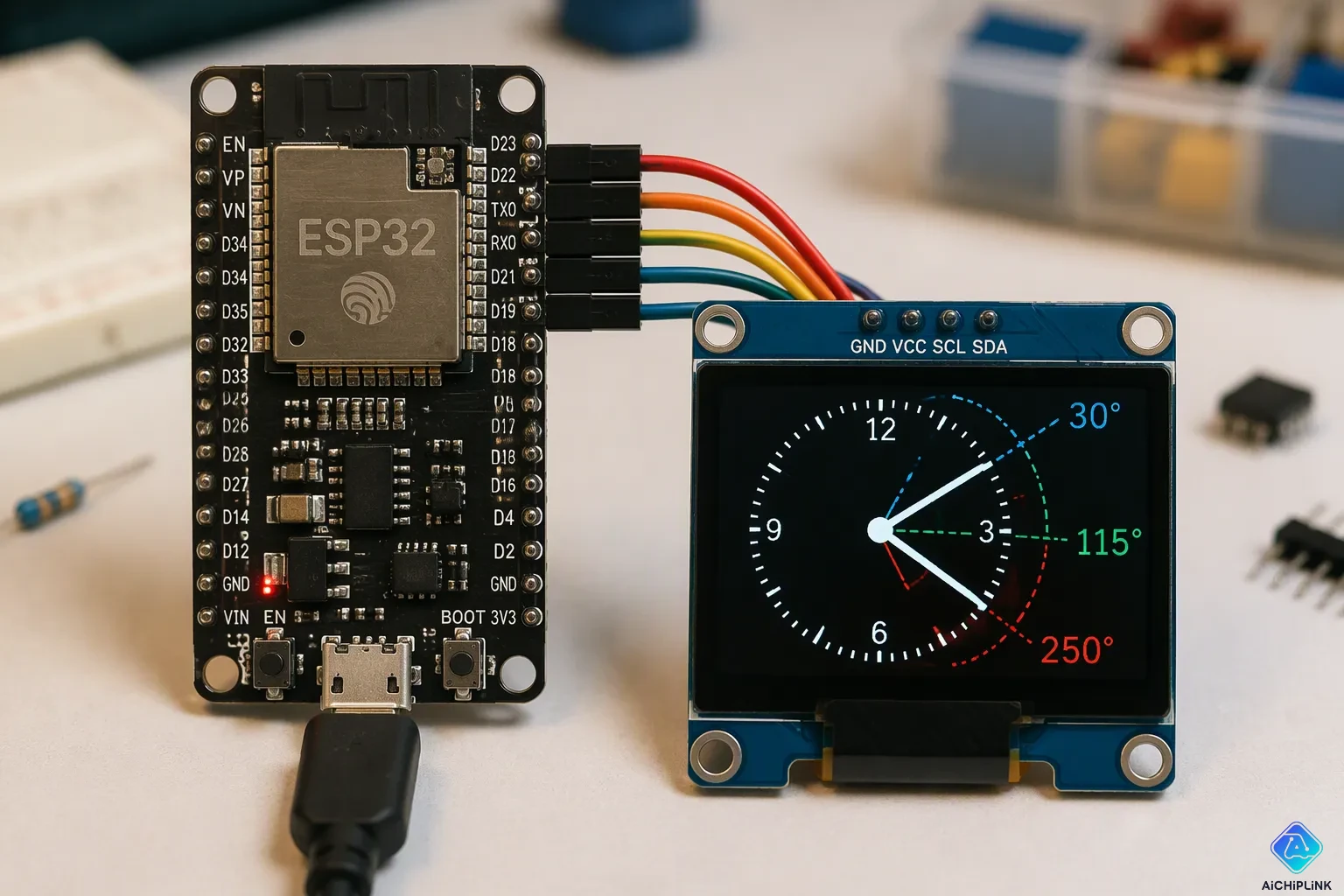
A screen has no moving parts, so the analog clock displayed on your oled works with math instead of gears. Every frame, the sketch reads the current time and converts it into angles. The minute hand angle equals 6° times the number of minutes. The hour hand angle equals 30° times the number of hours, plus 0.5° times the number of minutes. That extra half degree per minute keeps the hour hand drifting smoothly between the tick marks, just like a real clock.
Here is the full sequence your code follows each second:
-
Compute the minute hand angle: 6° × number of minutes.
-
Compute the hour hand angle: (30° × number of hours) + (0.5° × number of minutes).
-
Compute the first angle between the hands: |hour angle − minute angle|.
-
Compute the second angle: 360° − first angle.
Try 9:26 as a test. The minute hand angle is 6° × 26 = 156°. The hour hand angle is (30° × 9) + (0.5° × 26) = 283°. The first angle between them is |283° − 156°| = 127°, and the second angle is 360° − 127° = 233°. You can check this against a wall clock and see it matches.
The second hand skips this formula. It moves in fixed steps, so the sketch multiplies the current second by 6° to place it. Building the hands this way means you never store hand positions. You derive them fresh from the current time on every pass.
Drawing and Refreshing
With the angles ready, the sketch turns each one into a line on the clock face. It starts at the center point of the oled and extends outward by a set radius. The hour hand gets the shortest length, the minute hand reaches farther, and the second hand stretches closest to the rim. A short line or dot at the center hides the joint where all three meet.
The refresh cycle matters as much as the drawing. Your loop clears the buffer, redraws the face, draws the clock hands, and pushes the frame to the screen. The i2c bus carries that frame in one quick burst. Because the whole frame redraws each second, the second hand appears to sweep in clean steps with no ghost trails.
Keep the drawing order consistent. Draw the face first, then the hands on top. If you draw the hands first, the tick marks will cover them. The i2c link stays busy only briefly, so the oled keeps up easily. This simple loop is the heart of your analog clock, and it runs reliably for days.
You now have a working analog clock on an OLED display, driven by the ESP32 and synced to an NTP server. The build costs little, takes up almost no desk space, and skips the RTC module entirely. Along the way, you picked up real skills: I2C wiring, OLED graphics, and how a clock tracks the current time.
Your hardware can do more. Flash a new sketch and the same board becomes a digital IoT clock. You can also restyle the clock face, swap hand lengths, or add a date line. Try one upgrade this weekend and see where your OLED based clock takes you.

Written by Jack Elliott from AIChipLink.
AIChipLink, one of the fastest-growing global independent electronic components distributors in the world, offers millions of products from thousands of manufacturers, and many of our in-stock parts is available to ship same day.
We mainly source and distribute integrated circuit (IC) products of brands such as Broadcom, Microchip, Texas Instruments, Infineon, NXP, Analog Devices, Qualcomm, Intel, etc., which are widely used in communication & network, telecom, industrial control, new energy and automotive electronics.
Empowered by AI, Linked to the Future. Get started on AIChipLink and submit your RFQ online today!
Frequently Asked Questions
What happens if my Wi-Fi drops?
Your clock keeps running on the ESP32's internal clock. It just stops pulling fresh time. The hands keep moving, but drift creeps in. Reconnect the wifi and the next ntp server sync corrects everything. For a desk clock, a brief dropout is no big deal.
Why does my OLED stay blank after upload?
A blank screen usually means swapped data lines. Check that SDA sits on GPIO 21 and SCL on GPIO 22. Also confirm your module's i2c address matches the sketch. Most SSD1306 boards use 0x3C, but some use 0x3D. Run an i2c scanner sketch to find yours.
Can I change the time zone without reflashing?
Yes, but you must edit the sketch. Adjust gmtOffset_sec and daylightOffset_sec, then upload again. The board reads the current time from the ntp server and applies your offset. There is no menu on the oled, so a quick re-upload is the simplest path.
Does the clock keep time after I unplug it?
No. The ESP32 loses its internal time on power loss. On the next boot, it reconnects to wifi and syncs with an ntp server again. That takes a few seconds. You get accurate time back without any RTC battery.
How often should the clock resync?
Once at startup is enough for most desk setups. If you want tighter accuracy, resync every 30–60 minutes. Each sync refreshes the current time and keeps the clock face honest. Frequent syncing costs almost nothing on your wifi network.