Building a Flappy Bird Game using OLED SSD1306 & ESP32
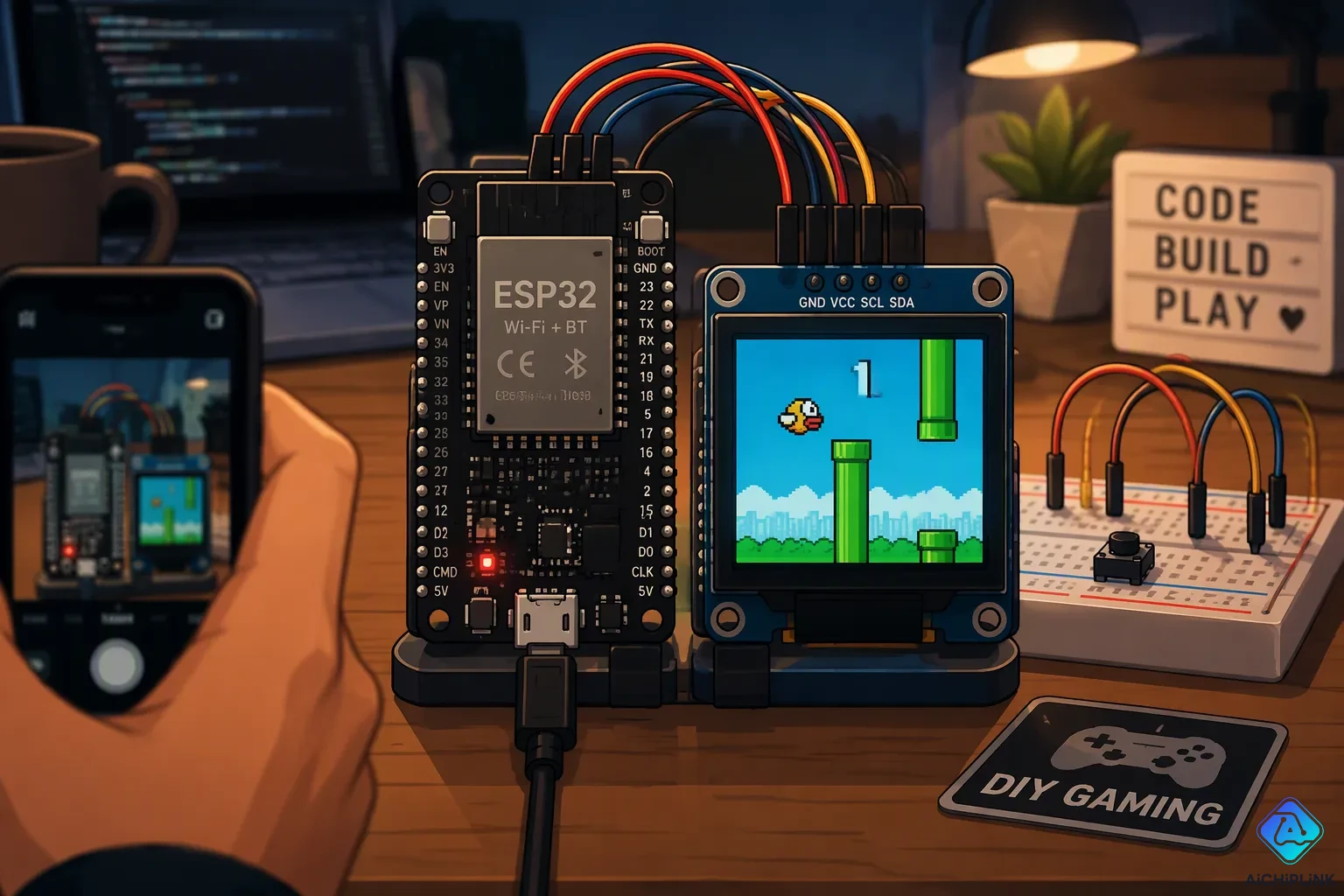
You can build a real flappy bird game on an ESP32 and a tiny oled display. The parts list stays short: one microcontroller board, one SSD1306 oled screen, one push button, one buzzer, and jumper wires. That small pile of parts turns into a handheld game you can hold in your palm.
A working mini flappy bird clone feels great to finish. You press a button, the bird flaps, and the pixels respond. This flappy bird style game teaches you input handling, graphics, and simple physics on a microcontroller.
You will move from wiring to setup, then to code and customization. Each step builds on the last one, so you always know why the oled shows what it shows.
Key Takeaways
-
Build a handheld Flappy Bird game using an ESP32, an OLED screen, and a few simple parts.
-
Wire the OLED display and test it with a quick sketch before adding game code.
-
Program gravity, pipes, collision, and scoring to make the bird flap and the game respond.
-
Customize difficulty by adjusting gravity, pipe gap, and scroll speed to make the game harder or easier.
-
Add sound with a buzzer and expand the project with new graphics or enclosures for more fun.
Parts and Wiring for Your Flappy Bird Game
You need a short list of parts for this build. Gather one ESP32 development board, one 128x64 I2C SSD1306 oled display (the 0.96-inch size is typical), one push button or joystick module, a breadboard, and jumper wires. Add an optional buzzer if you want sound later. A smaller oled display 128x32 / 0.91 inch variant also works, but you will need to adjust the drawing code for the shorter height.
Components and OLED Display Connections
The oled display talks to the microcontroller over I2C, so the wiring stays simple. The ESP32 uses GPIO21 for SDA and GPIO22 for SCL by default. Connect the four display pins as shown below.
| OLED Pin | ESP32 Pin |
|---|---|
| VIN | 3.3V |
| GND | GND |
| SCL | GPIO 22 |
| SDA | GPIO 21 |
Double-check the VIN label on your module before you power it. Most breakouts accept 3.3V, and the ESP32 logic runs at that level. Keep the wires short on the breadboard, because long jumper runs can make the I2C bus unreliable.
An SH1106 oled can substitute for the SSD1306 with minor library changes. The SH1106 has a 132 x 64 bit RAM array that maps onto the same 128x64 pixel screen, so it leaves four extra columns unused. Pixel data must shift by two columns to line up. Adafruit_SSD1306 handles the SSD1306 cleanly, while the SH1106 usually needs a library like U8g2. Using an SSD1306 library on an SH1106 panel may produce offset or wrong output.
Button Input as Jump Control
Button input as jump control needs one clean signal, and a bare switch gives you a floating pin. A pull-up or pull-down resistor fixes that problem by holding a defined default voltage. The table below shows your options.
| Setup / Arduino mode | Resistor and button wiring | Released | Pressed |
|---|---|---|---|
| External pull-up / INPUT | 10 kΩ from GPIO to 3.3 V; button from GPIO to GND | HIGH | LOW |
| External pull-down / INPUT | 10 kΩ from GPIO to GND; button from GPIO to 3.3 V | LOW | HIGH |
| Internal pull-up / INPUT_PULLUP | No external resistor; button from GPIO to GND | HIGH | LOW |
| Internal pull-down / INPUT_PULLDOWN | No external resistor; button to 3.3 V | LOW | HIGH |
For a first circuit, wire the single button to GPIO27 and start with a 10 kΩ resistor for an external pull. The internal resistors are simpler, and the ESP32 provides both pull-ups and pull-downs in code through pinMode(27, INPUT_PULLUP) or pinMode(27, INPUT_PULLDOWN). Note that these internal resistors do not debounce the switch, so expect a few false triggers until you add a short delay or a software filter.
Avoid boot-strapping pins such as GPIO0, GPIO2, GPIO5, GPIO12, and GPIO15. A button or resistor on those pins can change the boot configuration. On classic ESP32 boards, GPIO34 through GPIO39 are input-only and lack internal pulls, so use external resistors there.
A joystick module works as an alternative to the one button. You can read its switch contact for the flap and its analog axes for menu navigation later. Either way, one button input is enough to play the flappy bird game, and joystick input simply adds room to grow.
IDE and Library Setup
ESP32 Board and SSD1306 Libraries
Begin with the Arduino IDE, version 1.8 or newer, from arduino.cc. The Arduino IDE does not recognize your board right away, so you must add board support first. Open File → Preferences and locate the Additional Board Manager URLs field. Paste https://espressif.github.io/arduino-esp32/package_esp32_index.json there and confirm. Next, open Tools → Board → Board Manager, search for ESP32 by Espressif Systems, and install the package. Restart the Arduino IDE after installation, then choose your board from Tools → Board. This step lets you program the ESP32 without errors.
Now add the display libraries through Sketch → Include Library → Manage Libraries. Search for SSD1306 and install the Adafruit SSD1306 library. The Library Manager also brings in Adafruit GFX, the graphics core, and Adafruit BusIO, which the SSD1306 library needs since it split into separate parts. The ThingPulse esp8266-oled-ssd1306 library is a full-featured alternative. It draws pixels, shapes, bitmaps, and aligned text, and you include it as SSD1306Wire.h.
Testing the OLED with a Quick Sketch
Before the game, make sure the OLED display responds. Your module likely uses I2C address 0x3C or 0x3D, and the right value depends on the specific board. Run an I2C scanner sketch on the microcontroller to find the address automatically. If the scan gives no clear result, try 0x3C and then 0x3D in your code. Check that SDA sits on GPIO21 and SCL on GPIO22 so the scan can succeed.
Then load a short test sketch. The snippet below starts the OLED and prints text, which checks your OLED initialization:
#include <Wire.h>
#include <Adafruit_GFX.h>
#include <Adafruit_SSD1306.h>
Adafruit_SSD1306 display(128, 64, &Wire, -1);
void setup() {
  display.begin(SSD1306_SWITCHCAPVCC, 0x3C);
  display.clearDisplay();
  display.setTextSize(1);
  display.setTextColor(SSD1306_WHITE);
  display.setCursor(0, 0);
  display.println("OLED OK");
  display.display();
}
void loop() {}
A visible message means the wiring and libraries work. Fix the address or connections now, before game code adds confusion.
Game Code and Bird Movement and Physics
The full sketch follows a clear structure. First come the library includes, pin defines, and global variables. Next comes setup(), which starts the OLED, seeds the random number generator, and draws an intro screen. The loop() then handles button polling, game state, and rendering. A frame delay sets your pace. One working ESP32-S3 build uses a frame delay constant of 50 ms, which yields about 20 frames per second. That rate keeps the game loop logic responsive and smooths button input naturally. You can push for a higher rate later, but 20 FPS is a solid, proven target for this hardware.
Pipes, Collision, and Scoring
Your flappy bird game needs four systems: gravity, pipes, collision detection, and scoring. The bird physics stay simple. Each frame adds a fixed amount to the bird's downward speed, and a flap sets that speed to a negative value. This gravity-based flying mechanic needs no floating point or timers, because gravity and velocity tie directly to the frame step. Store the bird as a struct with an x and y position, and store each obstacle as a struct holding its x position, top height, bottom height, and bottom y value.
The scrolling pipe obstacles spawn as vertical pipes with gaps at random heights. Each frame moves every pipe left by a fixed number of pixels. When a pipe leaves the screen, recycle it to the right edge with a new gap. Detecting collisions means checking the bird's bounding box against each pipe's top and bottom rectangles, plus the screen edges. A hit ends the run. Passing a pipe without contact adds one point to the score, and you draw that score in a corner of the OLED.
Step-by-Step Code Walkthrough
Read the sketch in three passes. The first pass covers definitions, setup, and game state. The second pass covers game mechanics and the player sprite, including the flap handling and high-score saving. The third pass covers rendering: the menu screen, the countdown animation, the main game view, and the game-over screen.
| Sketch component | Purpose |
|---|---|
| Library includes | Adafruit_GFX, Adafruit_SSD1306, and a button library |
| Pin and constant defines | Button pin, screen size, pipe and bird dimensions, thresholds |
| Global variables | Button state, bird speed, game state |
| Structs | Obstacle and Player |
| setup() | OLED init, intro screen, debounce setup, random seed |
| loop() | Button polling, state handling, physics update, collision check, draw |
Keep bird movement and physics in one small function. Read the button input there, apply the flap impulse, add gravity, and clamp the bird inside the screen. Then update pipes, test for collisions, and redraw. This order matters, because you want the OLED to show the result of every physics step. Change one constant at a time and watch the effect on screen.
Customize Your Flappy Bird Game
Difficulty, Graphics, and Sound
Three constants control how hard your flappy bird game feels. Gravity sets how fast the bird falls. Pipe gap size sets how much room you get. Scroll speed sets how quickly the pipes arrive. Raise gravity and shrink the gap for a tougher run. Lower gravity and widen the gap for a gentler one. Change one value at a time and play a few rounds. You will feel the difference right away.
Sound adds a lot for very little work. A passive buzzer on a spare GPIO gives you flap clicks and a game-over beep. The ESP32 does not use the standard tone() function. Drive the buzzer with the LEDC peripheral instead, and ledcWriteTone() produces stable frequencies on any PWM-capable pin. One working build wires the buzzer to GPIO 23 and holds the pin high for 500 ms on a crash. A millis() check, such as a 40 ms window, can time shorter beeps without blocking the game loop.
Graphics are just as easy to change. Redraw the bird as a small bitmap, or swap the pipe rectangles for textured columns. If you own an SH1106 panel, remember the two-column offset and use a library like U8g2. Your oled display will reward small tweaks with a fresh look.
Enclosures and Extra Features
A simple enclosure turns a breadboard project into something you can carry. Cut a window for the oled, drill a hole for the one button, and leave a slot for the USB cable. Cardboard works for a first version. Laser-cut acrylic or a 3D-printed shell looks sharper.
Compact boards suit mini builds well. The ESP32-S3 SuperMini runs the whole game on a single small board, and it needs only a single button for control. All physics, rendering, collision detection, and scoring happen in real time on the microcontroller. The engine is easy to modify and extend, so the same hardware supports many further project ideas.
| Benefit | Detail |
|---|---|
| Complete game on one small board | Physics, rendering, collision, scoring |
| Minimal hardware | One button for control |
| Real-time performance | Logic and rendering on-chip |
| Expandability | Easy to remix and extend |
You now have a working flappy bird game on an ESP32 and a small oled display. You wired the screen, tested it with a quick sketch, and added gravity, pipes, collision, and scoring. That is a real handheld game you built yourself.
Try the customization ideas next. Tweak gravity, widen the pipe gap, or add a buzzer for sound effects. Then share your version with the maker community. Other builders learn from your code and your enclosure.
The same hardware runs many simple games. Start with sound, then try a new game on the same screen. Keep experimenting, and enjoy every round you play.

Written by Jack Elliott from AIChipLink.
AIChipLink, one of the fastest-growing global independent electronic components distributors in the world, offers millions of products from thousands of manufacturers, and many of our in-stock parts is available to ship same day.
We mainly source and distribute integrated circuit (IC) products of brands such as Broadcom, Microchip, Texas Instruments, Infineon, NXP, Analog Devices, Qualcomm, Intel, etc., which are widely used in communication & network, telecom, industrial control, new energy and automotive electronics.
Empowered by AI, Linked to the Future. Get started on AIChipLink and submit your RFQ online today!
Frequently Asked Questions
Why does my OLED stay blank after upload?
Check the I2C address first. Your module likely uses 0x3C or 0x3D, and the wrong value leaves the screen dark. Confirm SDA sits on GPIO21 and SCL on GPIO22. Then run an I2C scanner sketch to see whether the display answers at all.
Can I use an SH1106 display instead of an SSD1306?
Yes. The SH1106 maps its memory onto the same 128x64 pixel screen, but it leaves four extra columns unused. Shift your pixel data by two columns and switch to a library like U8g2. An SSD1306 library on an SH1106 panel may produce offset or wrong output.
Why does the bird flap more than once per press?
A bare switch bounces, and the ESP32 internal resistors do not debounce it. Add a short delay or a software filter in your button code. You can also poll the pin once per frame, which naturally smooths most false triggers.
How do I make the game harder or easier?
Adjust three constants: gravity, pipe gap size, and scroll speed. Raise gravity and shrink the gap for a tougher run. Lower gravity and widen the gap for a gentler one. Change one value at a time and play a few rounds to feel the result.
Can I add sound to the game?
Yes. Wire a passive buzzer to a spare GPIO, such as GPIO23. The ESP32 does not use the standard tone() function, so drive the buzzer with the LEDC peripheral and ledcWriteTone(). A millis() check times short beeps without blocking the game loop.